The Best DaVinci Resolve Plugins in 2026 (And What Each One Actually Does)
The best DaVinci Resolve plugins for 2026; covering AI automation, color grading, noise reduction, transcription, and silence removal for professional editors.
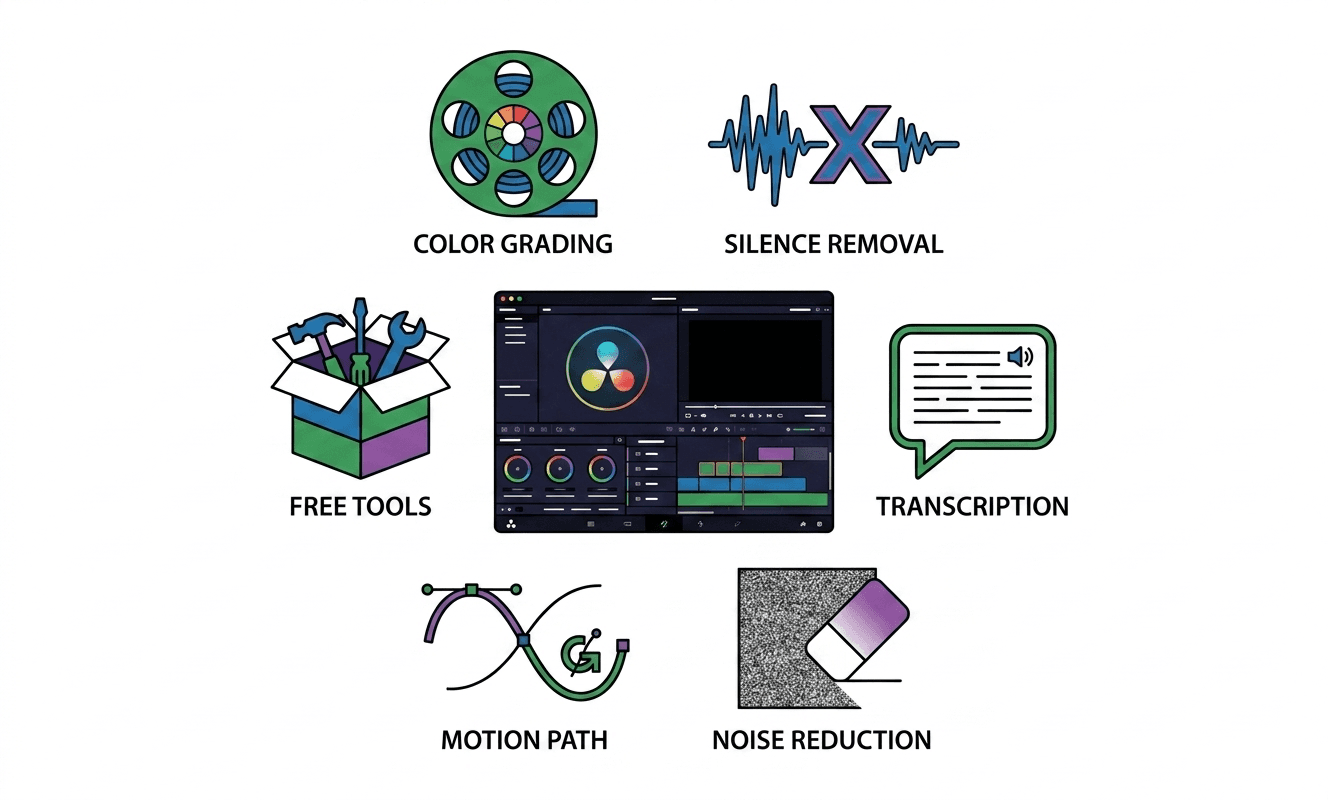
TLDR: The best DaVinci Resolve plugins in 2026 split into two jobs: pre-editing automation (sync, transcription, silence removal before you open Resolve) and in-timeline enhancement (color, noise reduction, motion graphics). Most roundups only cover the second half.
DaVinci Resolve is the most capable free NLE available, but its built-in toolset has gaps. Color grading is world-class; automated transcription and silence removal are not. AI camera switching does not exist inside Resolve natively. And if you are cutting long-form multicam footage, you are still doing most of the prep work by hand before you build a single sequence. The right plugin stack fills those gaps. Here is what is worth installing in 2026.
How DaVinci Resolve Plugins Are Categorized
Most plugin roundups treat Resolve plugins as a single category. They are not. There are two distinct jobs plugins do in a professional workflow, and knowing the difference saves you from buying tools that overlap.
In-timeline plugins enhance what happens inside Resolve: color grading, noise reduction, motion graphics, transitions, and audio cleanup. These are the classic OFX and Fusion-based plugins.
Pre-editing tools handle the work that happens before your timeline exists: syncing multicam footage, transcribing dialogue, removing silences, organizing clips into rough cuts, and handing everything off to Resolve as a structured project. These tools are increasingly AI-driven and increasingly separate from the NLE itself.
The distinction matters because the two categories solve completely different problems. An editor who spends four hours building a rough cut before touching color grading needs a different tool than one who spends four hours on noise reduction in Fusion. Both are wasting time. The fixes are different.
Pre-Editing and AI Automation
Selects by Cutback
Selects is a standalone desktop app that handles the entire pre-edit before you open DaVinci Resolve. Drop in raw multicam footage. Selects syncs up to 10 tracks using MFCC spectral analysis (no scratch audio or PluralEyes round-trip needed), diarizes speakers at 97-98% accuracy, generates a word-level transcript, removes silences and filler words across all tracks simultaneously, organizes clips into topic-labeled chapters, and builds a rough cut. When you open Resolve, you open a structured DaVinci Resolve timeline, not a bin of raw cards.
This is the pre-editing layer that most plugin roundups skip entirely, but it is where the hours actually go on long-form multicam projects. Selects is not a Resolve plugin; it runs upstream of the NLE. The output is a native DaVinci Resolve timeline with nested sequences and B-roll bins. For podcast agencies, YouTube studios, and documentary teams cutting four-camera shoots, this is the most time-saving tool in this entire list.
Best for: Long-form multicam, podcast, and interview editing, documentary prep.
AutoCut
AutoCut is a DaVinci Resolve plugin that handles silence removal, zoom automation, and basic chapter detection inside the timeline. It works directly within Resolve and is one of the more established tools in this category. The silence removal is functional for single-camera talking-head footage. It is less reliable on multicam shoots where audio overlaps across tracks, and it does not produce a full rough cut. It removes dead air; it does not assemble a narrative structure.
AutoCut uses a volume threshold model rather than AI-driven speech detection, which means it can cut mid-word on quieter passages if the threshold is set aggressively. Useful for solo YouTubers and creators doing single-camera recordings. Less suitable for agency or studio workflows with complex audio routing.
Best for: Solo creators, single-camera talking-head footage, YouTube vlogs.
FireCut
FireCut is another DaVinci Resolve plugin covering silence removal, zoom cuts, and caption generation. Its feature set overlaps significantly with AutoCut. The zoom automation generates programmatic camera movement on static footage, which is useful for creators who want dynamic cuts on solo recordings. Caption output quality varies depending on audio clarity.
FireCut markets itself primarily to YouTube creators and has a strong following in the creator community. Like AutoCut, it is not designed for complex multicam shoots or the kind of pre-editing prep that long-form documentary and interview projects require.
Best for: YouTube creators, single-camera recordings, social clips.
Color Grading
Dehancer Pro
Dehancer is the most comprehensive film emulation plugin available for DaVinci Resolve. It simulates analog film stocks with physically accurate grain, halation, film damage, bloom, and gate weave. The color science is genuinely different from digital LUTs: Dehancer models the full photochemical process, so the results hold up under heavy color manipulation without falling apart the way a simple LUT does.
Dehancer Pro is an OFX plugin that runs inside Resolve's Color page. It is computationally heavy on complex projects, and it requires a capable GPU for real-time playback. The learning curve is real, but so is the output. For narrative work, branded content, and any project where the look matters, Dehancer is the standard recommendation.
Best for: Narrative, documentary, branded content, cinema-grade color work.
Noise Reduction
Neat Video
Neat Video is the industry-standard noise reduction plugin for DaVinci Resolve. It uses a sample-based noise profiling approach: you select a section of flat noise in your footage, Neat Video builds a noise profile from it, and then removes noise across the clip with fine-grained control over luminance and chrominance reduction. The results on low-light and high-ISO footage are significantly cleaner than Resolve's built-in noise reduction.
Neat Video is GPU-accelerated and has been continuously updated for current hardware. It is one of the few plugins where the paid version offers a meaningful performance and quality upgrade over the free alternative. The free version is limited to HD output.
Best for: Low-light footage, high-ISO camera originals, broadcast content.
Motion Graphics and Fusion Extensions
Reactor
Reactor is an open-source, community-built package manager for DaVinci Resolve's Fusion page. It gives you access to hundreds of free scripts, macros, Fusion templates, and LUTs that are not available through official channels. Installation is one click inside Resolve. There is no ongoing cost.
For editors who use Fusion for compositing, motion graphics, and visual effects work, Reactor is the first thing to install. The community library includes tools for every category: glitch effects, 3D warping, lens flares, title animations, audio visualization, and workflow utilities. Quality varies by package, but the volume and accessibility of the library make it an essential starting point.
Best for: Fusion-based compositing, motion graphics, and extending Resolve with community tools.
Boris FX Continuum (for Resolve)
Boris FX Continuum is a large suite of effects, transitions, and compositing tools that works across multiple host applications, including DaVinci Resolve. The Resolve-compatible portion of Continuum covers particle effects, light effects, image restoration, lens correction, and a significant transitions library. Boris FX is the professional standard for effects work in broadcast and post-production environments.
Continuum is expensive relative to other plugins on this list. It is worth the investment for studios and agencies doing high-volume broadcast or branded content where the effects library gets used repeatedly. For solo editors or small teams, the cost-to-use ratio is harder to justify.
Best for: Broadcast, high-end branded content, studios with volume effects needs.
Audio
iZotope RX Elements (for Fairlight)
iZotope RX is the professional standard for audio restoration in post-production. RX Elements, the entry-level version, covers dialogue noise reduction, de-reverb, de-click, and spectral repair. In a DaVinci Resolve workflow, RX integrates with the Fairlight audio page via Audio Random Access (ARA) or as a standalone round-trip tool.
For interview and podcast workflows specifically, RX's dialogue isolation and noise reduction capabilities address problems that Fairlight's built-in tools cannot. Room tone inconsistency, background hum, reverberant spaces, and microphone issues all respond well to RX. Elements covers the most common use cases at a price point accessible to individual editors.
Best for: Interview, podcast, documentary audio cleanup, dialogue restoration.
How to Install DaVinci Resolve Plugins
DaVinci Resolve supports OFX plugins, which install into a system-level directory that Resolve reads on launch. The process is consistent across most plugins:
Download the installer from the plugin vendor's site
Run the installer. It places the plugin into the correct OFX directory automatically
Restart DaVinci Resolve
The plugin appears in the Effects Library under OpenFX
Reactor installs differently: download the Reactor bootstrap script from the Reactor website, run it inside Resolve via the Fusion page Console, and then browse the library from inside Resolve. No external installer needed.
Free DaVinci Resolve plugins from platforms like Motion Array and Mixkit are typically .drfx or folder-based packages that install by dragging into Resolve's templates directory.
Which Plugins Are Worth Paying For
Most editors do not need every tool on this list. The practical question is which gaps in your current workflow are costing the most time.
For pre-editing overhead on multicam shoots, Selects addresses the bottleneck before Resolve opens. For silence removal on single-camera talking-head footage, AutoCut or FireCut handles it inside the timeline. For color, Dehancer is the serious choice for editors who treat look development as craft. For noise reduction, Neat Video is the standard. Reactor fills the rest with free community tools that cover motion graphics and Fusion work without additional cost.
The plugins that pay for themselves fastest are the ones that address the workflow step you repeat on every project. For long-form video teams, that step is almost always pre-editing prep, not color or noise. For solo YouTube creators, it is usually silence removal or caption generation. Start there.
Frequently Asked Questions (FAQs)
Q: What are the best free DaVinci Resolve plugins?
A: Reactor is the most valuable free resource for DaVinci Resolve. It is an open-source package manager that gives you access to hundreds of community-built scripts, Fusion macros, LUTs, and templates at no cost. For free silence removal, AutoCut and FireCut both offer limited free tiers. Resolve's built-in noise reduction covers basic use cases without a paid plugin.
Q: How do I install plugins in DaVinci Resolve?
A: Most DaVinci Resolve plugins use the OFX standard. Download the installer from the vendor's site, run it (it places the plugin into the correct system directory automatically), and restart Resolve. The plugin then appears in the Effects Library under OpenFX. Reactor uses a different process: install the bootstrap script inside Resolve's Fusion Console and browse the library from within Resolve.
Q: Does DaVinci Resolve have AI transcription built in?
A: DaVinci Resolve Studio includes basic transcription via the Cut and Edit pages. The free version of Resolve does not include the Magic Mask or transcription features. For professional-grade transcription with word-level timestamps, speaker diarization, and multicam support, dedicated tools like Selects provide significantly higher accuracy and NLE-native project export.
Q: What is the best plugin for removing silence in DaVinci Resolve? A: For single-camera talking-head footage, AutoCut and FireCut both handle silence removal inside Resolve at comparable quality. For multicam projects with multiple audio tracks, both tools have limitations; they process one track at a time and use volume-threshold detection rather than AI speech recognition. Selects handles silence removal across all tracks simultaneously before the project is imported into Resolve, which is more efficient for complex multicam shoots.
Q: Do DaVinci Resolve plugins work on the free version?
A: Most OFX plugins work on both the free and Studio versions of DaVinci Resolve. Some features within plugins may require Resolve Studio; for example, Neat Video's full resolution output requires Studio. Reactor and most Fusion templates work on the free version. Check each vendor's compatibility notes before purchasing.
Q: What is the best DaVinci Resolve plugin for color grading?
A: For film look and cinematic color work, Dehancer Pro is the professional standard, it simulates analog film stocks with physically accurate grain, halation, and film response. For noise reduction in color work, Neat Video is the industry-standard tool. Both have free trials and work as OFX plugins on the Color page.

Kay Sesoko
Marketer