Premiere Pro Multi-Cam Plugins Compared: Premiere Assistant, Firecut, AutoCut, AutoPod
Real-world comparison of Premiere Assistant, FireCut, AutoCut, and AutoPod, tested on a 2-hour podcast for speed, accuracy, and multi-cam editing usability.
TLDR: The best multicam editing plugins for Premiere Pro in 2026 are Premiere Assistant for AI-automated switching and syncing, and PluralEyes for manual multi-source audio alignment; the right choice depends on whether you need automation or granular control.
Multi-cam editing can make your videos feel more dynamic and professional, but it’s also one of the most time-consuming parts of the editing process. Fortunately, there are several Premiere Pro plugins that help automate and streamline this task. We tested four of the most popular multi-cam plugins in 2025: Premiere Assistant, Firecut, Autocut, and Autopod, and here’s what we found.
Why Multi-Cam Editing Matters
Multi-cam editing isn’t just about switching angles. Done right, it enhances your storytelling, keeps your content engaging, and makes your videos feel polished and professional.
Boosts engagement: Multiple camera angles keep your audience visually stimulated.
Improves clarity: You can highlight different speakers or visuals more effectively.
Reduces drop-off: Smooth transitions help maintain viewer attention throughout.
Why Multi-Cam Editing Is So Challenging
Editing a single track is one thing, but when you're juggling three or more cameras, plus audio tracks? That’s where things get complicated. Based on real-world feedback from editors, here are the biggest hurdles:
Syncing multiple timelines and audio sources
Choosing the best angle for every moment
Making edits flow naturally across transitions
Managing heavy files that slow down the timeline
If you've been struggling with multi-cam editing, then make sure to check out the common mistakes to avoid while multi-cam editing that will ruin your video edit.
Can’t You Do Multi-Cam Editing in Premiere Pro?
Yes, Premiere Pro does support multi-cam editing with its built-in features. Here’s how it generally works:
How to Edit Multi-Cam Footage in Premiere Pro (Without Plugins)
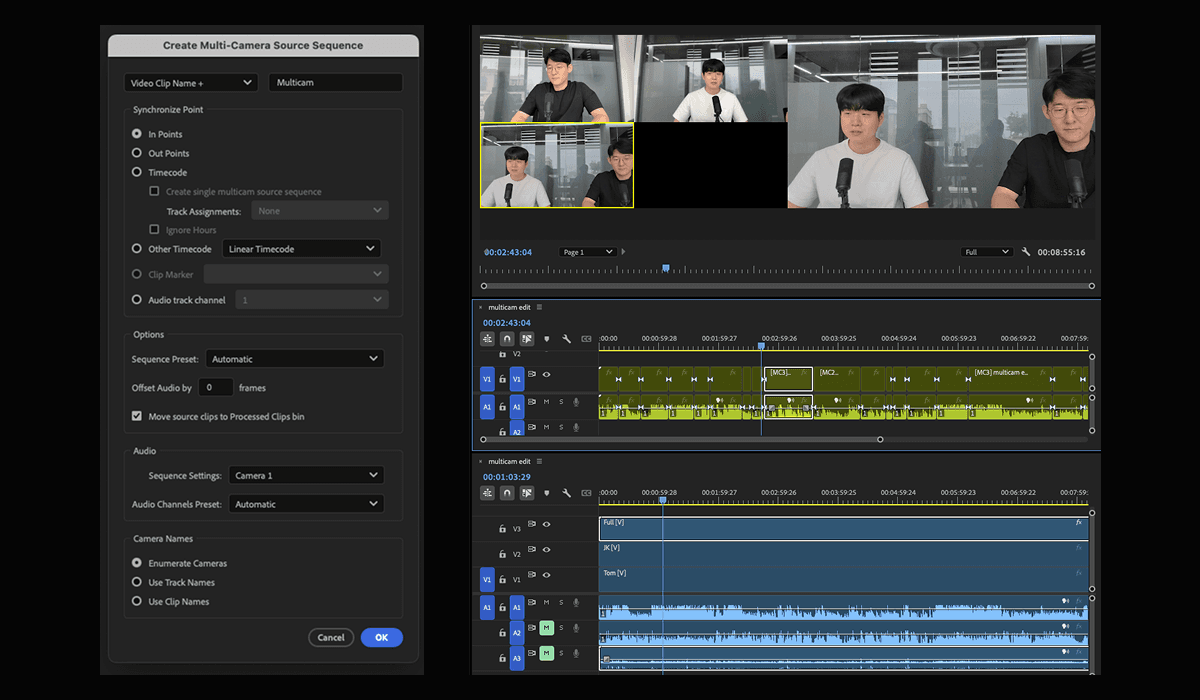
Import all your video and audio files
Select all clips > Right-click > Create Multi-Camera Source Sequence
Choose audio sync if needed
Drag the new multi-cam sequence into your timeline
Enable Multi-Camera Monitor
Window > Multi-Camera
Play and switch cameras live by clicking the angle or pressing number keys (1, 2, 3…)
But There Are Limitations
While this native workflow is functional, many editors run into key pain points:
You can’t make timeline-based edits easily (you have to jump between sequences)
Camera switching is manual and can’t follow speaker changes automatically
Audio mixing across tracks is hard to manage
High-res multi-cam sequences can slow down Premiere
⬆️ That’s why many editors look to multi-cam plugins to fill in these gaps—offering better automation, smarter switching, and workflow efficiency.
What to Look for in a Multi-Cam Plugin
Here are the top things we looked at while testing:
Workflow integration: How well does the plugin fit into Premiere Pro?
Accuracy of camera switching: Does it pick the right angles at the right time?
Usability & presets: Can you customize it to your needs?
AI assistance: Does it automate the boring stuff without ruining your creative control?
Plugin-by-Plugin Breakdown
Test Environment
Device: MacBook Pro 14" (M4 Pro, 24GB RAM)
Project Type: 2-hour podcast with 3 speakers
Setup: 3 synced video tracks, 3 audio tracks (some mixed, some clean)
Editing Goals:
Automate camera switching based on speech
Maintain natural visual rhythm
Minimize post-corrections
🥇 Premiere Assistant — ⭐️⭐️⭐️⭐️⭐️
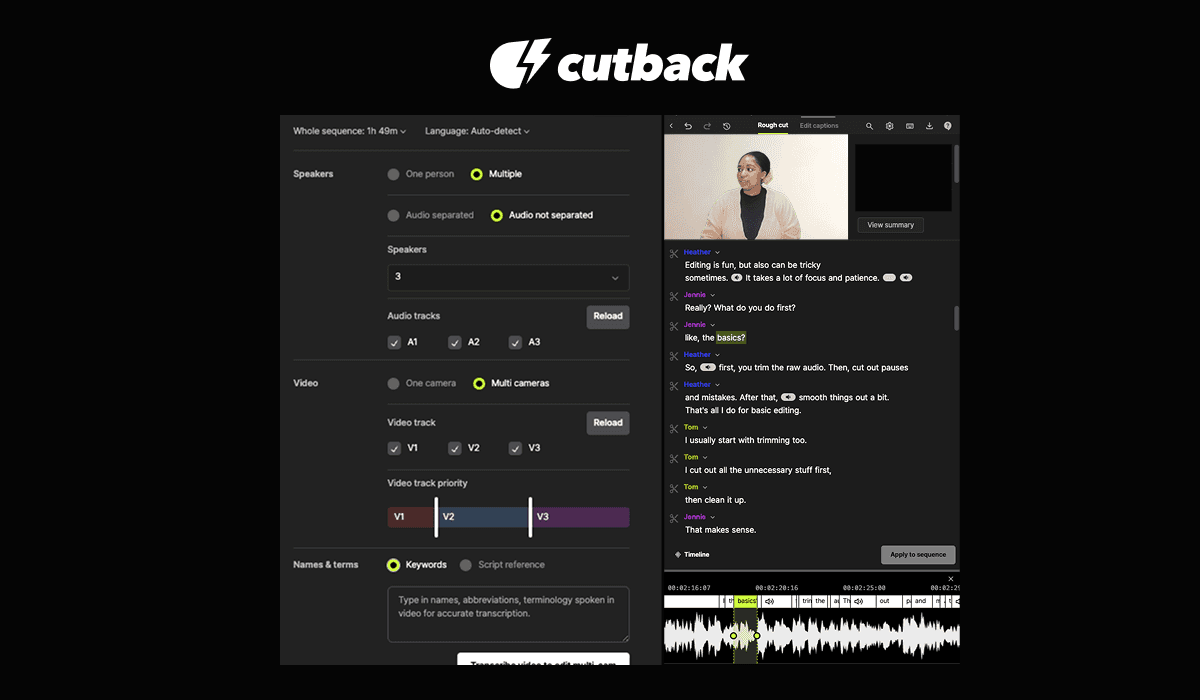
Pros:
Seamless integration with Premiere Pro
Word-level editing with script-aware camera switching
Automatically detects speakers, even in mixed audio
Presets for camera priority, shot variation, and pacing
Cons:
Lacks manual override for scene interval switching
💡 Real Use Insight: Even when the audio isn’t perfectly separated, Premiere Assistant does a great job of picking out who’s speaking. The camera switches feel natural because they’re based on the actual context, not just sound levels, so the final edit looks clean and professional.
🥈 FireCut — ⭐️⭐️⭐️⭐️
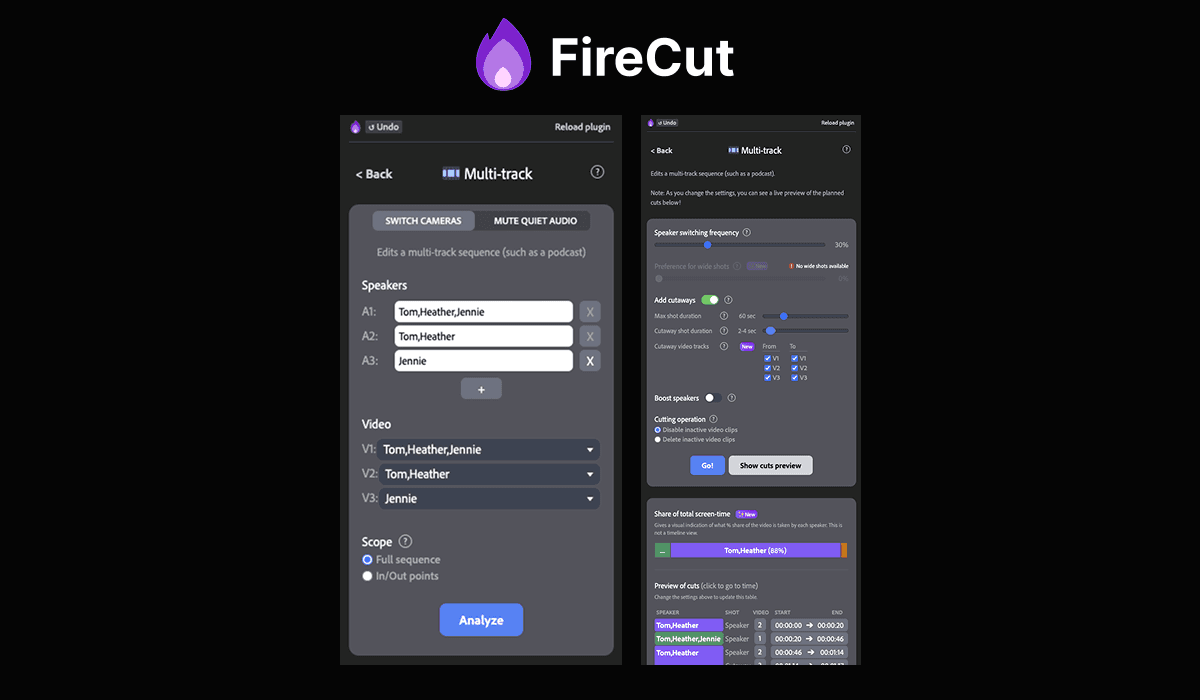
Pros:
Strong customization tools for defining camera rules
Manual override allows real-time switching
Decent sync performance with clean audio
Cons:
Complicated UI with a steep learning curve
Not ideal for editors unfamiliar with the shoot
💡 Real Use Insight: FireCut switches cameras based on audio volume, so the edits follow a predictable rhythm. You’ll often see the same wide shot or two-person angle repeating, which can make the final cut feel a little repetitive.
🥉 AutoCut — ⭐️⭐️⭐️
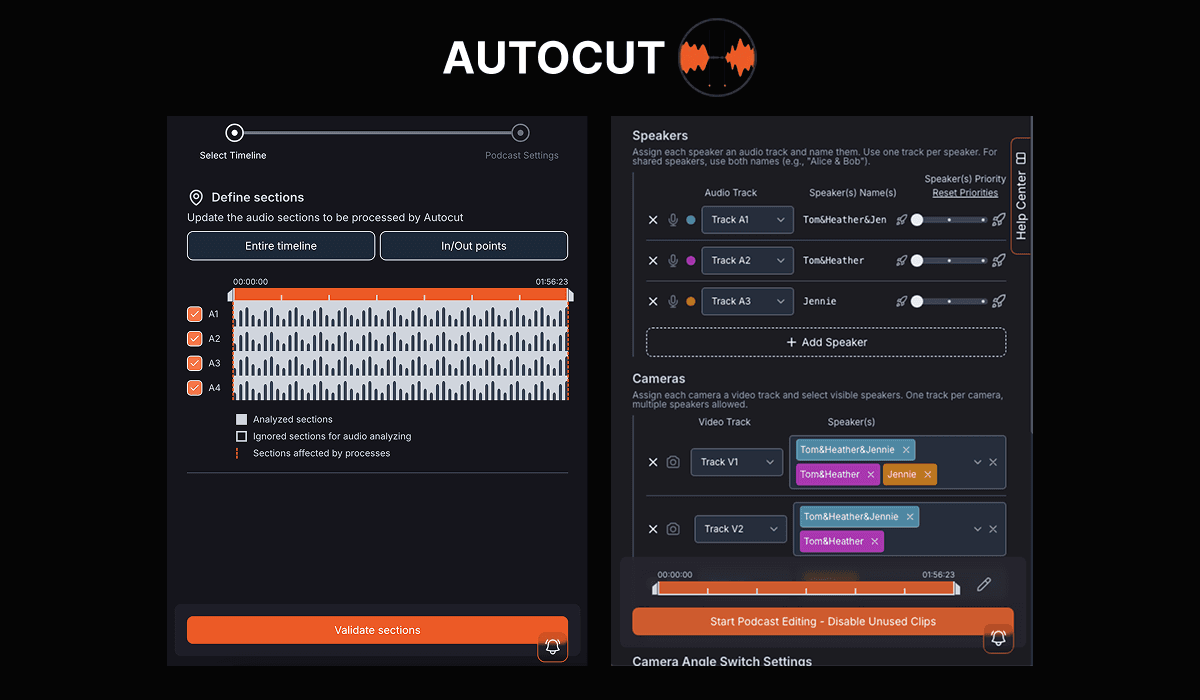
Pros:
Simple interface with visual preview of selected clips
Allows control over speaker distribution and cut pacing
Cons:
Requires at least two clean audio tracks for best performance
Editing options are limited post-automation
💡 Real Use Insight: It does a decent job overall, but the scene transitions follow a fixed pattern, so the edits can feel a bit robotic. It works best with at least two clean audio tracks—once multiple voices are mixed into one, the performance drops off quickly.
AutoPod — ⭐️⭐️
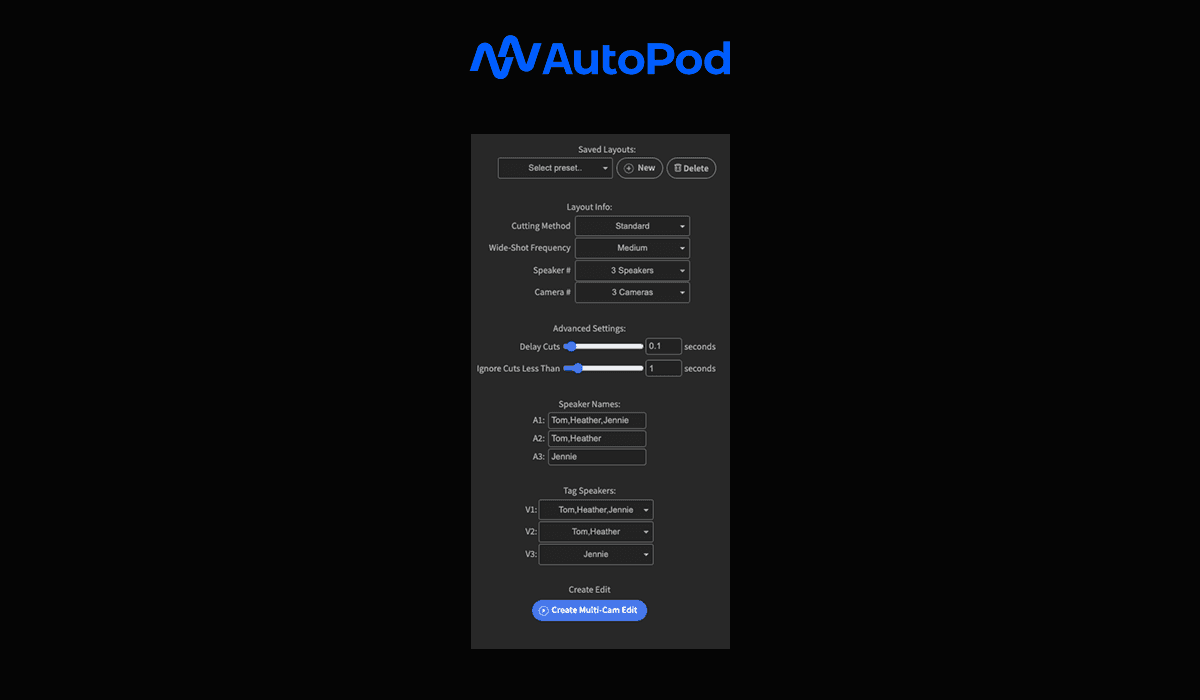
Pros:
Fast setup with user-created multi-cam presets
Cons:
Vague setting controls ('medium', 'high') lack precision
Poor performance in noisy, multi-speaker audio
💡 Real Use Insight: AutoPod struggled the most in real-world scenarios. It often failed to track speaker changes and made inaccurate camera switches, especially in sections with overlapping dialogue. Recommended only for very basic, low-noise interviews.
Multi-Cam Plugin Comparison Table (2026)
Plugin | Accuracy | Camera Switching | Usability & Presets | AI Context Awareness | Notes |
|---|---|---|---|---|---|
Premiere Assistant | ⭐⭐⭐⭐⭐ | ✅ Natural & smart | ✅ Word-level editing, presets | ✅ Context-aware editing | Best for AI-based automation and intuitive workflow |
FireCut | ⭐⭐⭐ | ⚠️ Rule-based logic | ✅ Advanced customization | ❌ Volume-only detection | Great for manual control, less ideal for automation |
AutoCut | ⭐⭐⭐ | ⚠️ Pattern-based | ⚠️ Limited post-editing tools | ❌ Needs clean input audio | Solid baseline performance, struggles with mixed audio |
AutoPod | ⭐⭐ | ❌ Inconsistent | ⚠️ Basic presets, vague controls | ❌ Poor with overlapping audio | Simple but not reliable for complex multi-speaker videos |
Notes:
✅ = Strong performance / fully supported
⚠️ = Limited or situational
❌ = Not supported or poor performance
If you've also been looking into other tools like Descript, read this in-depth comparison of Selects vs Descript for long-form AI video editing automation, including an analysis of their multi-cam features.
Which Plugin Is Best for Your Editing Scenario?
Not sure which plugin is right for your workflow? Here’s a quick guide to help you decide based on your editing scenario:
Use Case | Recommended Plugin | Why |
|---|---|---|
Podcast editing with 2+ speakers and overlapping audio | Premiere Assistant, Selects | Best accuracy with mixed audio, AI handles speaker detection and switching naturally |
YouTube talk shows or panel discussions | Premiere Assistant, Selects | Context-aware cuts and presets minimize manual review |
Studio shoots with clearly separated mics | FireCut | Advanced manual control and predictable switching work well in scripted content |
Interviews with a clean dual-mic setup | AutoCut | Simple setup, decent automation when audio is clean and distinct |
One-take, low-noise interviews | Very basic automation, okay for minimal editing needs |
Final Verdict: Which Plugin Should You Use for AI Multicam Editing?
If you’re working with multi-cam footage inside Premiere Pro, Premiere Assistant is the best all-around plugin we tested. It combines AI-driven accuracy with usability, allowing even complex multi-cam edits to feel intuitive and fast. Whether you're editing a podcast, interview, or multi-host YouTube video, Premiere Assistant can save hours of editing time without sacrificing quality.
👉 Try Premiere Assistant for free!
Happy editing!
Frequently Asked Questions (FAQs)
Q: What is the best multicam editing plugin for Premiere Pro?
A: Based on real-world testing on a 2-hour, 3-speaker podcast, Premiere Assistant is the strongest multicam editing plugin for Premiere Pro in 2026. It performs context-aware camera switching based on actual speech content rather than just audio volume levels, handles mixed audio tracks accurately, and produces natural-looking edits without requiring perfectly separated audio sources. FireCut is the best option for editors who prefer rule-based manual control. AutoCut works well with clean, separated audio but degrades quickly with mixed tracks. AutoPod is reliable only for simple, low-noise single-speaker scenarios.
Q: How do I create a multicam sequence in Premiere Pro?
A: Import all your video and audio files into Premiere Pro, select all clips in the Project Panel, right-click and select Create Multi-Camera Source Sequence, and choose your sync method (audio sync works for most scenarios). Drag the resulting multicam sequence into a new timeline, then go to Window > Multi-Camera to open the Multi-Camera Monitor. Press play and switch between angles live by clicking the angle thumbnails or pressing number keys (1, 2, 3). The limitation is that native Premiere Pro multicam switching is manual, it cannot follow speaker changes automatically or switch based on content context, which is where plugins like Premiere Assistant add the most value.
Q: Why is multicam greyed out in Premiere Pro?
A: The Create Multi-Camera Source Sequence option is greyed out when fewer than two clips are selected in the Project Panel, you need to select all camera angle clips simultaneously before right-clicking. It also greys out if clips are selected directly in the timeline rather than the Project Panel, or if the clips have incompatible frame rates that Premiere cannot reconcile into a single sequence. Make sure all clips are selected in the Project Panel, not the timeline, and that your source footage shares a consistent frame rate before attempting to create the multicam sequence.
Q: How does AI multicam editing work in Premiere Pro?
A: Premiere Pro's native multicam switching is manual, you switch angles yourself during playback. AI multicam switching, available through plugins like Premiere Assistant, uses speech detection and content context to choose camera angles automatically. Rather than switching based on which track has the highest audio volume (the approach FireCut and AutoCut use), Premiere Assistant detects who is speaking at the word level, understands speaker context, and switches to the appropriate angle with natural pacing. In testing on a 2-hour podcast with 3 speakers and mixed audio, this produced significantly fewer post-editing corrections than volume-based switching tools.
Q: What is the difference between Premiere Assistant, FireCut, AutoCut, and AutoPod for multicam?
A: All four tools automate multicam switching inside Premiere Pro, but use different approaches. Premiere Assistant uses word-level speech detection and context awareness, making it the most accurate on mixed or overlapping audio. FireCut uses rule-based volume detection with high manual customisation, more accurate than AutoCut with clean audio, but produces repetitive patterns on complex material. AutoCut uses pattern-based switching that works on clean separated tracks but degrades with mixed audio. AutoPod uses basic preset switching and performed the least accurately on multi-speaker content with overlapping dialogue in real-world testing.
Q: Is there a free multicam editing plugin for Premiere Pro?
A: Most professional multicam plugins for Premiere Pro require a paid plan after a trial period. Premiere Assistant is available to trial before converting to a paid plan, allowing you to test the multicam switching on a real project. FireCut and AutoCut also offer limited trial access. Fully free multicam plugins with AI-based switching do not currently exist, tools offering free tiers typically limit project length or number of camera angles rather than providing full feature access.
Q: When should I use a multicam plugin versus Premiere Pro's built-in multicam?
A: Use Premiere Pro's native multicam when you have a simple shoot (two cameras, one speaker, clean separated audio) and want full manual control over every switch. Use a multicam plugin when you are editing complex material, multiple speakers, mixed or imperfect audio, three or more cameras, and need switching to happen automatically based on content rather than manually in real time. For podcast, interview, and panel content where you want the finished cut to look like a professional broadcast edit without spending hours switching angles manually, Premiere Assistant's AI-based switching is the most reliable automated option tested on real-world material.

Cutback Team
Share post







