How to Use AI to Instantly Remove Retakes in Premiere Pro
Tired of manually scrubbing for the best takes? Instantly remove repeated lines and bad takes with Cutback's AI plugin retake remover in Premiere Pro.
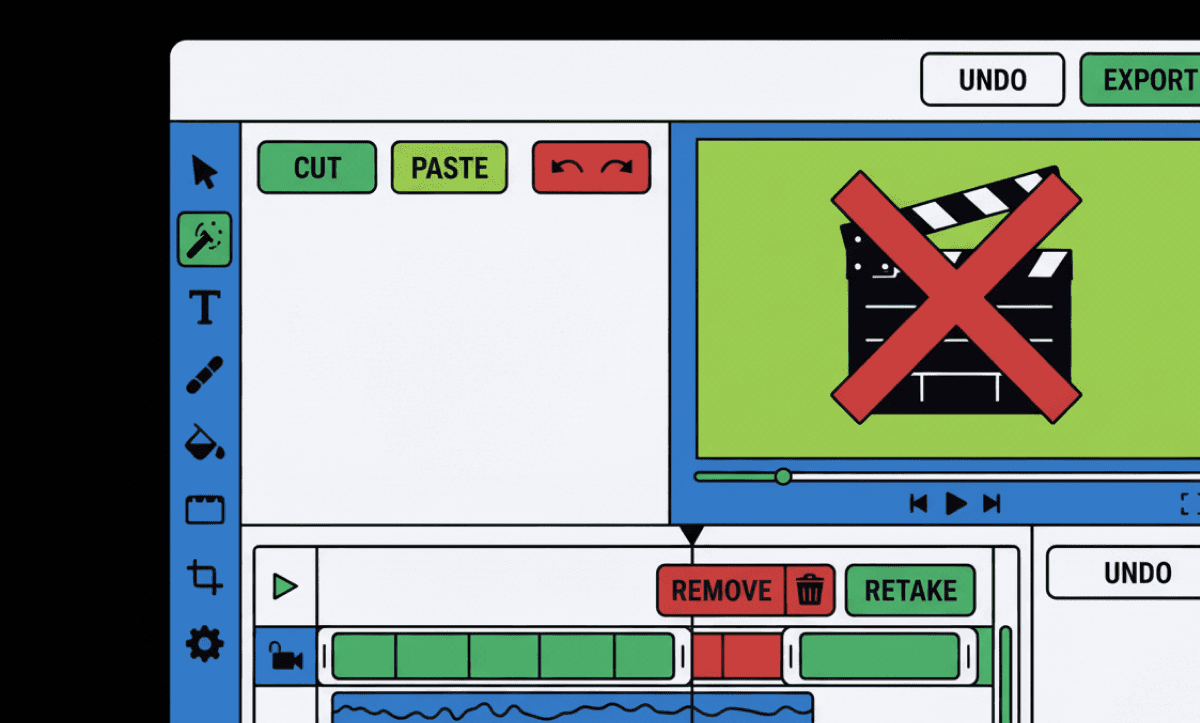
TLDR: Retakes in Premiere Pro can be removed automatically using Premiere Assistant's Remove Retakes feature, which detects repeated phrases or false starts in the transcript and cuts them without manual review of each instance.
Editing a podcast or YouTube video can often feel like a never-ending cycle of reviewing, repeating, and rewinding just to find that one good take. With the Premiere Assistant AI-powered retake remover, you don’t have to manually sift through the clutter. Whether you’re a video editor, YouTuber, or marketer, this tool helps you remove repeated lines and keep only the cleanest, most natural takes, automatically.
In this guide, we’ll walk you through how to use Premiere Assistant's retake removal feature in Adobe Premiere Pro. You’ll learn:
How to activate AI-based retake removal
How to pick the best version of each line
What makes this different from manual editing
Let’s jump in.
Why Remove Retakes with AI?
Manual editing takes time, and it’s mentally draining. Repeated lines, hesitations, or nervous starts are normal in content creation, but trimming them down can be one of the most frustrating parts of the editing process.
AI editing tools like Premiere Assistant automate this process by:
Detecting repeated sentences and variations
Comparing them based on audio clarity and delivery
Keeping the strongest version and deleting the rest
This saves hours, reduces mental load, and helps editors focus on creative direction rather than tedious cleanup.
Step-by-Step: Instantly Remove Retakes in Premiere Pro
Step 1: Set Up Your Project
Launch Adobe Premiere Pro
Import your video and audio footage into a new sequence
Step 2: Launch Premiere Assistant
Go to Window > Extensions > Cutback
Select [Auto Rough Cut] from the Cutback menu
Step 3: Transcribe Your Footage
Premiere Assistant relies on transcription to analyze retakes. Configure the following settings:
Range Selection: All, In/Out, or selected clip
Language: Choose the language spoken
Preview: Turn off for faster performance
Speaker Settings: Assign speaker names by track or let AI detect
Click [Transcribe video for auto rough cut] to begin.
Step 4: Launch the Assistant
Once your transcript is generated:
Click the Assistant icon at the top right
Type "Remove retakes" or select it from the preset commands
Step 5: Select the Best Cut
The AI will:
Identify repeated sentences and bad takes
Analyze them for clarity, accuracy, and tone
Keep the best one by default
You’ll see options to select the best cut manually if you want to double-check what the AI picked.
Step 6: Review and Save
You can:
Click Save to apply the suggested changes
Or Discard to undo the edit and go back to your original cut
Step 7: Finalize the Sequence
Click [Apply to sequence] and choose:
Apply to current sequence
Create new sequence
The edit won’t be finalized until this step is complete. Make sure to apply it to preserve changes.
Key Features That Help You Edit Faster
Premiere Assistant’s Remove Retake feature is even more powerful when combined with other AI tools inside the same plugin:
Remove Filler Words: Clean up "um," "uh," and hesitations
Shorten Video: Automatically trim less important segments
Animated Captions: Add stylized subtitles with speaker names
Other handy features include:
Undo/Redo shortcuts (u/r)
Find/Replace in subtitles
Time Machine to revert to pre-edit state
Shortcut-based cutting using w, a, s, d keys
Final Thoughts
If you’ve ever spent hours listening to yourself repeat the same sentence five times, Premiere Assistant’s Remove Retakes feature will feel like magic. It saves you from decision fatigue, speeds up your workflow, and helps you focus on making great content, not perfecting every cut.
Whether you're editing YouTube videos, interviews, courses, or podcasts, this feature lets you instantly clean up your timeline and keep only the content that matters.
Ready to ditch the bad takes? Let AI do the heavy lifting.
For more in-depth knowledge about the ins and outs of video editing, check out our latest posts on the Cutback blog or our YouTube channel.
FAQs (Frequently Asked Questions)
Q: What counts as a retake?
A: Any repeated line, whether intentional or accidental. The AI uses text and voice patterns to spot duplicates.
Q: Can I manually override the AI’s choice?
A: Yes, you can select the best cut manually if needed.
Q: Will it delete every retake automatically?
A: Only the ones that are clearly less clear or poorly delivered. You can undo any deletions before applying them.
Q: Does it support multi-speaker videos?
A: Yes. Assign speakers per audio track or let AI detect them from a single track.
Q: Is this available outside of Premiere Pro (in DaVinci Resolve or Final Cut Pro)?
A: Not yet. Premiere Assistant is currently a Premiere Pro plugin. However, we have a pre-editing standalone tool, Selects, that takes care of the video organization to rough cut process and hands off to Adobe Premiere, DaVinci Resolve, and Final Cut Pro.
Q: How do I put Premiere Pro back to normal after AI edits?
A: If Premiere Assistant's AI edits did not turn out as expected, use the Discard option after reviewing the Remove Retakes preview to revert to your original cut before anything is applied. If you already applied changes, use Time Machine in the Premiere Assistant panel to step back to a pre-edit state of the sequence. For workspace or panel layout issues unrelated to the AI edits themselves, go to Window > Workspaces > Reset to Saved Layout to restore Premiere Pro's default panel arrangement.
Q: How do you automatically remove retakes in Premiere Pro?
A: Premiere Assistant's Remove Retakes feature detects repeated lines, false starts, and poorly delivered takes from your transcript and removes them automatically. Open Premiere Assistant (Window > Extensions > Cutback), select Auto Rough Cut, transcribe your sequence, then click the Assistant button and type or select Remove Retakes. The AI identifies duplicate or near-duplicate sentences, compares them for delivery quality, keeps the best version, and marks the others for removal. Preview the suggested cuts, confirm or override individual selections, then click Apply to Sequence.
Q: What counts as a retake in Premiere Assistant?
A: Premiere Assistant identifies retakes as any repeated line, phrase, or sentence that appears more than once in the transcript, whether it is an intentional do-over ("let me say that again"), an accidental repeat, a false start, or a sentence that was started and abandoned mid-delivery. The AI compares repeated instances for clarity, audio quality, and delivery completeness, then selects the strongest version to keep. The criteria are based on both text pattern matching and audio quality analysis across the flagged segments.
Q: How do you remove repeated words in Premiere Pro?
A: For repeated words within a single sentence (a word said twice in quick succession), the transcript approach works best, open the transcript in Premiere Assistant's Auto Rough Cut view, locate the repeated word in the text, and delete one instance to remove the corresponding footage. For repeated lines and retakes across the full sequence, use Remove Retakes in the Premiere Assistant chat, it detects repeated sentence-level content across the full transcript and removes duplicates automatically. Premiere Pro's native transcript editor also lets you manually click and delete any word in the transcript to remove it from the timeline.
Q: What is the difference between Remove Retakes, Remove Filler Words, and Remove Silence in Premiere Assistant?
A: These three features target different problems in the same rough cut workflow. Remove Retakes identifies repeated lines and false starts, complete sentences or phrases that appear more than once, and keeps only the best delivery. Remove Filler Words identifies individual hesitation sounds and verbal tics ("um," "uh," "like") within otherwise clean lines and cuts them from each sentence. Remove Silence detects audio below a configurable threshold between words and sentences and closes those gaps. The three can be combined in sequence for the tightest possible rough cut: retakes removed first, then filler words, then silence.
Q: Can Selects remove retakes before editing in Premiere Pro or DaVinci Resolve?
A: Yes. Selects handles retake and take selection upstream before footage reaches any NLE. It transcribes the full recording, detects repeated lines and false starts using director signal detection ("okay, take that again"), and selects the best take from each repeated section before exporting a native Premiere Pro, DaVinci Resolve, or Final Cut Pro project file. For productions where an editor is receiving organized footage from an assistant or post-production workflow, Selects replaces the manual stringout-and-selects process that this task would otherwise require.
Q: Is Phantom Editor a competitor to Premiere Assistant for retake removal?
A: Phantom Editor is an AI video editing tool that includes a take selection and rough cut assembly feature. Like Premiere Assistant, it automates the process of identifying the best takes from a recording. The primary difference is workflow integration: Premiere Assistant operates inside Adobe Premiere Pro as a native extension, meaning retake removal happens within the editor's existing NLE environment without a separate tool or export step. Phantom Editor operates as a standalone application with its own interface. For editors committed to a Premiere Pro workflow, Premiere Assistant's integration advantage is significant, there is no round-trip required. Alternatively, if you prefer a standalone product, Selects is another option created by Cutback (the same company as Premiere Asssistant) that handles the pre-editing phase with perfect handover to NLEs (Adobe Premiere, Final Cut Pro, DaVinci Resolve).
Q: Is there a free tool to remove retakes from video in Premiere Pro?
A: Premiere Assistant requires a paid plan after a trial period with limited usage before converting to paid. Premiere Pro's native Text panel allows manual take selection by reading the transcript and deleting unwanted sections within a Creative Cloud subscription, this is free but entirely manual. Descript allows transcript-based take selection on its free tier with limits on transcript minutes. Selects has a 7-day free trial.

Cutback Team
Share post







