Best Way to Remove Silence & Edit Multicam in Final Cut and DaVinci (2026)
Selects by Cutback’s AI-powered tool automates silence removal and multicam editing directly within DaVinci Resolve, Final Cut Pro, and Premiere Pro, cutting post‑production time by up to 80%.
TLDR: DaVinci Resolve and Final Cut Pro don't have native AI silence removal or automated multicam switching; both can be added by running footage through Selects before opening your NLE, which handles sync, silence removal, and timeline organization automatically.
AI-powered video editing tools have come a long way, but DaVinci Resolve and Final Cut Pro users are often left with fewer automation options compared to Adobe editors. If you’re struggling with tasks like filler word removal or multicam editing, Selects by Cutback offers a new AI-first desktop solution designed specifically to support Final Cut Pro, Adobe Premiere Pro, and DaVinci Resolve workflows. This guide explores why most plugins fall short, and how you can use Selects to automate these time-consuming steps without leaving your NLE.
Save hours on multicam editing and silence removal.
Selects by Cutback is an AI-powered editing tool that works seamlessly with DaVinci Resolve and Final Cut Pro; no need to switch platforms or change your workflow.
If your DaVinci Resolve timeline is also lagging after Selects handoff, these DaVinci Resolve performance fixes cover codec, GPU, and render cache issues specifically.
If you're a Final Cut Pro user and your timeline is running slowly after the Selects handoff, these performance fixes cover codec, storage, and VFR issues specific to FCP.
DaVinci Resolve and Final Cut Pro Have Fewer Plugin Options Compared to Premiere Pro
While Adobe Premiere Pro dominates the plugin ecosystem with thousands of third-party extensions, not every video editor uses the Adobe Suite products. Both DaVinci Resolve and Final Cut Pro (the most popular Adobe Premiere Pro alternative NLEs) also offer more limited plugin libraries. This disparity affects editors who rely on specialized tools for tasks like automated filler word removal, AI podcast editing, and streamlined multi-cam workflows.
Additional DaVinci Resolve Editing Workflow Resources
DaVinci Resolve plugins focus primarily on color grading and visual effects, with fewer options for automated editing tasks. The software's built-in Fairlight audio tools provide some automation, but lack the advanced AI capabilities found in dedicated podcast editing solutions.
For editors evaluating the evaluating the full DaVinci Resolve plugin stack beyond silence removal, including color grading, noise, reduction, and motion graphics, the best DaVinci Resolve plugins for 2026 maps the complete picture.
For a step-by-step walkthrough of every silence removal method in Resolve, specifically manual ripple delete, plugin options, and AI pre-edit, the dedicated DaVinci Resolve silence removal guide covers all three with time estimates.
If you're looking for more resources on multicam editing in DaVinci Resolve, check out the breakdown of DaVinci Resolve's Multicam Viewer, SmartSwitch, and how Selects automates the sync and switching before Resolve opens. The DaVinci Resolve multicam editing guide covers the full workflow.
Additional Final Cut Pro Editing Workflow Resources
Final Cut Pro plugins offer better integration through the Mac App Store and third-party developers, yet still fall short of Premiere Pro's extensive marketplace. Popular plugins for Final Cut Pro include color correction tools, transitions, and basic audio processors, but advanced AI-powered editing solutions remain scarce.
For a full step-by-step walkthrough of every silence removal method available in Final Cut Pro specifically manual, plugin, and AI pre-edit, the FCP silence removal guide covers all three with time estimates.
You can also read a breakdown of Final Cut Pro's Multicam Clip setup, Angle Editor, and how Selects automates the prep before FCP opens, the FCP multicam editing guide covers the full workflow.
For the full breakdown of what is worth installing in a Final Cut Pro workflow specifically, the best Final Cut Pro plugins for long-form editors in 2026 covers the full FCP plugin stack from pre-editing automation to motion graphics.
Additional Adobe Premiere Editing Workflow Resources
Adobe Premiere Pro plugins benefit from the platform's widespread adoption and open architecture, making it the preferred choice for developers creating specialized tools like AI podcast editors and automated multi-cam solutions.
What Is Removing Silence and Removing Filler Words?
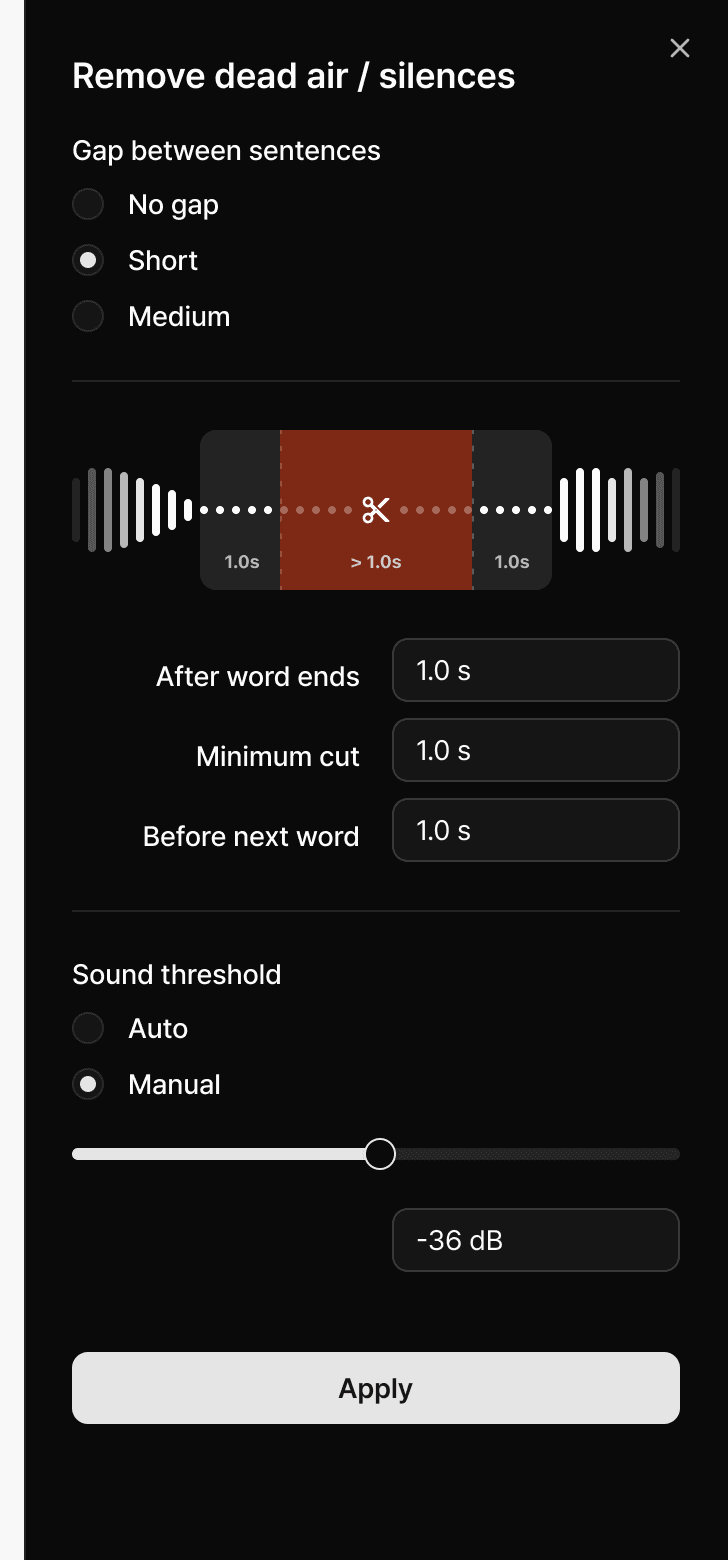
Silence removal and filler word elimination are essential post-production techniques that automatically identify and delete unwanted audio segments from recordings. These processes target dead air, long pauses, "ums," "ahs," and other verbal hesitations that interrupt the flow of content.
Why You Should Remove Silence and Filler Words
Improved Viewer Engagement: Clean audio maintains audience attention by eliminating awkward pauses and verbal stumbles that can cause viewers to lose interest or click away.
Professional Polish: Removing these elements creates a more polished, broadcast-quality final product that reflects positively on your brand or content.
Reduced Video Length: Eliminating silence reduces overall video duration and file sizes, making content more suitable for social media platforms with time constraints.
Enhanced Pacing: Strategically removing silence improves content rhythm and maintains optimal pacing throughout your video or podcast.
Post-production is Very Time-consuming
Manual silence removal is notoriously time-consuming. A typical one-hour podcast can require 3-5 hours of editing time when removing silence and filler words manually. This process involves:
Scrubbing through entire recordings to identify silence gaps
Manually selecting and deleting unwanted segments
Adjusting cut points to maintain natural speech flow
Fine-tuning audio levels at edit boundaries
AI podcast editors have revolutionized this workflow, reducing hours of manual work to minutes of automated processing.
What Is Multi-cam Editing?
Multicam in DaVinci Resolve and Final Cut Pro, or multicam editing in general, involves working with footage captured simultaneously from multiple camera angles and audio sources, then cutting between these different perspectives to create dynamic, engaging content. This technique is essential for interviews, live events, tutorials, and professional video production.
The Technical Complexity of Multi-cam Editing
Synchronization Requirements: All video and audio tracks must be precisely aligned in the timeline using timecode, audio waveforms, or manual markers. Even small sync issues can create jarring jumps between camera angles.
Camera Switching Workflow: Editors must constantly preview multiple video streams while making real-time decisions about which angle best serves the narrative at each moment.
Final Cut Pro multicam editing utilizes the software's built-in multicam clip feature, which automatically syncs footage and creates a unified clip for easy angle switching.
DaVinci Resolve offers similar functionality through its cut page and edit page multicam tools, though the workflow differs significantly from Final Cut Pro's approach.
Time Management Challenges
Traditional multi-cam editing workflows can extend project timelines significantly:
Initial sync and setup: 1-2 hours for a typical interview, including coming up with a cut list
Rough cut creation: 2-3x longer than single-camera projects
Fine-tuning cuts and transitions: Additional 1-2 hours
Audio cleanup across multiple sources: Variable, often 1+ hours
AI-powered video editing solutions have emerged to address these bottlenecks, particularly for content creators producing regular podcast videos, interviews, and livestream content.
Selects Can Handle Final Cut and Resolve Multicam Editing and Remove Silence in One Click with AI
Cutback Studio represents a breakthrough in AI-assisted video editing, offering seamless integration with professional editing software while automating the most time-consuming aspects of post-production workflow.
Full Integration with Professional NLEs
Cutback Studio functions as a desktop application that maintains full compatibility with DaVinci Resolve and Final Cut Pro multicam features. Unlike standalone editing software, it enhances existing workflows rather than replacing them entirely.
The integration supports:
Native project file formats for seamless handoffs
Preserved multicam sync and angle relationships
Compatible audio channel mapping
Timeline structure that matches professional editing standards
Streamlined AI-Powered Workflow
The automated video editing process begins with raw footage input. Users simply drag and drop their multicam files and specify editing preferences through an intuitive interface. The AI analyzes content across multiple dimensions:
Audio Analysis: Identifies silence gaps, filler words, and optimal cut points across all audio channels simultaneously.
Visual Recognition: Analyzes speaker activity, gesture patterns, and scene changes to inform intelligent camera switching decisions.
Content Segmentation: Automatically divides content into logical segments based on topic changes, speaker transitions, and natural conversation breaks.
Stringout: Intelligent Content Organization
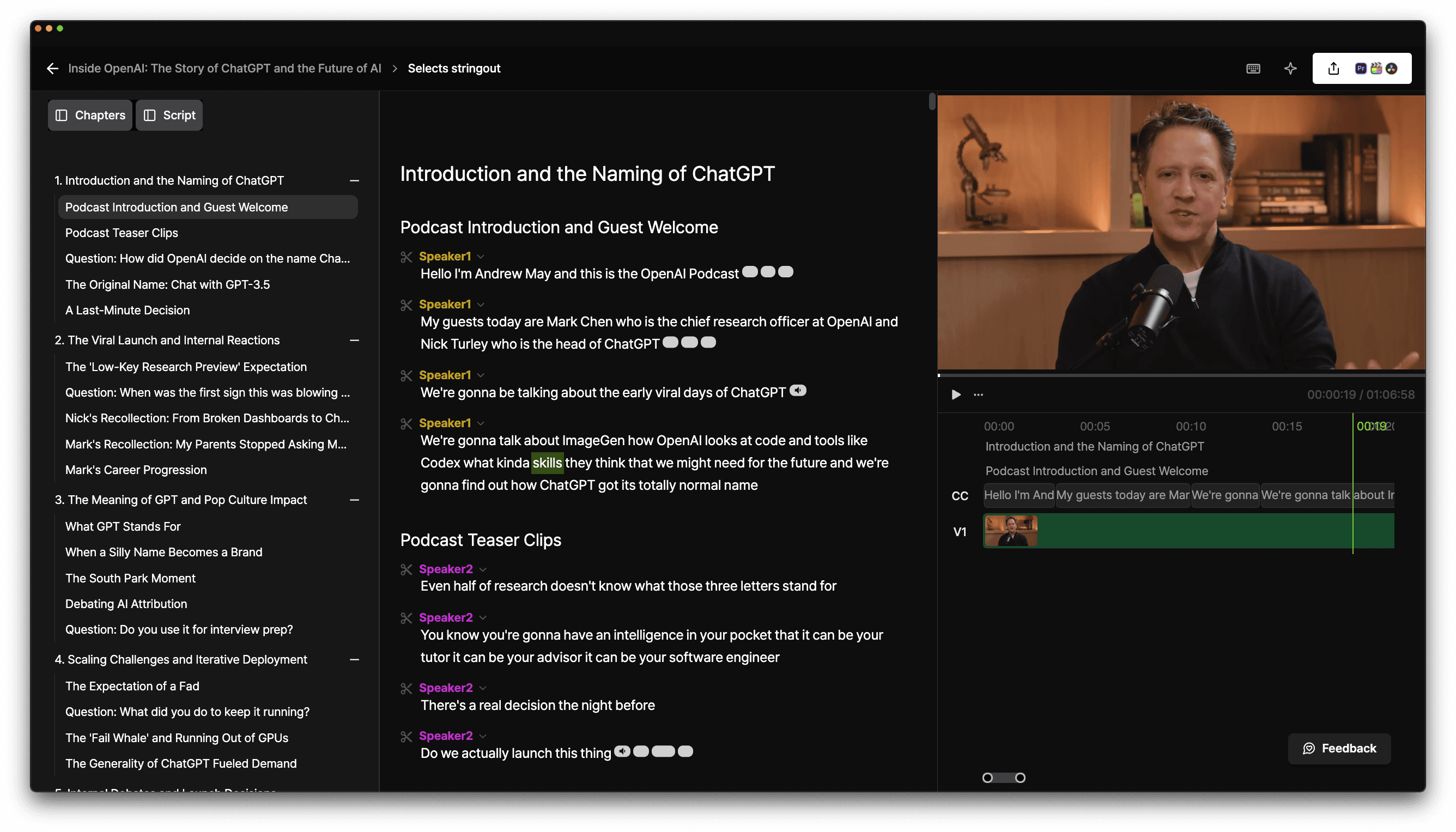
The stringout feature revolutionizes content organization by creating a structured, labeled timeline that breaks down raw footage into manageable, purpose-driven segments.
Event-Based Chunking: Content is automatically segmented based on detected events like speaker changes, topic transitions, or significant pauses.
Hierarchical Labeling: Each segment receives contextual labels organized through chapters, sub-chapters, and individual chunks, making navigation intuitive for both AI processing and human editors.
Automated Cleanup: All unnecessary elements, including silence, filler words, false starts, and off-topic tangents, are automatically identified and removed, leaving only essential content.
This intelligent organization dramatically reduces the time spent navigating long-form content and eliminates the guesswork involved in identifying the best segments for final cut inclusion.
Storyline: Professional First Draft Generation
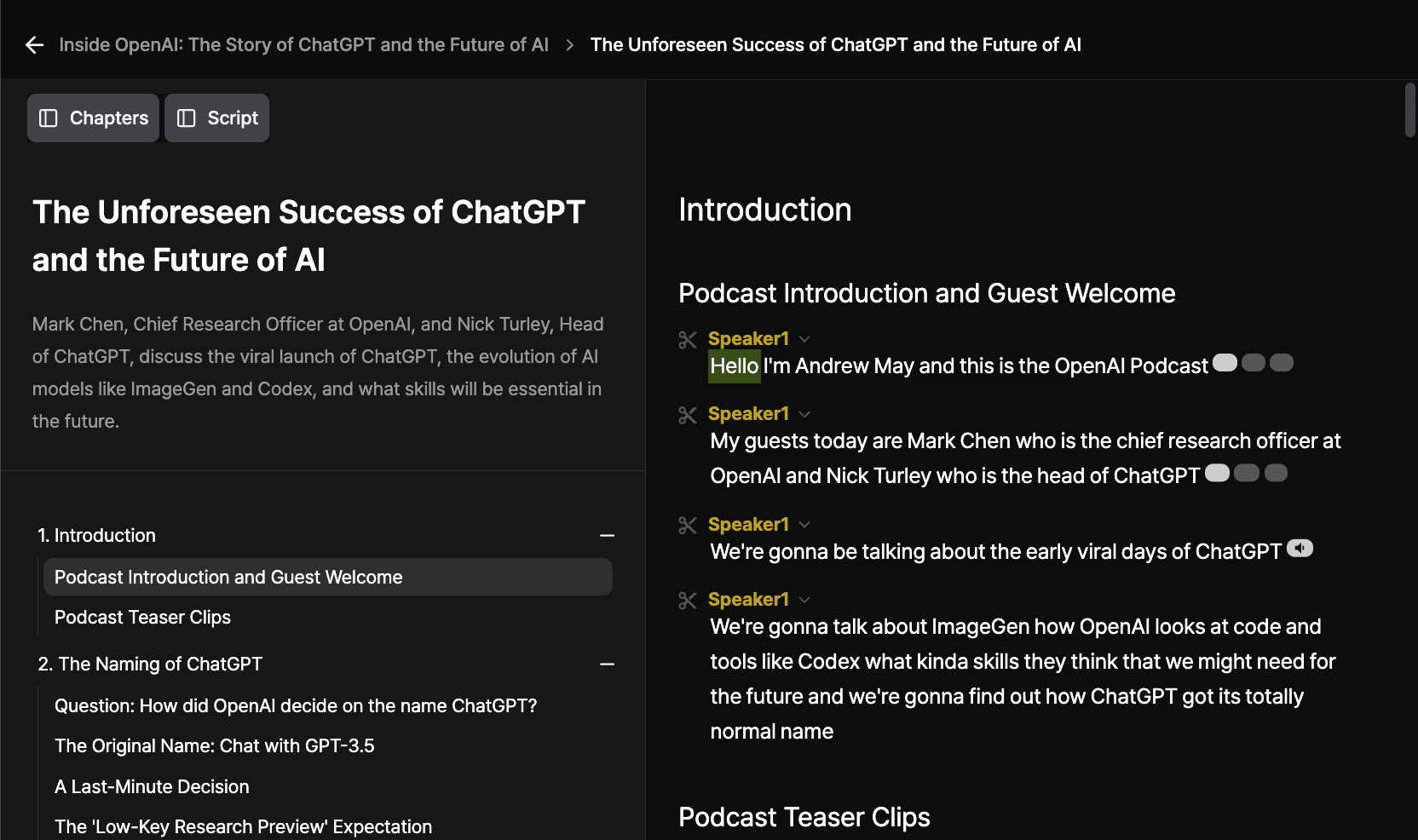
The storyline feature generates a complete first draft that serves as a professional starting point rather than requiring editors to begin from scratch.
Narrative Structure: AI analyzes content flow and creates logical story progression with smooth transitions between segments.
Dynamic Camera Switching: Intelligent angle selection based on speaker activity, visual interest, and optimal composition for each moment.
Shortening Video: AI keeps the most engaging parts of the video, providing a good place to start and give inspiration.
Universal NLE Compatibility
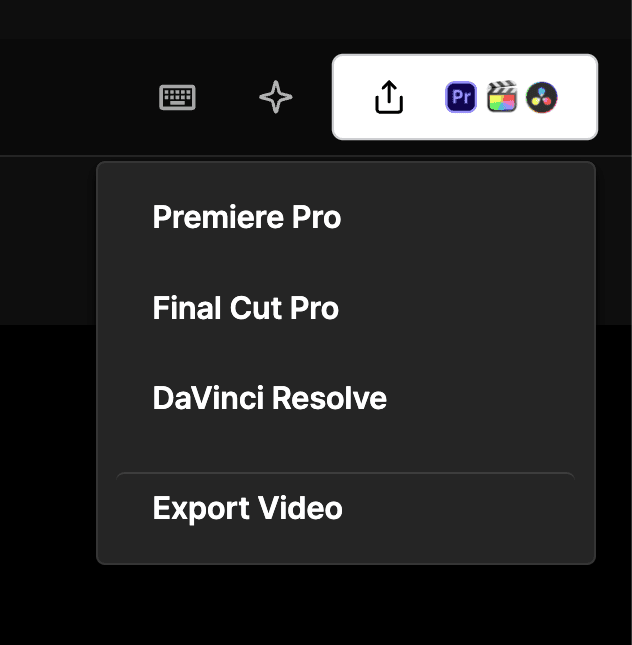
Premiere Pro Support: Export projects maintain full compatibility with Adobe Premiere Pro and workflows, allowing editors to leverage their existing tool ecosystem.
DaVinci Resolve Support: Projects export with proper bin organization and multicam clip structure that works seamlessly with DaVinci Resolve plugins and color grading workflows.
Final Cut Pro Support: Native FCPXML export ensures perfect compatibility with Final Cut Pro's multi-cam clip and magnetic timeline features.
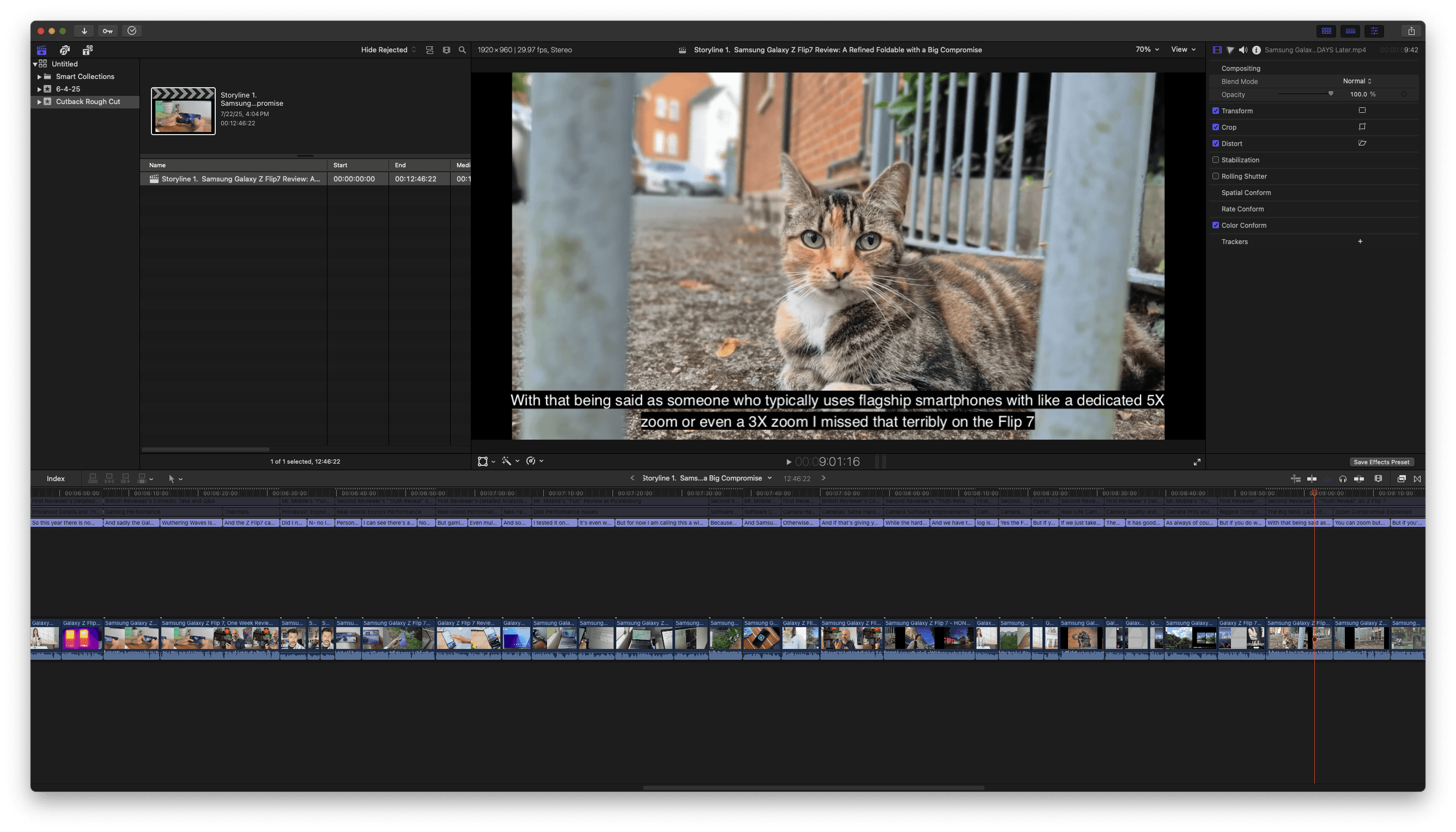
This universal compatibility means editors can maintain their preferred software environment while benefiting from AI automation, rather than being forced to adopt entirely new platforms.
Conclusion: The Future of Efficient Video Editing
The combination of AI-powered automation and professional editing software integration represents the evolution of modern video production. Tools like Selects bridge the gap between time-consuming manual processes and the need for professional-quality output.
For content creators working with livestream editing, podcast video editing, or regular multicam content, these automated solutions can reduce production time by 60-80% while maintaining the creative control and professional polish that comes from working in established NLEs like DaVinci Resolve and Final Cut Pro.
The key is finding solutions that enhance rather than replace existing workflows, allowing editors to focus on creative decisions while AI handles the repetitive technical tasks that consume valuable time and resources.
You can try it by joining creatives using Cutback Selects at the link!
FAQs (Frequently Asked Questions)
Q: Can DaVinci Resolve do multicam editing?
A: Yes. DaVinci Resolve has built-in multicam editing on both the Cut page and Edit page, including audio-based sync, timecode sync, and a Multicam Viewer for switching angles during playback. DaVinci Resolve 20 added AI Multicam SmartSwitch, which automatically switches angles based on who is speaking. The core multicam workflow is free in DaVinci Resolve's free version.
Q: Does Final Cut Pro have multicam editing?
A: Yes. Final Cut Pro's multicam feature automatically syncs footage from multiple cameras and creates a unified multicam clip for angle switching, using the Synchronize Clips function and the Angle Editor. Unlike DaVinci Resolve, Final Cut Pro does not currently have an AI-based automatic angle-switching feature, switching is done manually through the Angle Viewer, or automated upstream using a tool like Selects before the footage reaches Final Cut Pro.
Q: Can DaVinci Resolve remove silence automatically?
A: No, DaVinci Resolve has no native one-click silence removal feature. Editors can remove silence manually using the Blade tool and ripple delete, or via DaVinci Resolve's scripting API for a more automated but technical approach. Running footage through Selects before opening DaVinci Resolve removes silence across all audio tracks upstream and exports a clean, silence-free native DaVinci Resolve timeline.
Q: Can DaVinci Resolve remove background noise?
A: DaVinci Resolve's Fairlight page includes noise reduction tools (Noise Reduction and Dialogue Processor effects) that can reduce background hiss, hum, and ambient noise on audio clips. This is separate from silence removal, noise reduction cleans up the audio quality of existing footage, while silence removal cuts out dead air and pauses entirely. DaVinci Resolve handles noise reduction natively; silence removal still requires a manual or third-party workflow.
Q: Does Final Cut Pro have denoise?
A: Final Cut Pro includes a Noise Reduction effect in its audio effects browser that reduces background hiss and ambient noise on audio clips, comparable to DaVinci Resolve's Fairlight noise reduction tools. For video denoising (reducing visual grain or noise in low-light footage), Final Cut Pro relies more on third-party plugins than DaVinci Resolve, which has more robust native video noise reduction tools as part of its color grading toolset.
Q: Is DaVinci Resolve or Final Cut Pro better?
A: Neither is universally better, the right choice depends on your platform and workflow. DaVinci Resolve is cross-platform (Mac, Windows, Linux), has a free version with nearly the full feature set, and offers the strongest native color grading tools of any NLE. Final Cut Pro is Mac-only, paid upfront with no subscription, and offers faster performance on Apple Silicon with a magnetic timeline that speeds up basic editing. Neither has strong native AI automation for silence removal or multicam switching, which is why tools like Selects exist to fill that gap for editors on either platform.
Q: Is DaVinci Resolve or Final Cut Pro better for beginners?
A: DaVinci Resolve has a steeper initial learning curve due to its page-based workflow (Cut, Edit, Fusion, Color, Fairlight, Deliver) but the free version gives beginners access to professional-grade tools without a financial commitment. Final Cut Pro's magnetic timeline and simpler single-window interface are generally considered more approachable for first-time editors, though it requires a one-time purchase and is Mac-only. For beginners specifically focused on YouTube or podcast content, the editing concepts (cuts, transitions, audio sync) are similar enough in both that the choice often comes down to budget and platform rather than learning curve alone.
Q: How much does DaVinci Resolve cost compared to Final Cut Pro?
A: DaVinci Resolve has a free version with the vast majority of editing, color, and audio features, plus a paid Studio version with a one-time purchase that adds extras like Neural Engine upscaling and additional color tools. Final Cut Pro is a one-time purchase with no free tier, available only for Mac. Neither uses a subscription model, unlike Adobe Premiere Pro. For budget-conscious creators, DaVinci Resolve's free tier is the lowest-cost entry point into professional editing software currently available.

Tom Kim
CEO and Co-founder
Share post







