Generate Captions Automatically in Premiere Pro With AI: Accurate Subtitles, Faster Workflow
Learn how to use AI to automatically generate captions in Adobe Premiere Pro. Create accurate subtitles, edit them by sentence or word, and apply motion effects—all without leaving your timeline.
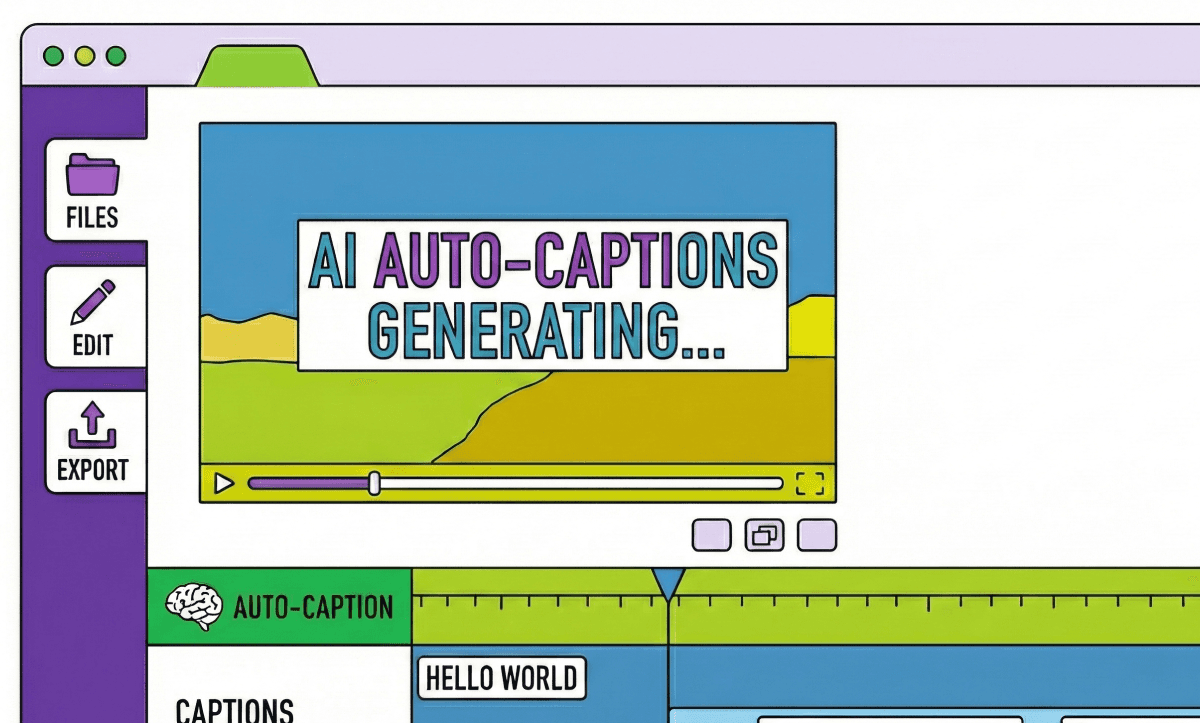
TLDR: Premiere Pro can auto-generate captions using its built-in Speech to Text tool or via Premiere Assistant, which produces more accurate results and allows style customization directly inside the extension panel.
Creating captions for your video shouldn’t be the most time-consuming part of your workflow, but it usually is.
Traditionally, generating subtitles means exporting audio, using external tools, editing timestamps manually, and finally reimporting everything back into Premiere Pro. It’s clunky. It’s slow. And it breaks your creative flow.
That’s where Cutback's AI video editing tools come in.
With Premiere Assistant, you can automatically transcribe and generate accurate captions using AI, directly in Adobe Premiere Pro. No external tools. No file-juggling. Just one plugin, one workflow.
What You Can Do With AI-Powered Captions
Using the Premiere Assistant plugin inside Premiere Pro, you can:
Auto-generate subtitles in 100+ languages
Edit captions word-by-word or sentence-by-sentence
Apply animated caption styles and zoom effects
Translate captions into 29 languages
Export transcripts for YouTube chapters
Use captions to insert B-roll and make rough cuts
This isn’t just a captioning tool; it’s a full creative companion.
How To Generate Captions Automatically
Let’s walk through the process.
Step 1: Open Premiere Assistant and Choose [Edit Captions]
Launch Adobe Premiere Pro and open your project.
Then from the top menu, navigate to: Window > Extension > Cutback
Once Premiere Assistant launches, select the [Edit Captions] menu on the left-hand side.
Step 2: Set Up Your Transcription Preferences
Before generating subtitles, configure how you want the AI to handle your video:
Range: Choose which part of your video to transcribe (Whole sequence, Selected clips, or In/Out points).
Language: Select the spoken language in the video (only one per session).
Speakers: Identify whether it's one speaker, multiple, or multiple speakers on separate tracks.
Video Tracks: If each speaker has a corresponding video track, assign them here.
Names & Terms: Help the AI understand context, add character names, brand names, or unique words.
Script Reference: If you have a script, paste it here for better alignment.
You can also choose to turn Preview mode on/off. This determines whether Premiere Assistant shows you a draft before changes are applied.
Step 3: Click [Transcribe Video to Edit Caption]
Once everything is set up, click the button, and Premiere Assistant will transcribe your content automatically. This transcription becomes your editable caption layer.
Pro Tip: While transcribing, avoid making changes in your Premiere sequence to prevent desync issues.
How To Edit Your Captions in Premiere Assistant
Once the AI-generated captions are ready, you can fine-tune them using Cutback’s Premiere Pro extension.
Sentence & Word-Level Editing
Edit a word: Double-click it or press the word to make a correction.
Merge or split: Use n, m, Delete, or Enter to adjust phrasing.
Hide words/sentences: Use h or Shift + h to mute specific captions.
View Audio Waveform for Precision
Use the timeline at the bottom to make fine adjustments based on the waveform. This is especially helpful when syncing captions for fast-paced dialogue or interviews.
Click the [Timeline] button if it’s collapsed to bring it back into view.
When you're done editing, click [Apply to sequence].
You’ll get two options:
Premiere Pro Captions: Adds a native caption track to your timeline.
Motion Captions: Adds styled animated captions with effects (great for YouTube Shorts or Reels).
Advanced Features That Make Editing Faster
1. Caption Formatting
Fine-tune how your subtitles appear:
Max characters per line
Enable punctuation or remove it
Choose one-line or two-line captions
Adjust casing (UPPERCASE, lowercase, Title Case)
2. Add Effects or Resources to Text
Premiere Assistant lets you interact with captions beyond just subtitles:
Zoom Effect: Want to zoom in when someone says a keyword? Highlight the word and click [Zoom].
Animated Caption: Turn specific lines into animated, styled captions.
Insert Image or B-roll: Click [Resource] to add an image, GIF, or clip right where a word appears.
This makes captioning part of your creative toolkit, not just a compliance task.
3. Translate Captions Into Other Languages
Want to reach more audiences? You can:
Translate your captions into 29 languages
Split the timeline into separate tracks (original + translated)
Apply animated captions that show both languages together
4. Export Subtitles or Chapters
Export your final captions in:
.srt (for YouTube)
.txt (for transcripts)
Smart Summary chapters (perfect for timestamps)
Use the Find/Replace tool (shortcut f) to clean up repeated phrases or correct brand names in bulk before exporting.
Final Thoughts
Premiere Assistant takes one of the most frustrating parts of video editing, captioning, and turns it into one of the fastest.
Whether you’re a creator, marketer, or editor trying to meet accessibility needs or expand to multilingual audiences, AI-generated captions save time, reduce errors, and unlock creative workflows.
No more copy-paste between apps. No more broken timestamps. Just type, click, and caption.
For more in-depth knowledge about the ins and outs of video editing, check out our latest posts on the Cutback blog or our YouTube channel.
FAQs (Frequently Asked Questions): Generating Captions With Premiere Assistant
Q: My transcript disappeared. Can I get it back?
A: Yes! Go to [Edit Captions] > [Open] or choose [Transcribe again] > [Open previous transcript].
Warning: If you click "Transcribe again" without opening the previous file, it will be permanently overwritten.
Q: How can I edit the font and color?
A: Once you apply captions to your sequence, open Premiere Pro’s Properties panel to change the font, size, color, and position.
Q: Can I apply caption styles to only part of my video?
A: Yes. Drag-select the words you want and click [Caption] to apply animated effects.
Q: Can I upload my own .srt file?
A: Yes, but note: Premiere Assistant doesn’t support word-level timestamping in imported SRTs. So timeline editing features will be limited.
Q: My caption timing is off after editing the video.
A: That’s expected. Changes made directly in Premiere (after applying captions) will desync your transcript. You’ll need to re-transcribe in Premiere Assistant.
Q: The transcription didn’t work. What can I do?
A: Try these steps:
1. Update Premiere Pro to 2023+
2. Change audio format to AAC (not WAV)
3. Check your internet speed – a fast connection (200 Mbps upload) is recommended
Still not working? Use Premiere Assistant’s in-app chat support.
Q: Why is [Apply to sequence] taking so long?
A: Auto rough cuts result in many tiny cuts. Premiere Pro isn’t optimized for hundreds of clips. To speed things up:
- Remove unused tracks
- Clear unneeded effects
- Split long videos into 30-minute chunks
- Use a more powerful device
Q: Can Premiere Pro automatically generate captions?
A: Yes. Premiere Pro's native Speech to Text tool generates captions automatically in 19 languages via Window > Text > Transcribe Sequence. Premiere Assistant extends this significantly, it transcribes in 100+ languages, allows word-level and sentence-level editing, applies animated caption styles, translates into 29 languages, and uses faster-rendering native graphic clips instead of Premiere Pro's standard caption track.
Q: Does Adobe Premiere Pro have AI captions?
A: Yes. Premiere Pro's built-in Speech to Text feature uses Adobe's AI transcription engine to generate captions automatically, supporting 19 languages. For more advanced AI captioning, 100+ language support, word-level editing, animated styling, translation, and faster native rendering, Premiere Assistant adds an AI captioning layer on top of Premiere Pro using its own speech-to-text engine.
Q: How do I turn on auto captions in Premiere Pro?
A: Using Premiere Pro's native tool: go to Window > Text > Transcribe Sequence, select your language, and click Transcribe; once complete, click Create Captions to generate a caption track. Using Premiere Assistant: open the plugin via Window > Extension > Cutback, select Edit Captions, configure your transcription preferences (range, language, speakers), and click Transcribe Video to Edit Caption. Both methods produce captions you can preview and edit before applying to your timeline.
Q: How do I create captions from a transcript in Premiere Pro?
A: Once you have a transcription, either from Premiere Pro's native Transcribe Sequence or from Premiere Assistant's Transcribe Video to Edit Caption, click Apply to Sequence (Premiere Assistant) or Create Captions (native Premiere Pro). Premiere Assistant gives you a choice between Premiere Pro Captions, which adds a standard native caption track, or Motion Captions, which adds styled animated captions with effects suited for short-form content.
Q: What languages does Premiere Pro support for auto captions?
A: Premiere Pro's native Speech to Text supports 19 languages. Premiere Assistant expands this to 100+ languages for transcription and caption generation, plus translation into 29 languages once captions exist. For multilingual content or non-English-primary creators, Premiere Assistant's broader language support is the more reliable option.
Q: How do I create captions in Premiere Pro step by step?
A: Open your sequence, then choose either the native or AI-assisted path. Native: Window > Text > Transcribe Sequence, select language, transcribe, then click Create Captions. AI-assisted with Premiere Assistant: Window > Extension > Cutback, select Edit Captions, configure transcription preferences, click Transcribe Video to Edit Caption, edit word-by-word or sentence-by-sentence as needed, then Apply to Sequence as either Premiere Pro Captions or Motion Captions.
Q: How do I export captions from Premiere Pro?
A: In the Export Media dialog, go to the Captions tab and choose your format, SRT for YouTube and most platforms, TXT for a plain transcript, or Smart Summary chapters for timestamped navigation. You can export captions as a sidecar file separate from the video or burned in as open captions. Premiere Assistant's Find/Replace tool (shortcut F) is useful for cleaning up repeated phrases or correcting brand names across the full caption set before exporting.
Q: Is there a free plugin to auto-generate captions in Premiere Pro?
A: Premiere Pro's native Speech to Text and caption generation are included free with a Creative Cloud subscription. Premiere Assistant, which adds 100+ language support, word-level editing, animated styling, and translation, requires a paid plan after a trial period with limited usage.

Cutback Team
Share post







