Top 3 Time-Saving Tips to Improve Your Premiere Pro Editing Workflow in 2026
Discover the best time-saving video editing tools and tricks for Premiere Pro in 2025. Optimize your workflow, speed up your editing process, and focus on creativity with AI tools like Premiere Assistant. Streamline your editing and create superior-quality videos today!
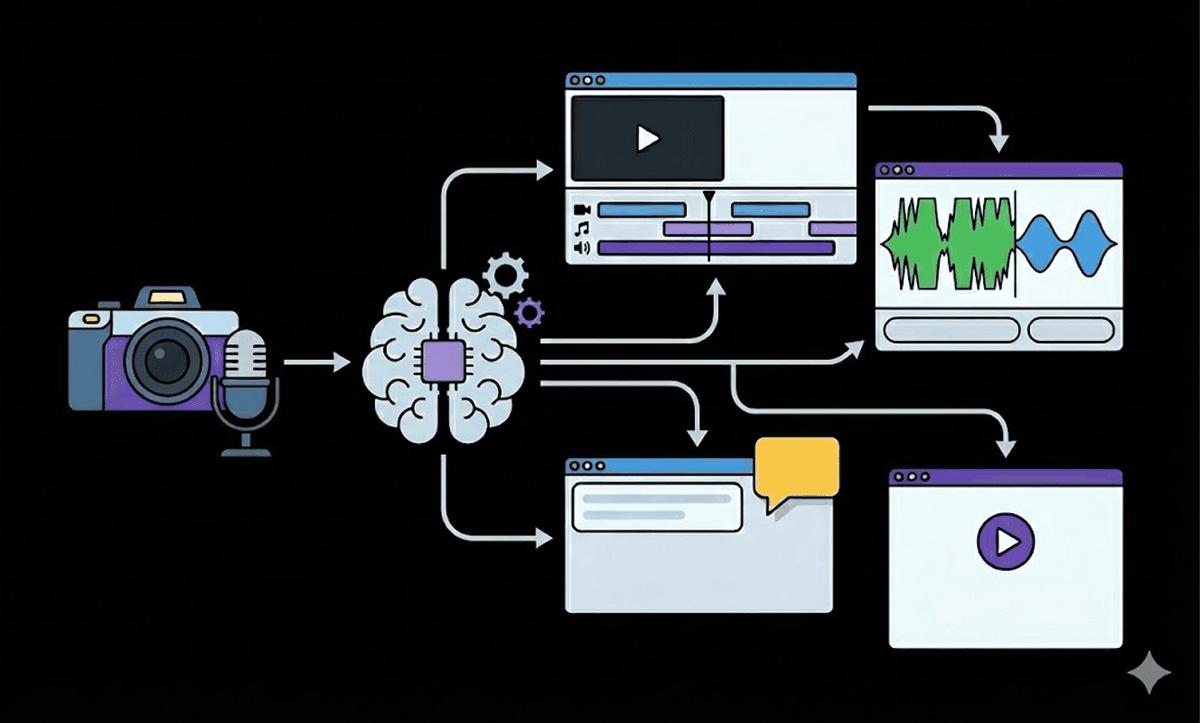
TLDR: The three highest-impact time-saving changes in Premiere Pro (previously known as Cutback) are using keyboard shortcuts for trimming and cutting, enabling proxy workflows for 4K footage, and automating silence and filler word removal rather than doing it manually.
Each year comes with new resolutions, and as video editors in an ever-evolving industry, it becomes more and more crucial to make sure you are on top of your editing game. In 2025, it’s all about saving time in your editing workflow so that you can focus on creativity and creating superior-quality videos. How do we do that, though?
Using Premiere Pro in 2025 doesn’t have to be as time-consuming or as complicated as before. With these Premiere Pro editing tips and tools like Premiere Assistant (previously known by the company name Cutback), you can achieve your desired editing outcome with ease. Try the Premiere Assistant plug-in for Premiere Pro today to see just how much editing time it saves you!
With that in mind, here are our three time-saving proposals on changes you can make to speed up your Premiere Pro Premiere Editing Workflow in 2025.
1. Optimize Your Premiere Pro Workflow with Powerful Plugins
Take your editing to the next level by filling in the gaps of Premiere Pro with powerful plugins like Premiere Assistant. Add must-have features like AI tools that save you hours to your workspace.
Plug-ins can not only fill in the gaps that Premiere Pro lacks but also provide you with more powerful and effective tools that get the job of Premiere Pro’s existing features done more effectively. For instance, Premiere Pro already has a transcription feature that you can utilize for text-based editing. However, it still lacks in some areas.
In consideration of this, there are several plug-ins, including Premiere Assistant, which are not only highly accurate but also have other features that make it worth the transition.
For instance, in the case of the Premiere Assistant plugin, not only do you get a highly accurate transcript in a matter of seconds, but it also has a more user-friendly user interface (UI) that optimizes actions such as editing words/phrases and the elimination process.
Here is a side-by-side comparison of Premiere Assistant vs. Premiere Pro’s transcript output for the same video:

As one example, in Premiere Pro, no toggle tool or icon that makes it easy to remove sections of your video in one go, the way that there is in Premiere Assistant in the form of the scissor icons.
Additionally, Premiere Pro doesn’t have a service that offers you a summary of the contents of your video, making it easier for you to identify segments in your sequence. Plug-ins take things a step further and elevate your editing experience overall.
2. Hop on the Text-Based Editing Trend
On the topic of text-based editing, whilst every editor’s ideal workflow is different, this is one editing trend that you should consider jumping on.
Whilst most editors know what text-based editing is, it is still a largely under-utilized editing style in parts of the video editing community. This is despite the fact that it’s a highly effective editing method.
Why scrub through endless timelines when you can edit visually with text-based editing to streamline your workflow?
Using the feature characteristics that we mentioned above, a plug-in like Premiere Assistant can eliminate hours of listening to/watching the same footage over and over again to seek out the best parts.
This is the power of working from text-based editing features like transcripts, summaries, and more.
However, if you wanted to take that a step further and amplify your editing game even more, you could also adopt the usage of certain AI editing tools.
3. Embrace AI Features And Video Editing Tools
We get it, there are a lot of “ifs,” “ands,” “buts,” and “why nots” when it comes to the conversation around using AI tools for professional skills like video editing in the future. But hear us out, or better yet, keep reading!
Instead of raging against the machine that is AI, utilize it to help you cut out the mundane and boring stuff. This way, you have more time to focus on the creative aspects of video editing and can focus on finetuning your final result to your heart’s content.
If you’re still at odds with this turn of technological events, read our feature on The Pros and Cons of AI Video Editing.
We all know how it feels to hand over or post a piece of content that we’re not fully satisfied with, in the name of deadlines or not having enough time. Using AI video editing assistants like Premiere Assistant, which you still have 100% control over, can improve your editing workflow so that doesn’t happen again.
For instance, Premiere Assistant offers an Auto Rough Cut feature that will edit a rough cut for you with the click of a button. You can decide if you want it to:
Remove repeats and put together the best cuts
Find highlights for each chapter
Give ideas to shorten your video
Cut video according to a script
Put together clips with keywords
Remove silences
Imagine having all of that base work done, in an instant, and being able to use your remaining editing time to pursue your creative vision. AI video editing tools can make that happen for you. Consider it as fueling your passion for Premiere Pro workflow optimization.
These are only a few of our tips on how to save time editing videos and how you can make editing faster for yourself in Premiere Pro by taking the pressure off of mundane tasks.
For even more beginner-friendly editing hacks and easy Premiere Pro tricks, stay tuned to Cutback’s YouTube channel as we have a video on the subject coming soon!
What are your hacks for Premiere Pro time management? Will you be using any of these tips? Don’t forget to engage with us on Cutback’s official social platforms and share your opinion.
Frequently Asked Questions (FAQs)
Q: What are the best ways to save time editing in Premiere Pro?
A: The three highest-impact changes are automating repetitive prep work, adopting text-based editing, and using keyboard shortcuts consistently. Automating silence removal, filler word cuts, and transcription with a plugin like Premiere Assistant eliminates the most time-consuming mechanical tasks. Text-based editing via a transcript lets you cut by reading rather than scrubbing the timeline, finding the best segments in minutes rather than hours. Keyboard shortcut fluency (particularly for trimming, cutting, and ripple deleting) removes the constant interruption of reaching for the mouse on every edit.
Q: What is text-based editing in Premiere Pro and how does it save time?
A: Text-based editing lets you edit your video by working directly from a transcript rather than scrubbing the timeline. Instead of watching footage repeatedly to find the right moments, you read the transcript, delete unwanted words and sentences, and Premiere Pro removes the corresponding footage from the timeline automatically. Combined with Premiere Assistant's transcript features, which include video summaries, chapter identification, and one-click silence removal, text-based editing can reduce prep time on long-form interviews and podcasts from hours to minutes.
Q: Does Premiere Pro have templates?
A: Premiere Pro does not ship with video templates for full sequence layouts like broadcast intros, sizzle reels, or travel videos. It does have Motion Graphics Templates (MOGRTs) for titles, lower thirds, and animated text elements, which are available through Adobe Stock and the Essential Graphics panel. For full sequence templates, editors typically build and save their own sequence presets or use third-party motion graphic packs. Premiere Assistant's caption presets are a specific type of template for animated captions and lower thirds applied directly in the timeline.
Q: How do I set auto-save in Premiere Pro?
A: Go to Edit (Windows) or Premiere Pro (Mac) > Preferences > Auto Save. Set the Automatically Save Every interval to your preferred frequency, 5 minutes is the standard for active editing sessions. Also set the Maximum Project Versions to at least 20 so you have a meaningful version history to revert to if something goes wrong. Premiere Pro saves to a dedicated Auto-Save folder inside your project directory by default; storing project files on an SSD ensures auto-saves complete quickly without interrupting playback.
Q: How do I save a timeline or edit in Premiere Pro?
A: Ctrl+S (Windows) or Cmd+S (Mac) saves the project file, which includes your entire timeline, sequence settings, and all edit decisions. Premiere Pro does not save individual timelines separately, the .prproj file contains everything. To save a specific sequence as a template for future projects, right-click the sequence in the Project Panel, select Export > Sequence, and save it as a Premiere Pro project file you can import later. For version control, enable Auto Save (Preferences > Auto Save) to maintain incremental backups automatically.
Q: What does Ctrl+W do in Premiere Pro?
A: Ctrl+W (Windows) or Cmd+W (Mac) closes the currently active panel or sequence tab in Premiere Pro. If you have a sequence open in the timeline, Ctrl+W closes that sequence tab. If the Source Monitor is active, it closes the currently loaded clip. It does not close the entire project or application, that is Ctrl+Q. This shortcut is easy to trigger accidentally if you are reaching for nearby shortcuts like Ctrl+S, so it is worth being aware of to avoid unexpectedly closing a sequence mid-edit.
Q: How do AI tools save time in a Premiere Pro workflow?
A: AI tools in Premiere Pro save the most time on the tasks that are high-volume and low-creative, silence removal, filler word cuts, auto transcription, caption generation, and rough cut assembly. Premiere Assistant's Auto Rough Cut feature, for example, can generate a first cut based on instructions like "remove silences," "find highlights per chapter," or "cut according to script" in the time it would take to manually review the first five minutes of footage. The goal is not to replace editorial decisions but to eliminate the prep work so editing time is spent on creative choices rather than mechanical tasks.

Kay Sesoko
Marketer
Share post







