How to Add B-roll to a Long-Form Interview Without Watching Everything Twice
B-roll placement is one of the most tedious stages of interview editing. Selects analyzes your footage and places relevant B-roll automatically before you open Premiere Pro, DaVinci Resolve, or Final Cut Pro.

TLDR: B-roll placement doubles editing time on most interview projects. Selects auto-analyzes your footage and places relevant B-roll at the right moments before you open the timeline.
Every editor who works on long-form interviews knows the pattern. You finish the rough cut, then you go back through the whole thing looking for moments that need coverage. You scrub the B-roll folder for something that fits. You make a judgment call, drop it in, move on. Multiply that across a 45-minute interview with 20 B-roll opportunities, and you've added two hours to a project that should have been done already. This post covers how to break that cycle.
New to the concept of B-roll? Our guide, A-roll and B-roll explained, covers the basics before you get into placement strategy.
Why B-roll Placement Is a Bottleneck, Not Just a Task
The problem with B-roll is structural. In most long-form editing workflows, B-roll gets handled last because editors prioritize the A-roll cut first. By the time B-roll placement happens, the editor has already been through the footage multiple times and is looking at the same material with diminishing attention. Placing B-roll well requires understanding the context of what is being said, matching it to footage that reinforces the point, and timing the cuts so the rhythm holds. Doing that manually on long footage is slow not because editors are inefficient but because the task itself requires context that takes time to re-establish every time you return to a clip.
Podcast and interview editors working at volume, studios handling 10 to 20 episodes a month, feel this the most. B-roll is often the last item before delivery, which means it absorbs deadline pressure. Rushing it produces talking-head coverage that undermines the quality of the finished piece even when the A-roll is strong.
What B-roll Actually Does in an Interview Edit
Before covering the workflow, it is worth being precise about what B-roll achieves. In an interview context, B-roll serves four purposes: it covers jump cuts created when you remove content from the A-roll, it provides visual evidence for claims being made verbally, it breaks up the monotony of a single-camera talking-head setup, and it reinforces the editorial point of a given section by showing rather than just telling.
The quality of B-roll placement affects whether a finished piece reads as professionally produced or not, regardless of how well the A-roll was edited. A well-cut interview with weak B-roll coverage still looks like a rough cut to most viewers. This is why B-roll placement is not a finishing step, it is a structural decision that affects how the whole edit reads.
The Two Ways Editors Add B-roll: Manual and Automated
The manual approach involves reviewing the A-roll cut, identifying moments that need coverage or visual reinforcement, scrubbing the B-roll library for relevant shots, and placing them on a track above the A-roll at the appropriate timecode. On a well-organized project with a labeled B-roll bin and a clear cut, this process is manageable. On a disorganized project with a large B-roll library and a tight deadline, it takes longer than the rough cut did.
The inefficiency is not in the placement itself, it is in the search and match step. Finding the right B-roll shot for a specific moment requires reviewing footage again, and reviewing footage on long projects is where time disappears.
The automated approach using Selects works differently. When you set up a project in Selects, you import your B-roll alongside your A-roll camera footage. This is the key constraint: B-roll must be added at project creation for Selects to analyze it. Once imported, Selects runs its AI analysis pass across all footage simultaneously. It transcribes the A-roll, identifies topics and segments, analyzes the visual content of the B-roll, and uses the contextual relationship between what is being said and what is in the B-roll to place inserts automatically.
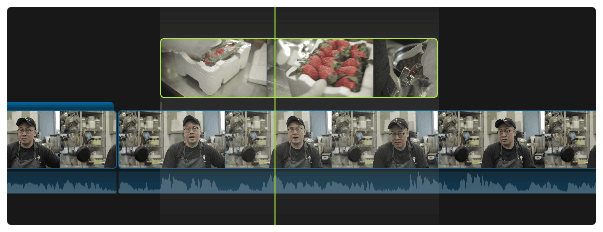
The result is a timeline where B-roll is already positioned before you open Premiere Pro, Final Cut Pro, or DaVinci Resolve. You review the placement decisions, adjust what needs adjusting, and work from a draft that has coverage rather than spending time building that coverage from scratch.
How to Set Up B-roll for Auto Placement in Selects
The workflow is straightforward but requires one upfront decision that most editors are not used to making: your B-roll needs to be ready before you start the project, not after.
Start by organizing your B-roll footage into a clearly labeled folder before importing into Selects. Shots that are thematically distinct, product shots, location footage, process shots, reaction shots, should be separated so the analysis has clean material to work with. Mixed or disorganized B-roll folders produce less accurate auto-placement because the AI has less context to distinguish between shots.
When you create a new project in Selects, add both your A-roll camera footage and your B-roll folder at the same time. Selects will analyze all of it during the initial AI analysis pass. The analysis covers transcription, speaker identification, topic detection, and visual scene recognition across both the A-roll and B-roll simultaneously. Once complete, the B-roll is positioned on the timeline based on contextual relevance to the A-roll content at each point.
After analysis, review the B-roll placements in the Selects timeline before handoff. You can move, replace, or remove individual inserts at this stage. The goal is not to accept every automated placement uncritically -- it is to start from a draft where 70 to 80% of the B-roll decisions are already made so you are refining rather than building.
Export the project to your NLE of choice and continue with color, audio finishing, and any remaining B-roll adjustments in your usual environment.
B-roll for Podcasts Specifically
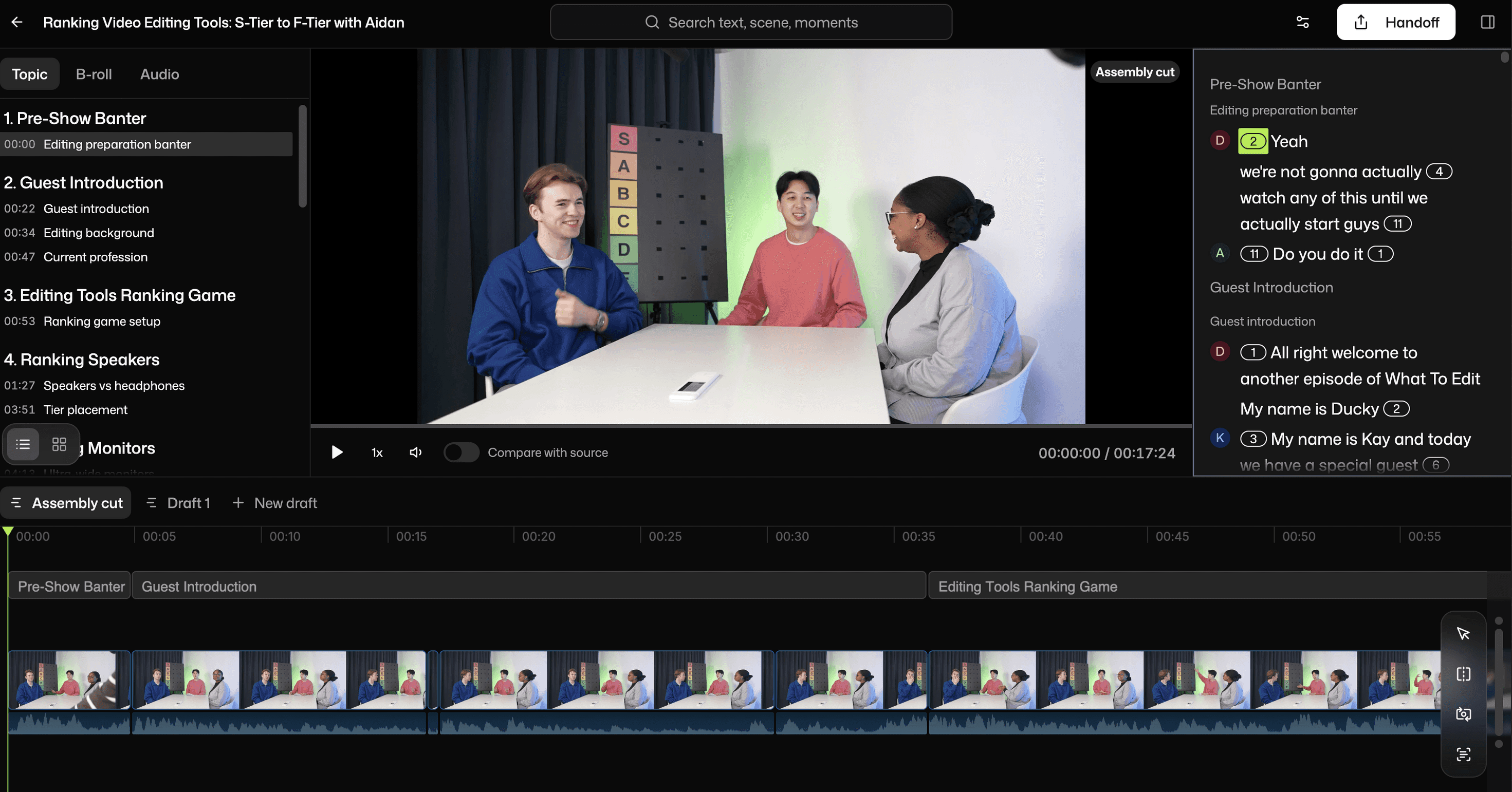
Video podcasts have a specific B-roll challenge that interview editing does not: most of the content is two or more people talking, and the B-roll needs to cover conversational moments rather than claims or demonstrations. Product shots and location footage do not always apply. The B-roll that works in podcast editing tends to be reaction shots from the additional cameras, cutaways to a guest's hands or face, and any supplementary footage that the podcast topic touches.
Selects handles this through multicam analysis. When you have multiple cameras covering a podcast recording, each camera angle functions as potential B-roll for the other angles. Selects analyzes speaker activity across cameras and can place reaction shots and angle switches as inserts based on who is speaking and when. For a detailed look at how this interacts with the multicam workflow specifically, the complete guide to podcast and interview editing covers the full workflow from raw footage to NLE-ready project.
The Upfront Investment That Pays Off Later
The counterintuitive thing about Selects' B-roll workflow is that it requires more organization at the start of a project than most editors are used to. Importing B-roll at project creation rather than adding it later is a workflow habit change, not just a feature toggle. Editors who are used to leaving B-roll until the end of the process have to reorder their import step.
The payoff is that B-roll becomes a first-pass problem solved during analysis rather than a last-pass problem solved under deadline pressure. For studios running recurring projects with a consistent B-roll library, the same brand footage used across multiple episodes, a standing library of location shots, a recurring set of product visuals, the upfront organization cost gets paid once and the automation benefit compounds across every project.
Frequently Asked Questions (FAQs)
Q: What is B-roll in an interview or podcast video?
A: B-roll is supplementary footage that plays over the main interview audio. In interview editing, it covers jump cuts caused by removing content, provides visual evidence for what is being said, and breaks up single-camera talking-head setups. In podcast editing, B-roll typically includes reaction shots from additional cameras, angle switches, and any footage related to the topics being discussed.
Q: Why is B-roll important in video editing?
A: B-roll is what distinguishes professionally produced interview content from raw talking-head footage. It covers edits, adds visual context, and controls the viewer's attention at specific moments in the edit. Well-placed B-roll makes a finished piece feel complete; missing or poorly placed B-roll signals an unfinished edit regardless of how good the A-roll is.
Q: What is the best tool for automatically placing B-roll in an interview?
A: Selects analyzes both A-roll and B-roll footage during its pre-editing pass and places B-roll inserts automatically based on the contextual relationship between what is being said in the A-roll and the visual content of the B-roll footage. B-roll must be imported at project creation for analysis to work. The auto-placed draft is then reviewed and adjusted in Selects before handoff to Premiere Pro, Final Cut Pro, or DaVinci Resolve.
Q: Can Adobe Premiere Pro automatically add B-roll?
A: Premiere Pro does not have a native feature that automatically places B-roll based on A-roll content. Premiere Assistant (Cutback's Premiere Pro plugin) supports B-roll search inside the timeline, allowing editors to search their B-roll library by description and drag inserts into place. Automated B-roll placement based on contextual analysis of the A-roll content is handled upstream by Selects, before the project reaches Premiere Pro.
Kay Sesoko
Marketer
Share post