Video File Management for Editors: A Practical System
A practical video file management system: folder structure, naming conventions, and how proxy files and AI tools like Selects fit into the workflow.

TLDR: A consistent video file management system, folders, naming, proxies, saves more editing time than any single piece of software.
Most editors don't lose time because their computer is slow. They lose it hunting for a file: the right take, the right camera angle, the right version of a folder someone renamed halfway through a project. Video file management isn't an exciting topic, but it's the difference between opening a project and editing within five minutes, or opening it and spending the first hour just figuring out what you're looking at.
This isn't a storage or hardware guide; that's covered in the technical video editing guide if drive speed and format specs are the actual problem. This is about the system: how files get organized, named, and handed off, so that the footage itself never becomes the bottleneck.
Why Video File Management Actually Matters
A single interview shoot with two cameras and a lav mic can produce 60+ individual files by the time it's imported: camera A clips, camera B clips, audio, B-roll, maybe a screen recording. Multiply that across a multi-episode podcast season or a week of event coverage, and "I'll just remember which folder that's in" stops working around file 40.
The cost isn't just annoyance. Every minute spent searching for a file is a minute not spent editing, and it compounds across a project: unlike a slow export or a laggy timeline, which happen once, disorganized files cost you time on every single session you open that project.
What Is File Management, Really?
File management is the system for organizing, storing, and retrieving files, video, audio, or otherwise, so they're both accessible and identifiable later. There isn't a single agreed-upon "four types" framework the way there is for, say, video editing stages; general file management literature usually describes either two broad categories (on-premise vs. cloud-based) or three structural types (hierarchical folders, relational/metadata-based, and network/location-based), depending on the source. None of them are video-specific.
For video editors, the practical version of this comes down to two real choices: a hierarchical system (nested folders, sorted by project, then by type) or a metadata/tag-based system (files found by searching what they are, not where they're filed). Most editors use hierarchical folders because every NLE and OS defaults to it, but metadata search is increasingly how AI-assisted tools like Selects let you find footage without navigating folders at all; more on that below.
How to Organize Video Files for Editing
A folder structure only works if it's the same on every project, so you're never re-deciding it mid-shoot. A structure that holds up across most editing workflows looks something like:
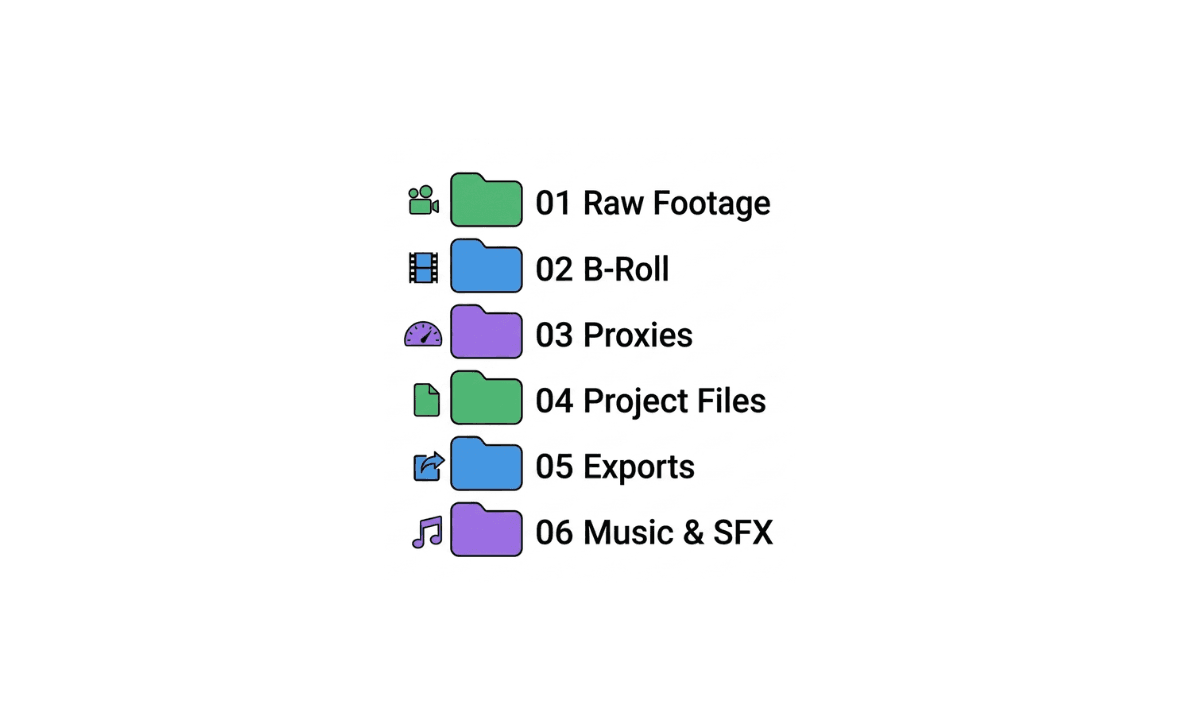
The numbering isn't decorative; it forces the folders to sort in the order you actually use them, so raw footage is always first, and exports are always near the end, regardless of what the OS's default alphabetical sort would do to folder names like "B-Roll" and "Audio."
Keep raw camera footage separate from proxies, and proxies separate from anything you've already exported. The moment original camera files and edited exports sit in the same folder, it becomes genuinely hard to tell, at a glance, what's safe to delete once a project wraps.
Naming Conventions That Actually Hold Up
A folder structure solves where a file lives. A naming convention solves what happens once files from multiple cameras or multiple days end up in the same place. A workable pattern is [Date]_[ProjectCode]_[Camera/Source]_[Sequence], for example, 2026-07-28_TFM-Ep12_CamA_003.mov. It sorts chronologically by default, tells you the source at a glance, and doesn't rely on remembering which arbitrary name you gave a folder three weeks ago.
The convention only works if it's applied at import, not after. Renaming a batch of files after they're already scattered across a drive is exactly the kind of task that gets skipped when a deadline is close, which is usually the moment good file management matters most.
Proxy Files: Managing Large Footage Without Slowing Down
Once footage is organized, the next practical problem is size. 4K, 6K, and 8K camera files are large enough that editing directly off the originals can mean waiting on every scrub and every cut, especially on a laptop or an external drive that isn't especially fast.
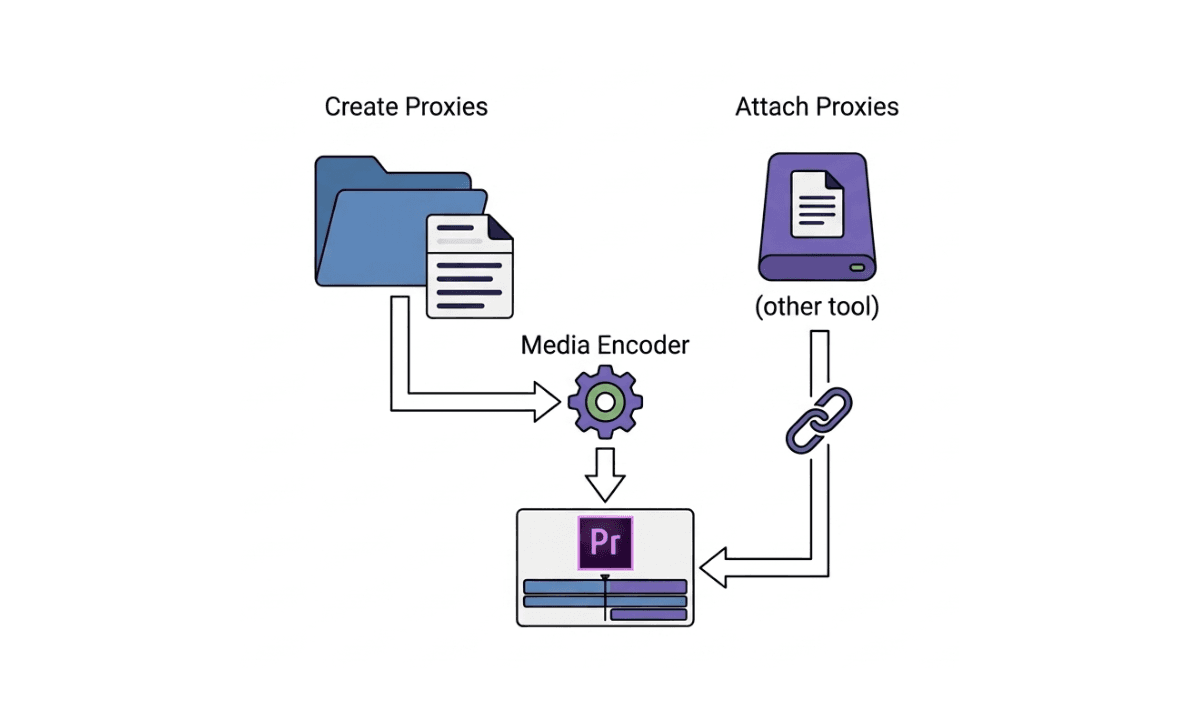
Proxies solve this by giving you a lightweight, lower-resolution stand-in to edit with, then relinking to the full-quality originals once you're ready to finish. The proxy workflow follows the same basic shape in Premiere Pro, Final Cut Pro, and DaVinci Resolve: generate proxies on import (or after, via a transcode step), edit against the lightweight files, then relink to the original camera files for color, effects, and final export. Keeping proxies in their own folder, separate from originals, per the structure above, is what makes that relink step reliable: all three NLEs match proxies back to originals using filename and timecode, so if the proxy folder gets mixed in with anything else, that matching can break.
Where AI Fits Into Video File Management
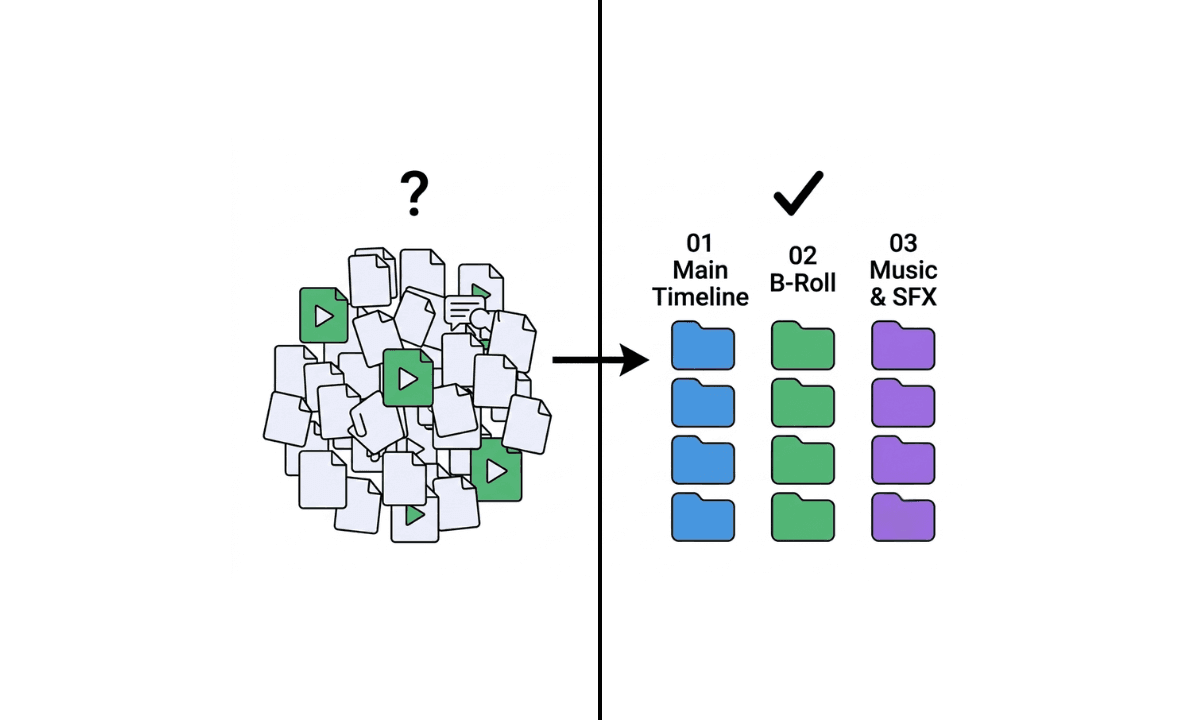
A common version of this today is pointing Claude or Codex at a footage folder and asking it to label and organize everything. Worth being clear about what's actually happening when you do that: on its own, Claude can only work with filenames, folder paths, and whatever metadata is attached to a file; it can't watch the footage, so "organize by content" quietly becomes "organize by filename," which isn't the same thing. Connecting Selects via MCP changes what Claude is actually working with: instead of guessing from a filename, Claude can instruct Selects to transcribe, detect speakers, and identify topics across the real footage, then use that analysis to label and organize files by what's actually in them. The organizing step becomes accurate instead of best-effort through an automated video editing pipeline that goes beyond just organizing files.
This is also where file management stops being purely manual, despite file naming. Selects is built to take a large, messy import and organize it automatically rather than asking an editor to pre-sort everything by hand first. Drop in a folder (or several), and Selects preserves your existing folder structure, reads each file to detect whether it's video, audio, or an image, and groups everything into what it actually is for editing purposes: main timeline footage, B-roll, and music/SFX, shown with file counts and total duration before analysis even starts.
It also works directly with proxy media: import a proxy folder instead of your original camera files, and Selects builds its analysis and rough cut from the proxies, then hands off a project file that references them, ready to relink to full-quality originals in Premiere Pro, Final Cut Pro, or DaVinci Resolve once the edit moves to finishing. A single project can hold up to 40 hours of combined footage across all camera tracks, with up to 10 hours of that placed on the actual timeline, so this scales well past the "few interview files" case into full multi-day shoots.
The practical shift here is what you're searching for. A folder-and-filename system is still the foundation; it's what makes files findable at the OS level. But once footage is imported, tools like Selects let you search by what's actually in the footage, a phrase someone said, a topic, a visual moment, instead of only by folder path, which matters most on the projects large enough that a naming convention alone stops being enough to find anything fast.
Best Video File Management Software and Apps
For general file and folder organization, most editors don't need dedicated software beyond what their OS and NLE already provide: Finder or File Explorer for folder structure, and the proxy/media management tools built into Premiere Pro, Final Cut Pro, and DaVinci Resolve for footage specifically. Cloud storage tools (Dropbox, Google Drive) handle backup and team access, but they're not built for the video-specific problem of finding a moment inside hours of footage; that's a search problem, not a storage problem.
For the editing-specific side, AI pre-editing tools like Selects sit upstream of all of this: instead of managing files manually before editing starts, they organize footage automatically on import and make it searchable by content rather than filename. It isn't a general-purpose file manager, and it won't replace Dropbox for team file sharing, but for the specific job of turning a folder of raw footage into something you can navigate while editing, it removes a step most video file management advice doesn't address at all.
Frequently Asked Questions (FAQs)
Q: How do you organize video files for editing?
A: Use a consistent folder structure, separating raw footage, B-roll, proxies, project files, and exports into their own folders, applied the same way on every project. Pair that with a naming convention like date, project code, and camera source at the point of import, not after the fact, so files stay identifiable even once footage from multiple cameras or shoot days ends up in the same place.
Q: What is the best way to store video files?
A: Original camera footage should stay separate from proxies and separate from finished exports, in their own folders, so it's always clear what's safe to archive or delete once a project wraps. For large or multi-camera projects, proxies (lightweight, lower-resolution stand-ins for the originals) let you edit smoothly without waiting on full-resolution files, then relink to the originals for color and final export.
Q: What are the four types of file management?
A: There isn't a single agreed-upon "four types" framework; sources describe file management as either two broad categories (on-premise vs. cloud-based storage) or three structural types (hierarchical folders, relational or metadata-based systems, and network/location-based systems). For video editing specifically, the practical distinction that matters is hierarchical folders versus metadata or content-based search, since that's the choice that actually affects how fast footage gets found.
Q: What is the best software for organizing videos?
A: For general folder and file organization, most editors don't need separate software beyond their OS's file manager and the proxy tools built into Premiere Pro, Final Cut Pro, or DaVinci Resolve. For the specific problem of finding moments inside long or multi-camera footage, AI pre-editing tools like Selects organize raw footage automatically on import and make it searchable by content, which folder structure alone can't do.
Q: Is there free video file management software?
A: Basic file and folder organization is already free; it's built into every operating system (Finder, File Explorer) and every major NLE's proxy and media management tools. What isn't typically free is AI-assisted organization and content search across large footage libraries; Selects offers a 7-day free trial for that layer specifically, rather than a permanent free plan.
Q: How do you manage large video files without running out of space or slowing down your editor?
A: Proxy files are the standard solution: generate lightweight, lower-resolution versions of large 4K, 6K, or 8K camera files, edit against those instead of the originals, then relink to full-quality footage once you're ready to finish. Keeping proxies in their own folder, separate from originals, is what keeps the relink step reliable, since NLEs match proxies to originals by filename and timecode.

Kay Sesoko
Marketer
Share post