Technical Video Editing Guide for 2026: Storage, Audio, Specs & File Management
A complete 2025 guide to technical video editing: storage workflows, audio fixes, Premiere Pro/DaVinci Resolve/Final Cut Pro issues, export settings, codecs, formats, and the best laptops for editing.
TLDR: The essential technical setup for video editing in 2026 covers storage structure (SSD for cache, separate drive for media), audio fixes (clipping, sync, noise), codec and format choices per NLE, and minimum system specs for smooth playback.
Slow timelines. Broken playback. Transcript formatting issues. “Media offline.” Exports that look worse than the rough cut.
Most editing issues aren’t creative; they’re technical bottlenecks.
If you understand the basics of hardware, storage, and file formatting, your edits become smoother, faster, and way less stressful. This guide explains what actually matters in a technical setup for modern video production and post-production. Whether you’re cutting YouTube videos, interviews, or multi-cam podcasts, here’s how to avoid the roadblocks before they happen.
For DaVinci Resolve-specific timeline lag, including variable frame rate media, GPU driver issues, and third-party app interference, the DaVinci Resolve timeline lag fix guide covers those cases in detail.
If you're an editor setting up a DaVinci Resolve workflow specifically, the best DaVinci Resolve plugins in 2026 covers the full plugin stack from AI pre-editing to color and noise reduction.
For the full Final Cut Pro plugin ecosystem in 2026, the best FCP plugins for long-form editors covers which tools are worth installing across every category.
Hardware Requirements: What Actually Matters When Choosing Video Editing Laptops
Most creators buy computers based on brand or marketing claims or even due to budget. Instead of buying a cheap laptop for video editing in hopes of saving money, you should optimize for the four components that directly affect edit performance, even if it means making a big investment.
CPU: The brain of your edit and the backbone of your video editing laptop
The CPU is one of the most important components of laptops for video editing. CPU controls playback, transcoding, and multicam performance.
NLEs rely heavily on strong processor performance, so choosing a CPU with enough power is essential.
Adobe Premiere Pro and Resolve prefer higher core counts (8+ cores recommended)
For 4K display and above: Intel core i7 / i9 or AMD Ryzen 7 / 9
Apple’s newer M4 chip also delivers excellent processor perfomance for video editing, especially in optimized apps like Final Cut Pro.
Tip: Long-GOP codecs like H.264/H.265 strain CPUs; proxies can help for better video editing performance.
If you want to compare raw processor performance across laptops, Cinebench scores are the most reliable benchmark for video editing workflows.
GPU: Effects, AI features, and exports (your graphics card matters)
The GPU (also known as a graphics card) accelerates effects, color grading, motions, and AI-powered tools inside your video editing software.
NVIDIA RTX cards perform best for CUDA-accelerated edits
DaVinci Resolve especially depends on GPU VRAM (8GB+)
Tip: If you love heavy transitions or color, GPU matters more than CPU. A Strong GPU improves both color accuracy and the quality of integrated graphics, especially during exports or heavy effects work.
Editors working on color-critical projects should pair a dedicated GPU with a display that supports DCI-P3 or Adobe RGB for accurate color grading.
High-end laptop screens, such as an OLED display or Mini LED display, offer deeper contrast and better HDR previews for professional video production.
RAM: How many layers, graphics, and assets you can work with
The best laptop for video editing should have at least 16GB of RAM minimum or 32GB recommended for 4K video editing or multicam editing (used by most creative professionals).
RAM keeps timelines responsive when working with layers, graphics, captioning, and video playback.
Tip: When RAM runs out, performance tanks into swap memory, instant lag.
SSD: The #1 upgrade for smooth editing
The drive speed determines how fast the media loads and scrubs.
An NVMe SSD provides the fastest speeds, followed by external storage SSDs, while HDDs should only be used for archiving and storage capacity, never for active editing.
For most creators:
Keep your OS and apps on an internal SSD (standard for a mobile workstation)
Store project files on external storage SSDs
Use external hard drives only as backups
If your editing feels slow, upgrading to an SSD fixes 70% of performance issues. Upgrading to an SSD improves performance in nearly every editing workflow, especially when timelines feel sluggish or unresponsive.
Storage & File Management That Avoids Disaster Later
Poor file management doesn’t just waste time; it breaks projects. Your storage and video file management can make the biggest difference in your entire video editing workflow. This is in the same way that your laptop/device specs for video editing can impact your editing experience.
Make sure to read our blog post on how to set up your storage for faster video editing.
SSD vs HDD: Choose speed over savings
SSD: Fast previews, real-time scrubbing, smooth multicam
HDD: Cheap, slow, okay for backup but not active projects
Rule: If you preview from a spinning drive, you’re already losing.
For best performance when editing from external storage, choose SSDs connected through Thunderbolt ports, which provide the highest sustained speeds for large video files.
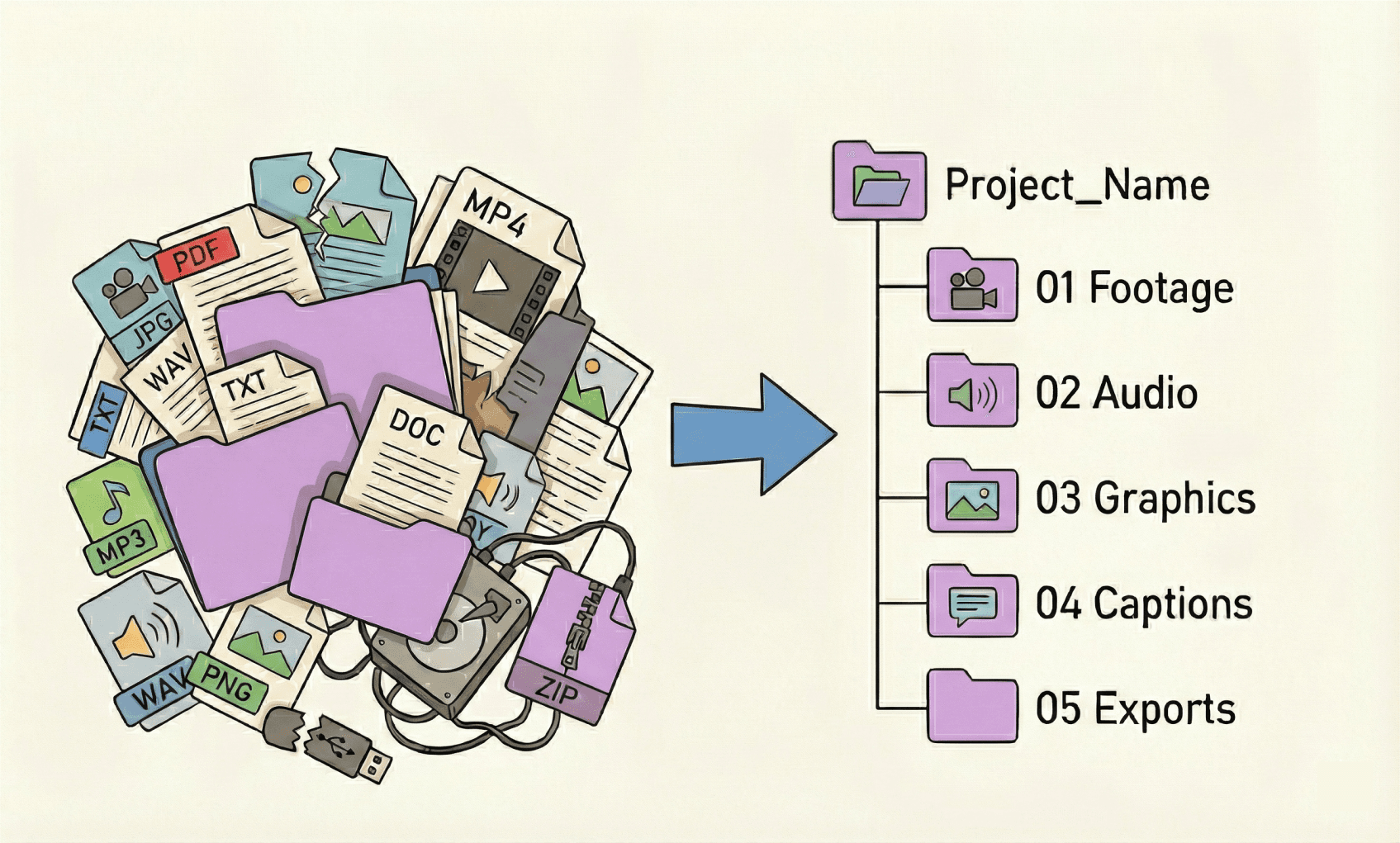
Organized folders = fewer relinks
A clean project structure prevents 90% of relinking nightmares, especially as your project grows or moves between machines.
A clean project structure:
Why this matters:
Your NLE (Premiere Pro, DaVinci Resolve, Final Cut Pro) references file locations, not the files themselves.
When you rename or move anything after import, your timeline breaks and you waste time relinking clips or rebuilding missing media.
Tip: Never rename or move files after importing to your NLE; it breaks links.
For Final Cut Pro users specifically, these FCP-specific timeline lag fixes cover the most common causes including NAS storage, VFR iPhone footage, and macOS update issues in detail.
For Premiere Pro users seeing timeline lag specifically from codec overhead, these Premiere Pro-specific lag fixes cover the proxy codec choice and VFR transcoding steps in detail.
Proxy workflows: The secret weapon for smooth 4K (and 6K/8K)
High-resolution codecs like H.264, H.265, LOG, and 4K/6K/8K formats aren’t designed for smooth editing. Your CPU suffers, your GPU chokes, and your playback stutters.
Proxies solve that.
They convert heavy footage into lightweight editing files so your timeline stays responsive.
Benefits:
Faster timeline playback on any machine
Better stability with multicam footage
Reduces CPU bottlenecks dramatically
Extends the life of older laptops
Makes color grading + audio adjustments smoother
Recommended proxy presets
Premiere Pro: Create ProRes LT or DNxHB proxies
DaVinci Resolve: DNxHR LB or ProRes Proxy
When you must use proxies
4K or higher footage
Multicam sequences
HEVC/H.265 clips
Any laptop with integrated graphics
Long timelines exceeding 30+ minutes
Best workflow tip:
Store your proxies on a fast external SSD (Thunderbolt preferred). This keeps your main drive free and maintains stable playback during heavy edits.
Fixing Common Premiere Issues
Even experienced editors run into small Premiere Pro problems that interrupt the workflow: audio clipping, snapping misbehaving, strange autoplay behavior, or footage that refuses to format correctly. Most of these issues have simple fixes, but they’re not always obvious when you’re in the middle of an edit.
If you need step-by-step fixes, try Premiere Pro troubleshooting with Premiere Assistant.
Here’s a practical, creator-friendly breakdown of the most common Premiere problems and how to solve them quickly.
1. Audio Clipping (Distortion in Dialogue or Loud Peaks)
Clipping happens when the audio is recorded too loud, and the waveform hits 0 dB. It creates harsh, crunchy distortion that viewers immediately notice.
How to fix audio clipping in Premiere Pro:
Bring down Clip Gain
Right-click → Audio Gain → lower by -3 to -12 dB
Turn on the Loudness Radar or amplitude meters to monitor peaks
Apply the “Dynamics” effect
Enable the Limiter to prevent further clipping
For heavily distorted recordings:
Send the clip to Adobe Audition and use DeClipper
Or use AI audio cleanup tools before bringing it back into Premiere
Check out our full guide on how to fix audio clipping in Premiere Pro for more details.
2. Premiere Pro Autoplay Issue (Timeline Plays Automatically)
Sometimes the timeline starts playing even when you haven’t hit the spacebar. This is almost always caused by input device conflicts or keybinding triggers.
Quick fixes:
Disconnect drawing tablets, MIDI devices, or external controllers
Reset Premiere keybindings:
Edit → Keyboard Shortcuts → Reset to DefaultsDisable “Enable Transmit” under Preferences → Playback
Restart Premiere with plugins disabled (hold Shift+Alt on launch)
If the issue continues, it usually signals a corrupted preferences folder.
Solution: Reset preferences (Shift+Alt on launch → confirm).
3. Timeline Snapping Not Working (or Snapping Too Aggressive)
Snapping helps align clips, markers, and audio precisely; especially when creating a stringout. When it breaks, every cut takes longer.
To toggle snapping: Press S on your keyboard.
If snapping is still unreliable:
Make sure you are dragging from a logical edge, snapping does not activate from mid-clip grabs
Increase zoom level; snapping sensitivity increases as you zoom in
Check that no third-party extension is overriding snapping behavior
4. Premiere Not Selecting Clips Properly (Selection Bugs or Tools “Sticking”)
Sometimes Premiere refuses to select clips, selects too many, or keeps switching to the wrong tool.
Fix checklist:
Make sure track targeting is enabled (V1, A1 blue)
Reset the tool with keyboard shortcut (V for Selection Tool)
Disable “Snap to Pointer” in Preferences → Timeline
If selection drags feel off:
Preferences → Timeline → deselect “Selection Follows Playhead”
If none of this helps, you may have a corrupted workspace layout.
Fix: Window → Workspaces → Reset to Saved Layout
5. Footage Formatting Issues (Wrong Aspect Ratio, Colors, or Playback Lag)
Creators often see problems like:
Stretched or squished footage
LOG footage looking gray
Jerky playback
4K files lagging even on good hardware
Fast solutions:
Fix incorrect aspect ratio
Right-click clip → Modify → Interpret Footage → set correct pixel aspect ratio.
Read a detailed guide on how to resize your video to any format in Premiere Pro here.
Fix LOG or flat-color footage
Apply the correct technical LUT before color grading.
Fix playback lag
Lower Playback Resolution (½ or ¼)
Turn on Proxies
Place cache on an SSD
Enable GPU acceleration
File → Project Settings → General → Renderer → CUDA/Metal
6. Reformatting or Converting Footage Correctly
When Premiere struggles with certain codecs (especially variable frame rate from phones or screen recordings), reformatting the footage solves the issue instantly.
Best practice:
Transcode problem clips to a stable codec like ProRes, DNxHR, or H.264 Constant Frame Rate using:
Adobe Media Encoder
Shutter Encoder (free)
HandBrake (free)
This prevents drifting audio, timeline desync, and random crashes.
7. Bonus: When Premiere Pro Isn’t the Problem, It’s the Prep Stage
A surprising number of Premiere Pro issues (sync problems, slow timelines, audio mismatches) aren’t caused by Premiere at all, they come from messy raw footage.
Offloading prep to Selects eliminates many Premiere pain points:
Multicam sync happens automatically
Silence and filler-word cuts happen before the timeline
Clean stringouts reduce clutter
Well-organized XML handoff prevents timeline corruption
Exporting Videos Correctly Without Losing Quality (Formats, Codecs & Bitrate Guide)
Your edit isn’t finished until your video survives export looking exactly as good as it did in the timeline. The wrong format or bitrate can destroy sharpness, ruin motion, or make files too heavy to upload.
Here’s how to export cleanly for every major creator workflow.
Best Export Settings for YouTube
For most creators, YouTube will compress your file anyway, so your goal is to feed it a high-quality master.
Recommended settings
• Format: H.264 (MP4)
• Resolution: 1080p or 4K, depending on your project
• Frame rate: Match your sequence (usually 24 / 30 fps)
• Bitrate: 20–50 Mbps for 4K, 10–20 Mbps for 1080p
• Audio: AAC at 320 kbps
Why it works
YouTube re-encodes everything. By giving YouTube a higher-bitrate file, you preserve detail during that compression.
Best Export Settings for Instagram Reels & TikTok
Vertical platforms prioritize fast loading. Bitrate is key.
Recommended settings
• Format: H.264
• Resolution: 1080×1920 (9:16)
• Bitrate: 6–20 Mbps (closer to 20 for crisp footage)
• Audio: AAC at 256 kbps
Pro tip: Add a small unsharp mask before export to offset social compression blur.
Export Settings for Spotify Video Podcasts
Spotify uses a more limited pipeline than YouTube.
Recommended settings
• Format: H.264
• Resolution: 1080p
• Bitrate: 12–20 Mbps
• Audio: AAC at 256 kbps minimum (dialogue clarity matters most)
Tip: Avoid super-high contrast filters, darker videos compress poorly on Spotify.
Exporting for Clients, Agencies, or Archival
If you’re delivering a professional edit for further re-use or color work, you should avoid heavy compression.
Recommended settings
• Format: ProRes 422 LT or DNxHR
• Resolution: Stick to your working resolution
• Audio: Uncompressed or WAV
Why it matters
These formats preserve flexibility for future editing instead of baking in compression artifacts.
Quick Export Reference Table
Use Case | Format | Resolution | Bitrate | Audio |
YouTube upload | H.264 | 1080p / 4K | 10–50 Mbps | AAC 320 kbps |
TikTok / Reels | H.264 | 1080×1920 | 6–20 Mbps | AAC 256 kbps |
Spotify Video Podcasts | H.264 | 1080p | 12–20 Mbps | AAC 256 kbps |
Client / Broadcast delivery | ProRes / DNxHR | Project resolution | Very high | WAV / PCM |
If you’re working on 6K video editing, use codecs like ProRes or DNxHR to avoid dropped frames and long export times.
For more information on the best file formats and export settings in Premiere Pro, check out our guide.
Pro Workflow Tip: Get Feedback Before Publishing
Export a low-bitrate preview to Frame.io (or any review tool) first.
Fix everything there, then export your final master.
It saves upload time and avoids the painful “export → upload → find mistake → re-export” loop.
Audio Editing & Fixes for Clean Dialogue
Clean audio is one of the biggest differences between an amateur edit and a professional one. Even if your visuals look cinematic, viewers will click away the moment the sound feels harsh, muddy, or inconsistent. The good news: most audio issues can be fixed quickly once you understand the core tools.
Modern video editing tools often include built-in diagnostics, but running independent video editing tests can help verify whether slow performance is caused by hardware limitations or software settings.
Here’s how to smooth dialogue, balance levels, remove noise, and recover clipping in a way that works across Premiere Pro, DaVinci Resolve, Final Cut Pro, and audio-first tools.
1. Smoothing Dialogue (Make Cuts Invisible)
When you remove silences or trim phrases, your audio track will often create tiny “pops,” sudden shifts in tone, or abrupt transitions.
Fix it with crossfades:
Add a short constant power crossfade (Premiere) or crossfade +3 dB (Resolve) between cuts
Use 2–6 frames for natural speech flow
Only increase fade length if the transition still feels abrupt
Why it works:
Smooth micro-fades mask editing seams without making the audio sound “swimmy.”
2. EQ (Equalization) for Clearer Voices
Raw audio often has:
Too much low-end rumble (air conditioners, mic bumps)
Harsh high frequencies
Muddiness from room acoustics
Basic EQ template for talking-head videos:
Goal | What to adjust |
Remove rumble | High-pass filter at 70–100 Hz |
Reduce muddiness | Gently dip 200–350 Hz |
Add presence | Boost 2–4 kHz slightly |
Reduce harshness | Dip 6–8 kHz if needed |
Pro tip: If you edit lots of creator content, save this as a reusable EQ preset.
3. Noise Reduction (Hiss, Hum, AC, Echo)
Even good microphones pick up unwanted background noise. Use these tools sparingly, overdoing them causes robotic or underwater-sounding voices.
Best results come from:
Premiere’s Reduce Noise + DeReverb
Resolve Fairlight’s Dialogue Processor
FCP’s Voice Isolation
Third-party tools like RX Voice De-noise (industry standard)
Start small:
Noise reduction: 10–30%
Reverb reduction: 5–15%
If the artifacting gets noticeable, pull back.
4. Fixing Audio Clipping (Distortion)
Clipping happens when audio is recorded too loudly and the waveform “flattens” at the top. It sounds crunchy or blown out.
To repair clipping:
Use Clip Gain to bring the level down first
Apply a De-clip tool (Adobe Audition, iZotope RX, Resolve Dialogue Processor)
Add soft compression afterward to even out volume
Note: Bad clipping can’t always be perfectly restored, but modern AI tools recover far more than legacy filters.
Read more on how to fix clipping audio in our guide.
5. Leveling & Compression (Consistent Volume)
Creators often have inconsistent dialogue, laughing peaks, quiet mumbles, drifting away from mics.
Use compression to keep volume steady:
Starter settings:
Ratio: 2:1 – 3:1
Threshold: Adjust until the compressor moves during loud peaks
Makeup gain: Bring quiet parts up slightly
Attack: Medium
Release: Medium-fast
This prevents constant viewer volume adjustments, a major retention killer.
6. Loudness Standards (Finishing the Mix)
Platforms have recommended loudness levels so your videos don’t sound too quiet or too loud next to others.
Targets:
YouTube: -14 LUFS
TikTok/Reels: ~-15 to -18 LUFS
Broadcast: -24 LUFS
Use your NLE’s loudness meter or loudness normalization tool.
7. Bonus Fix: Eliminating Plosives and Sibilance
Plosives (“p” pops) and sibilance (“s” hiss) are common in podcasts and interviews.
Quick fixes:
Add a de-esser at 4–7 kHz for sharp “s” sounds
EQ dip around 100–150 Hz for plosives
Apply selective gain reduction on problem syllables
8. When to Use AI Audio Cleanup Tools
AI audio enhancers (Selects, Adobe Enhance Speech, Resolve Voice Isolation) can dramatically improve problem footage:
Best for:
Echoey rooms
Phone-recorded audio
Low-budget mics
Quick turnaround edits
Use lightly, applying Enhance to already-good audio can make it sound synthetic.
Other helpful guides for your video editing workflow:
For more in-depth knowledge about the ins and outs of video editing, check out our latest posts on the Cutback blog or our YouTube channel.
FAQs (Frequently Asked Questions)
Q: Is video editing a technical skill?
A: Yes, in two distinct ways. There is the creative/editorial side (pacing, storytelling, structure) and the technical side covered in this guide, hardware requirements, storage architecture, codec selection, file management, and system configuration. Editors who only develop creative judgment without understanding the technical layer frequently hit avoidable problems: slow timelines, broken links, corrupted exports, and inconsistent playback. The technical skills are learnable independently of editing software, they apply across Premiere Pro, DaVinci Resolve, and Final Cut Pro equally.
Q: What is the difference between technical editing and video editing skills?
A: "Technical editing" is also a separate, established term in publishing and documentation, it refers to reviewing written content (manuals, technical documents, scientific papers) for accuracy, clarity, and consistency, unrelated to video. In the context of video production, "technical video editing" refers specifically to the infrastructure and system-level decisions that support the editing process: hardware specs, storage configuration, codec and proxy workflows, and file management, distinct from the creative editing skills of pacing, story structure, and visual composition.
Q: What is the minimum technical setup needed for video editing?
A: At minimum: an 8-core CPU (Intel i7/i9, AMD Ryzen 7/9, or Apple M-series), 16GB RAM (32GB recommended for 4K or multicam work), a dedicated GPU with at least 8GB VRAM if working in DaVinci Resolve, and an NVMe SSD for your operating system and active project files. HDDs should be reserved for backup and archiving only, never for active editing, they are the most common cause of timeline lag and stuttering playback.
Q: Why do my video editing timelines lag or freeze?
A: The most common technical causes are: editing directly off an HDD instead of an SSD, working with high-resolution H.264/H.265 footage without a proxy workflow, insufficient RAM for your project's complexity, or a GPU that doesn't meet your NLE's minimum requirements. Upgrading from HDD to SSD alone resolves the majority of performance issues most editors experience. For NLE-specific lag causes, including codec overhead in Premiere Pro, VFR footage in DaVinci Resolve, and NAS-related issues in Final Cut Pro, each NLE has dedicated troubleshooting causes that go beyond general hardware specs.
Q: What is a proxy workflow in video editing and why does it matter?
A: A proxy workflow replaces heavy source footage (4K, 6K, 8K, or LOG-format footage) with lightweight, lower-resolution versions during editing, while keeping the full-quality originals linked for final export. This dramatically reduces CPU and GPU load during playback and scrubbing, particularly on long-form or multicam projects. Proxies are essential for editing high-resolution footage on mid-range hardware, and each major NLE (Premiere Pro, DaVinci Resolve, Final Cut Pro) has its own recommended proxy codec and workflow.
Q: How should I organize project files to avoid relinking problems?
A: Use a consistent folder structure for every project (separate folders for footage, audio, graphics, captions, and exports) and never rename or move files after importing them into your NLE. Editing software references file locations, not the files themselves, moving or renaming a file after import breaks that link and forces manual relinking. A clean, consistent structure from the start prevents the majority of relinking issues, especially on projects that move between machines or editors.

Kay Sesoko
Marketer
Share post







