Video Chunking: What It Is and How It Speeds Up Interview Editing
Discover how video chunking streamlines interview editing in Adobe Premiere Pro. Learn about chunking methods, semantic segmentation, and AI tools like Premiere Assistant to automate the process.
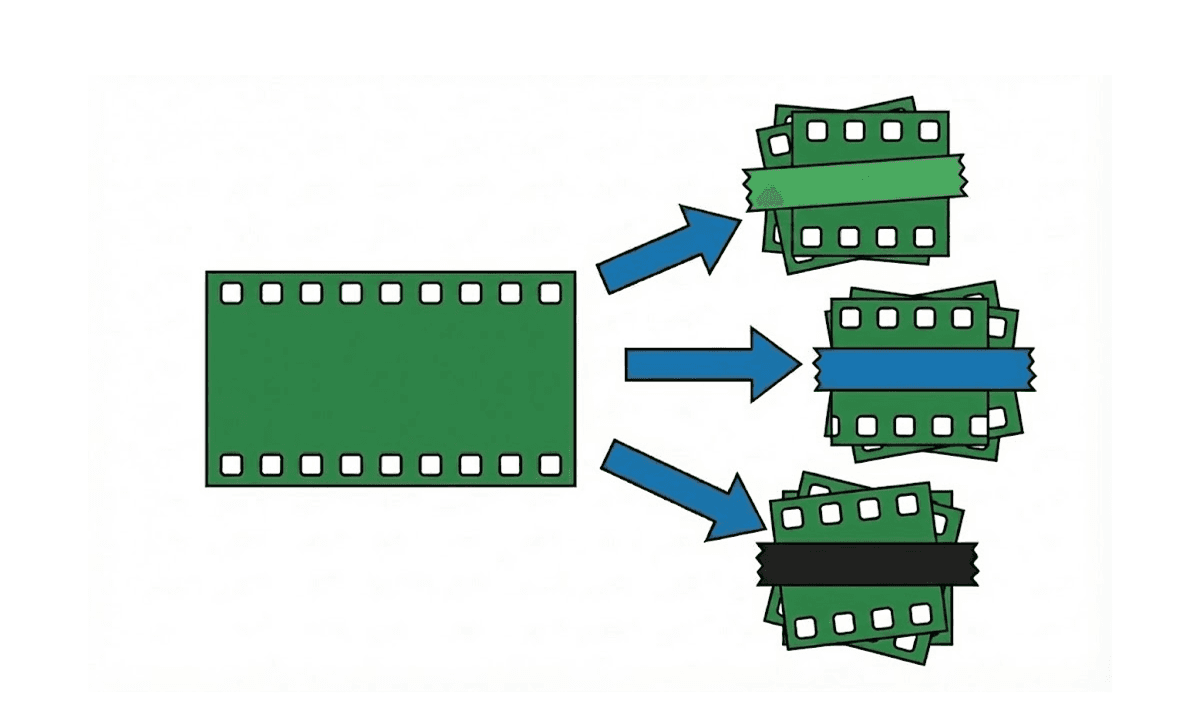
TLDR: Video chunking divides long interview recordings into labeled topic segments before editing begins, making it faster to navigate, pull selects, and build a structure without scrubbing through hours of raw footage linearly.
Ever stared down hours of interview footage knowing you only need three minutes for the final cut? Welcome to the editor's dilemma. This is why it's crucial to avoid mistakes when editing multicam videos.
Here’s the truth: most of what you film never makes it to the timeline. The key to finding what does? Video chunking.
This podcast and interview video editing workflow trick is how pro editors cut through bloated interviews without losing their minds. Instead of scrubbing endlessly for that one golden quote, chunking helps you organize footage into meaningful segments before you even touch the blade tool. It’s like editing with a roadmap instead of wandering aimlessly.
Let’s break it down.
What is Video Chunking?
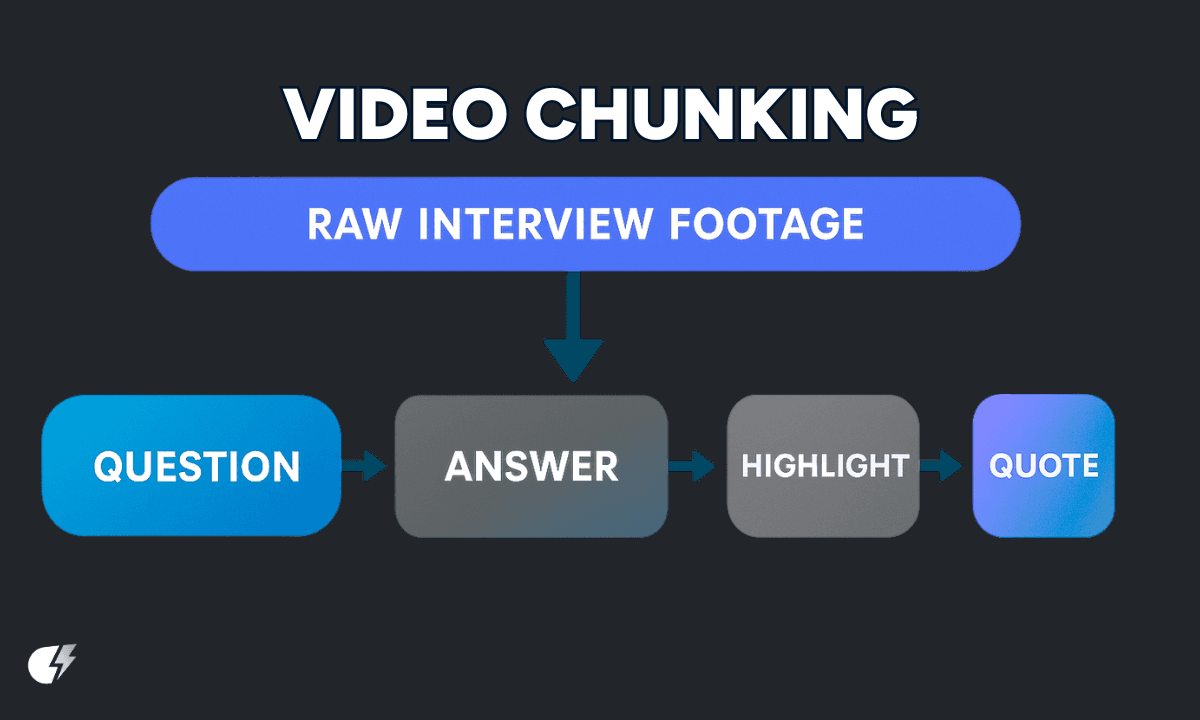
Video chunking is like segmenting your footage by idea instead of timestamp. Instead of trimming at random intervals or splitting your clip into equal parts, you divide it at natural topic shifts.
These chunks could be:
A speaker answering one question
A full anecdote or story
A transition from background to product discussion
It’s a structure-first mindset: you’re giving your footage context and form before the edit even begins.
Why It Works So Well
Raw interviews are messy. They’re full of:
Filler words
Long pauses
Tangents
Multiple takes of the same story
Without chunking, editors spend hours scrubbing, guessing, and rewatching. With chunking, you’re navigating straight to the good parts.
This method cuts editing time in half, makes collaboration easier, and turns every edit into a highlight reel.
How To Chunk Footage in Premiere Pro (Manual Method)
Watch the footage at 1.5x or 2x speed.
Mark topic shifts using "M" on the keyboard.
Use the Razor Tool (C) to split at those markers.
Rename or color-code chunks by theme (e.g. "Founder's Origin Story", "User Pain Point", "Future Vision").
You now have digestible pieces to pull from rather than a 2-hour monster file.
The Semantic Video Chunking Advantage
Semantic chunking groups footage by meaning, not just speaker or timestamp. This is huge for:
Interviews
Testimonials
Podcasts
Why? Because interview topics are rarely linear. Your guest might talk about funding in the beginning and near the end. When chunked semantically, you can quickly stack those parts together for a cohesive edit.
Example:
Chunk 1: Personal background (0:00 - 3:45)
Chunk 2: Pivot moment (3:46 - 9:20)
Chunk 3: Customer success story (9:21 - 11:03)
AI Tools That Speed It Up
You don’t have to chunk manually. Tools like Premiere Assistant use speaker detection and topic segmentation to automatically group your content into chunks.
This means you can:
Auto-detect speaker changes
Instantly navigate to soundbites
Highlight usable segments with one click
Best of both worlds? Use AI for the initial pass, then manually refine your chunks based on meaning and structure.
In traditional video editing, especially for interviews and documentaries, editors often create a stringout: a long, unedited sequence of all potentially usable takes. From there, they pull selects: the trimmed, meaningful moments that will shape the final story. This process is essential but painfully manual. That’s where tools like Cutback Selects come in. By automating the creation of selects from stringouts using topic segmentation and speaker detection, editors can skip the slog and get straight to story crafting. It’s video chunking on autopilot, and it’s changing how fast-paced teams handle interview-heavy workflows.
Watch Out for These Chunking Pitfalls
Chunking isn’t magic. Here are a few things to keep in mind:
It’s front-loaded. Expect to spend more time organizing upfront.
Chunk size takes practice. Too short? Disrupts flow. Too long? Misses specificity.
Post-chunking, remember to flatten multicam sequences before exporting to reduce render time.
Despite this, the time you save later far outweighs the time you spend chunking upfront.
Next time you dive into a long interview, pause before the blade. Chunk it first. Your future self will thank you.
Start with one project. Use markers. Label your topics. Then watch your editing process transform.
Cut smarter. Chunk first.
Once footage is chunked by topic, finding specific moments within those chunks is the next bottleneck. The fastest way to search video footage without scrubbing covers both transcript and visual scene search.
For more in-depth knowledge about the ins and outs of video editing, check out our latest posts on the Cutback blog or our YouTube channel.
FAQs (Frequently Asked Questions)
Q: What is video chunking?
A: Video chunking is the process of dividing long-form footage into labeled segments by topic, speaker, or narrative beat before editing begins. Instead of working with a single unbroken clip, you split the recording at natural content boundaries, a speaker answering one question, a complete anecdote, a transition from one subject to another, and label each segment so you can navigate directly to the content you need without scrubbing linearly through hours of raw footage. It is a structure-first approach to interview and podcast editing that reduces the time spent searching for usable material and makes the entire rough cut process faster and more systematic.
Q: How do you chunk video footage in Premiere Pro?
A: The manual method uses markers and the Razor tool. Watch your footage at 1.5x or 2x speed, press M to drop a marker at each topic shift or meaningful transition, then use the Razor tool (C) to split at those markers. Rename or color-code each segment by topic ("Founder's Origin Story," "User Pain Point," "Product Demo") so you can navigate by meaning rather than timecode. The AI-assisted method uses Premiere Assistant or Selects to automate the chunking: both tools detect topic shifts and speaker changes automatically and organize footage into labeled chapters without requiring a manual watch-through first.
Q: What is semantic video chunking?
A: Semantic video chunking groups footage by meaning rather than by timestamp or speaker. In a 60-minute interview a subject might discuss the same topic in three different moments -- semantic chunking identifies all three as belonging to the same thematic chunk and makes them navigable together, regardless of when they occurred in the recording. This is especially useful for documentary-style interviews and long-form podcasts where the conversation is non-linear. Selects performs semantic chunking automatically, organizing footage into topic-labeled chapters based on the content of the transcript rather than fixed time intervals.
Q: How do you split a video quickly in Premiere Pro?
A: The fastest manual method is Command+K (Mac) or Ctrl+K (Windows) to split at the playhead, combined with 1.5-2x playback speed to identify split points faster. For interview-heavy content where chunking by topic is more useful than splitting at arbitrary points, Premiere Assistant and Selects both automate the process: Selects transcribes the full session and generates topic-labeled chapters automatically, and Premiere Assistant creates a structured transcript with chapter navigation inside Premiere Pro. For a recording that would take 2-3 hours to chunk manually, the AI-assisted approach typically completes the same structural organization in minutes.
Q: What is the chunking rule in video editing?
A: In the video editing context, the chunking rule refers to the principle of dividing long recordings into the smallest meaningful unit that stands on its own, typically a complete thought, answer, or narrative beat. Chunks that are too short disrupt editorial flow; chunks that are too long lose the navigational benefit of chunking entirely. In practice, a good chunk is usually 30 seconds to 4 minutes, depending on the content type (shorter for interview soundbites, longer for documentary sequences). The original chunking rule from cognitive psychology (the "7±2" rule of working memory) is where the term originates, but in editing it is adapted to mean "the right unit of meaning for this content type."
Q: What is the best tool for video chunking?
A: For editors working inside Premiere Pro, Premiere Assistant's Auto Rough Cut feature transcribes the footage and automatically divides it into chapters with speaker labels, making the transcript immediately navigable by topic. For editors who need chunking done before the footage reaches any NLE, Selects handles the full chunking process upstream: it transcribes, detects topic shifts, creates labeled chapter segments, and exports the organized structure to Premiere Pro, DaVinci Resolve, or Final Cut Pro as a native project file. Browser-based tools like Descript also offer transcript-based chapter organization, though without native NLE project export.
Q: How does video chunking work for YouTube content?
A: For YouTube, video chunking serves two purposes: it speeds up the editing process for the full-length video, and it identifies which segments of the recording have standalone value as YouTube Shorts or community post material. The chapter structure produced by Selects or Premiere Assistant maps directly to YouTube's built-in chapters feature (added via timestamps in the video description), which improves viewer navigation and can boost time-on-video metrics. Each labeled chunk also becomes a candidate for a short-form clip, without additional identification work you already know what each segment contains.

Kay Sesoko
Marketer
Share post







