The Fastest Way to Find Specific Clips in Long Video Footage
Manual footage scrubbing wastes hours of billable time on long-form projects. Selects lets you search by transcript or visual scene and jump directly to any moment.

TLDR: Manual footage scrubbing is one of the most expensive habits in long-form editing. Selects lets you search video by word, phrase, or visual scene and jump directly to the moment you need.
If you are billing by the hour, scrubbing is where the margin goes to die. A 90-minute interview recording means 90 minutes of footage you have to physically move through to find the two minutes that matter. Multiply that across a documentary episode with four cameras, a podcast series with 20 recordings, or a client deliverable with a tight turnaround, and the problem compounds fast. The search is not editing. It is prep. And right now, most editors are doing it manually.
There is a better approach. Here is what it costs to keep doing it the old way, and what the alternative looks like.
The Real Cost of Manual Scrubbing
A mid-level video editor billing at $50 per hour who spends two hours per project scrubbing footage before a single cut is made is losing $100 of billable capacity per project to non-creative work. At ten projects a month, that is $1,000. At agency scale with multiple editors, it compounds into a structural inefficiency that never shows up on a project brief but shows up clearly on the margin.
Read more about hiring more video editors vs using AI for scaling video editing workflows. We also have a guide on how video editing agencies use AI in their workflows to stay ahead of the load.
The problem is not that editors are slow. It is that the tools have not kept up with the volume of footage that modern long-form production generates. A two-camera podcast recording with an external audio track produces hours of raw material for every hour of finished content. An interview series with b-roll shoots produces more. Documentary projects are still more. The expectation that editors will navigate that volume manually, scrubbing, logging, and timestamping, is an assumption that made sense when footage was scarce and expensive. It does not make sense now.
Two Ways to Find a Moment Without Scrubbing
Text Search: When You Remember What Was Said
The most common version of the problem: you know the guest said something about pricing strategy around the 40-minute mark, but you need the exact timestamp to pull the clip. The traditional answer is scrubbing. The faster answer is searching the transcript.
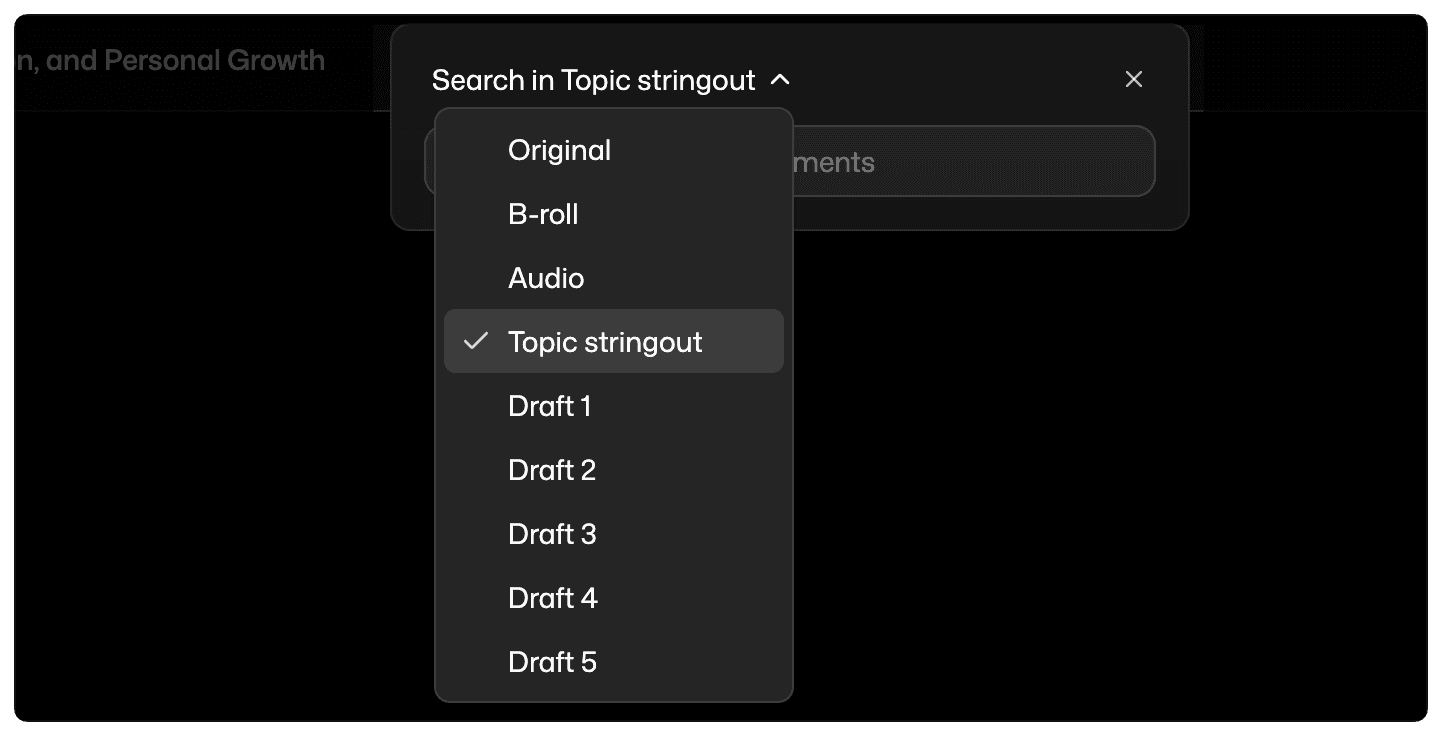
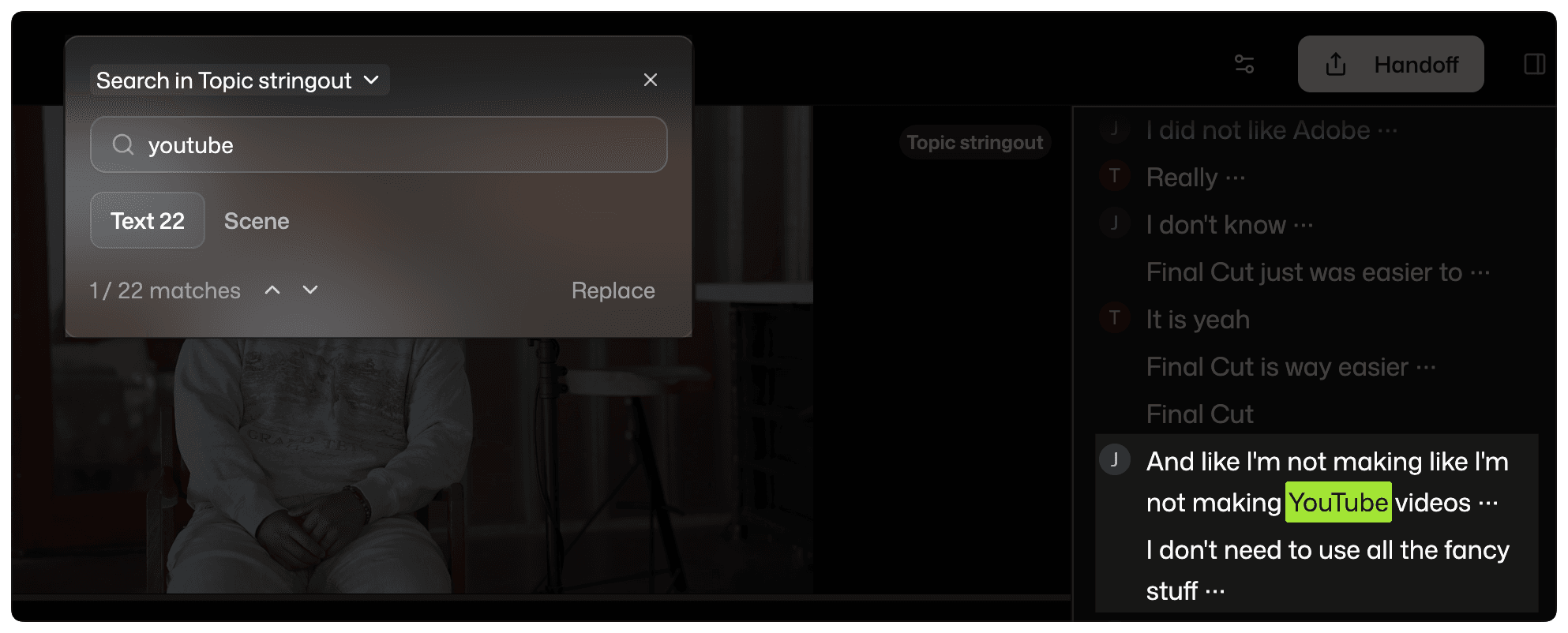
Selects transcribes your footage at word-level accuracy with timestamps tied to each word. The search bar lets you type any word or phrase, "pricing strategy," a guest's name, or a specific topic, and returns every instance with surrounding context, across the full project, instantly. Click a result and the playhead jumps directly to that moment. No scrubbing. No logging. No estimating when in the timeline something happened.
This applies across original footage, individual drafts, your b-roll library, and audio files separately. You set the search scope before you type, so results are relevant to what you are actually working on rather than returning everything across the project at once.
Scene Search: When You Remember What It Looked Like
The harder version of the problem: you need a specific shot, the closeup of the product, the outdoor sequence, the moment the guest leaned forward, but you cannot remember what was being said when it happened. Transcript search does not help here because the anchor is visual, not verbal.
Selects' scene search lets you browse visual thumbnails of every scene detected throughout your footage. You search by description, "outdoor," "whiteboard," "two shot", and the system surfaces matching scenes with timestamps. If your footage has distinct visual changes, location shifts, or camera setups, scene search finds them without requiring you to move through the timeline.
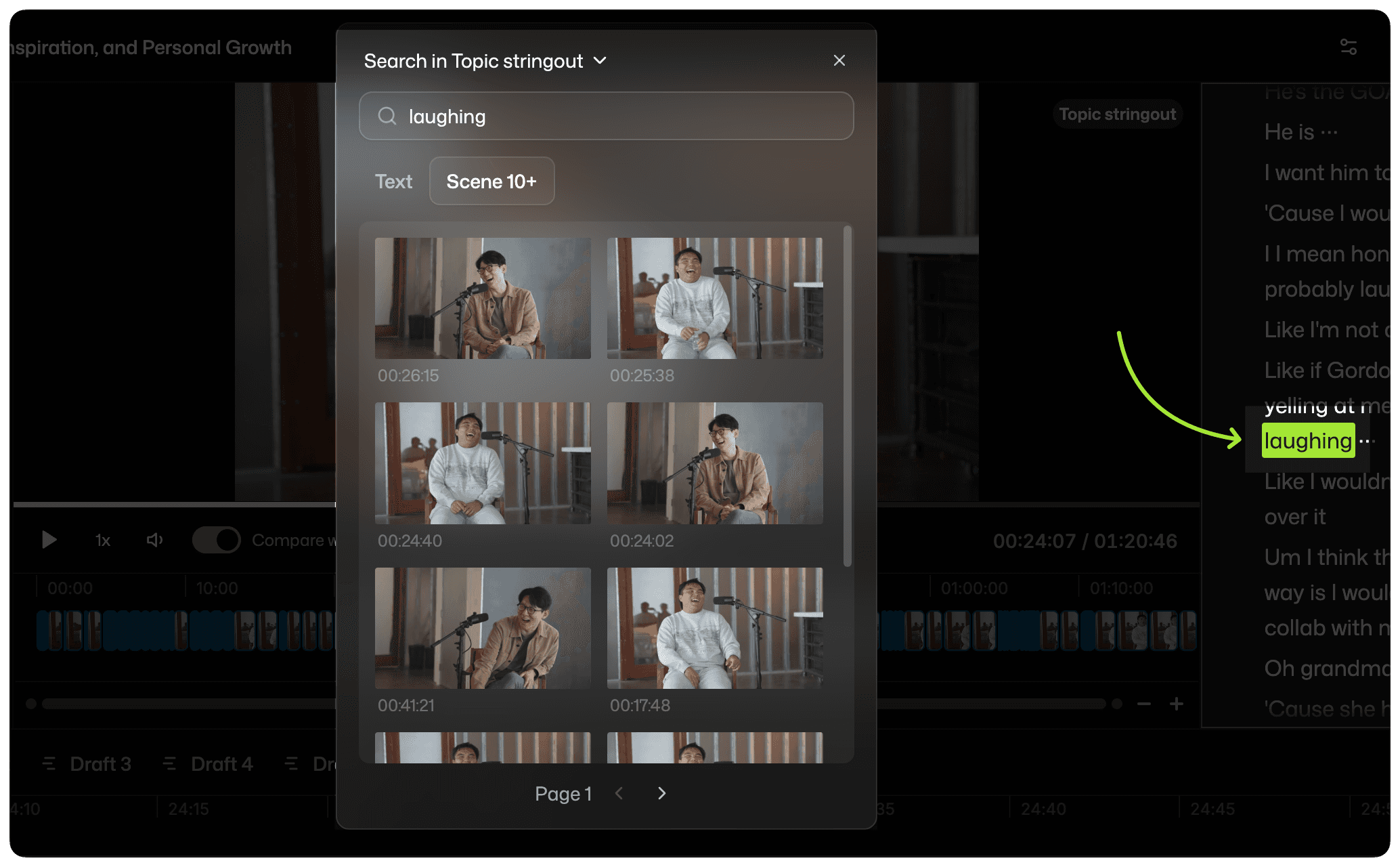
This is the differentiator. Most transcript-based editing tools give you Ctrl+F for what was said. Scene search gives you Ctrl+F for what it looked like. For editors working with a mix of A-roll and B-roll, this covers both vectors of the footage-finding problem in one interface.
From Search to Edit: The Workflow
Finding a moment is not the end of the workflow; it is the beginning. Once you locate a clip through text or scene search, Selects lets you drag it directly onto the draft timeline or place it as a b-roll insert over the A-roll at the exact frame you need. The topic stringout, an uncut, labeled timeline Selects generates automatically during analysis, gives you an organized map of the entire project before search even begins, so you are working with structured footage rather than a pile of raw files.
The sequence is: analysis generates the stringout and transcription, search lets you locate specific moments within that structure, and the draft timeline receives what you select. By the time the project handoffs to Premiere Pro, Final Cut Pro, or DaVinci Resolve, the mechanical footage-finding work is done. For a detailed look at how the stringout fits into the overall pre-editing workflow, the video chunking guide covers how professional editors structure footage before the first creative cut.
Who This Is For
Text and scene search in Selects are built for editors working with long-form recordings where manual navigation is the bottleneck. Podcast series, interview-based YouTube content, documentary footage, corporate video with multiple location setups, any project where the raw material significantly exceeds the finished runtime, and finding the right moment is a meaningful time cost.
If you are cutting a three-minute branded video from a one-hour shoot, scrubbing is manageable. If you are cutting a 45-minute documentary episode from 12 hours of footage across four cameras, scrubbing is a structural problem that compounds across every project in your pipeline.
The search feature does not exist in isolation. It is part of Selects' full pre-editing layer, which also handles multicam sync, silence removal, best-take selection, B-roll organization, and NLE handoff. For editors who want to understand how these pieces connect into a complete pre-edit workflow, the complete guide to podcast and interview editing covers the full sequence from raw footage to NLE-ready project.
Frequently Asked Questions (FAQs)
Q: How do you find a specific moment in a long video recording?
A: The fastest method is transcript search. If your footage has been transcribed with word-level timestamps, you can search any word or phrase and jump directly to that moment without scrubbing. Selects transcribes all footage during analysis and lets you search across original recordings, drafts, B-roll, and audio files separately. For visual moments where you remember what something looked like rather than what was said, Selects' scene search lets you browse and search visual thumbnails of every detected scene in the project.
Q: Can you search inside video footage by what was said?
A: Yes, if the footage has been transcribed. Selects generates a word-level transcript during analysis and ties each word to a timestamp. The search bar returns every instance of a searched phrase with surrounding context, across the full project, and clicking a result jumps the playhead directly to that moment in the footage.
Q: What is scene search in video editing?
A: Scene search is a visual search method that lets editors find specific shots, locations, or setups by description or by browsing thumbnails of scenes detected throughout the footage. Unlike transcript search, which finds moments by what was said, scene search finds moments by what they looked like. It is useful for locating b-roll shots, specific camera setups, or visual moments where the anchor is visual rather than verbal.
Q: Is there a tool that lets you search video footage without scrubbing?
A: Selects provides both text search and scene search across all footage in a project. Text search works from the transcript, scene search works from visual analysis. Both are available after Selects analyzes the footage during the initial project setup, which also generates multicam sync, speaker labels, topic detection, and a structured rough cut for NLE handoff.

Kay Sesoko
Marketer
Share post