The Fastest Way To Clean Up Filler Words in Your Videos With AI
Learn how to remove filler words like "uh" and "um" from your video with AI in Premiere Pro using Cutback. This guide walks you through cleaning your video timeline in seconds.
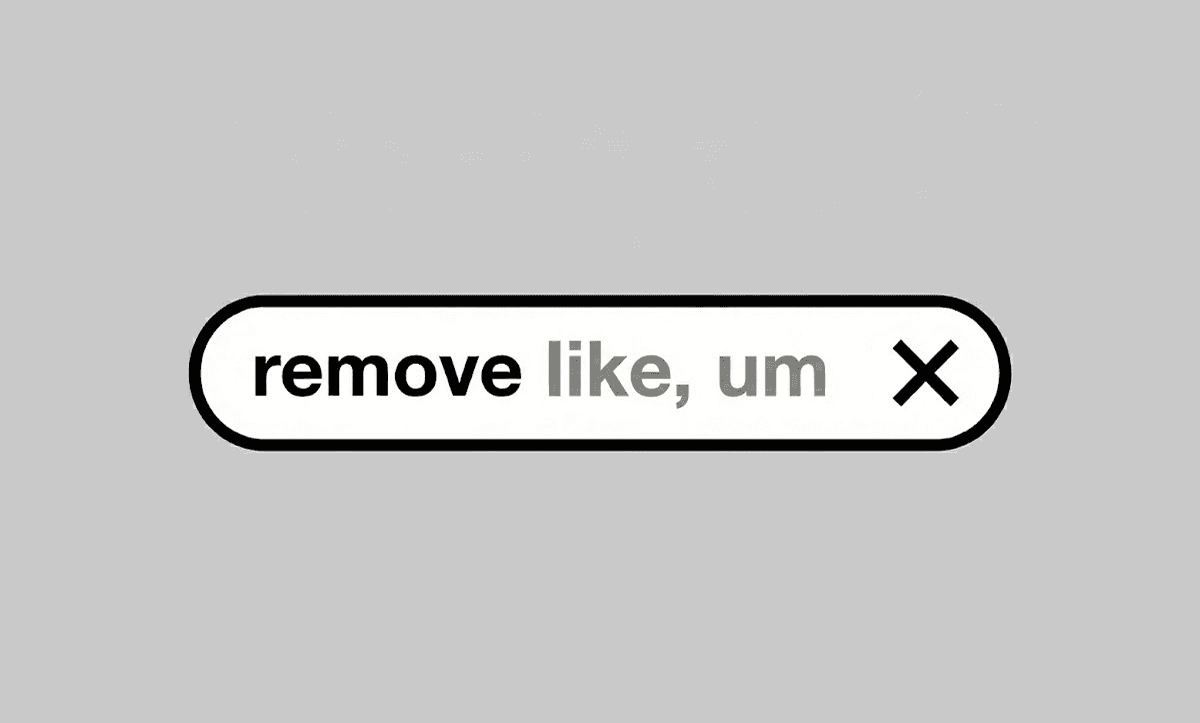
TLDR: Filler words in Premiere Pro can be removed automatically using Premiere Assistant's Remove Filler Words feature, which detects and cuts "um," "uh," "like," and other filler phrases across your entire sequence without manual scrubbing.
If you've ever spent hours scrubbing through an interview or on a podcast editing session just to cut out endless "uhs" and "ums," you're not alone. These filler words are small, but editing them out manually adds up, especially in long-form content. That's where Premiere Assistant's AI capabilities come in.
Premiere Assistant is a smart AI plugin for Adobe Premiere Pro that gives editors powerful automation tools to save time on rough cuts. One of its most underrated features? The ability to remove filler words from video instantly with just a few clicks.
Whether you're editing educational videos for presentations, marketing videos, a company webinar, or YouTube content with professional narration, cleaning up verbal tics improves your video’s polish and keeps viewers engaged. Here's how to use AI to make it happen.
Why Are Filler Words Bad? Is It Necessary To Remove Filler Words From Video?
Filler words like “uh,” “um,” “like,” or “you know” may seem harmless, but they can seriously disrupt your video’s flow and hurt viewer retention. In video editing, especially for podcasts, interviews, or marketing content, these verbal tics make speech sound unpolished, audio quality sound bad, and reduce the credibility of the speaker. Cutting filler words helps maintain a clear, confident tone and keeps your audience engaged. Whether you're editing in Premiere Pro or using an AI editing tool like Premiere Assistant, removing filler words is one of the simplest ways to upgrade your content quality without rewriting your entire script.
How To Eliminate Filler Words in Adobe Premiere With AI
No more wasting time on manual editing. Here is a step-by-step guide on how to remove filler words from speech in your videos with automated tools.
Step 1: Open Your Project in Premiere
Start by launching Adobe Premiere Pro and opening the project you’d like to clean up. Make sure all your audio and video files are placed into the timeline.
Step 2: Launch Premiere Assistant
Go to the top menu and click Window > Extensions > Cutback. This will open the plugin’s panel inside Premiere.
Step 3: Choose Auto Rough Cut
Select the Auto Rough Cut option from the menu. This feature unlocks transcription-based editing, including filler word removal.
Step 4: Configure Recognition Settings For Filler Remover
Before transcribing, adjust these settings:
Range: Choose whether to analyze the full sequence, in/out range, or selected clips.
Language: Pick your video’s spoken language.
Speakers: Assign per-track names or let the AI detect speakers on a single track.
Video Tracks: Assign video footage to speakers if applicable.
Then click [Transcribe Video for Auto Rough Cut] to begin.
Use the AI Assistant for Quick Filler Word Removal
Now, try a more radical approach to remove words from video with Premiere Assistant’s AI video editing assistant.
Step 1: Click the Assistant Button
After transcription, hit the [Assistant] button in the top right corner.
Step 2: Enter Your Request
Inside the chat window, either type "Remove filler words" or click the preset option.
Step 3: Review the Draft
The AI will instantly detect and remove filler words like “uh,” “um,” and “like.” Suggested cuts will appear in gray in the timeline.
If you’re not happy with the results, you can always:
Preview the version.
Undo changes.
Re-run with clearer instructions.
Step 4: Finalize Edits
Click Apply to Sequence and choose:
Apply to Current Sequence: To overwrite the original timeline.
Create New Sequence: To save a clean copy while keeping the original.
Why It’s Important To Remove Filler Words From Video
Higher Engagement: Viewers are less likely to bounce when speech flows smoothly.
Professional Sound: Cutting out tics instantly boosts production quality.
Faster Turnaround: Let the AI do the trimming, so you can focus on visuals, story, or pacing.
Bonus Tip: Stack with Other AI Editing Features
Premiere Assistant isn't just about filler words. Combine this with:
Remove Silence: Automatic removal of awkward pauses and silences.
Remove Retakes: Clean up repeated and bad takes automatically.
Script-Based Editing: Align your video directly with a script.
Automated Captions: Generate subtitles for added accessibility to your content.
Built-in B-roll: Add stickers and GIFs from the royalty-free stock library
FAQs
Q: Can I undo the filler word edits?
A: Yes. Use Time Machine in the top menu to revert or restore changes.
Q: Can I adjust the sensitivity of filler word detection?
A: Not directly, but you can manually edit the transcript or undo specific removals.
Q: Will this work with multi-speaker podcasts?
A: Yes. Premiere Assistant can detect speakers even if they're sharing a mic or using different tracks.
Q: Does this work offline?
A: No. Premiere Assistant uses cloud-based AI, so a stable internet connection is needed.
Final Thoughts
Using AI to remove filler words isn’t just about convenience; it’s about editing smarter. Premiere Assistant saves you hours of tedious scrubbing and gives you a clean, professional edit in minutes.
Ready to cut the “uhs” and “ums” for good? Try it inside Premiere and experience just how fast clean audio editing can be.
Want to see the feature in action? Check out our full demo [here].
For more in-depth knowledge about the ins and outs of video editing, check out our latest posts on the Cutback blog or our YouTube channel.
FAQs (Frequently Asked Questions)
Q: How do you automatically remove filler words in Premiere Pro?
A: Premiere Assistant's Remove Filler Words feature handles this in two ways. Via the chat method: open Premiere Assistant (Window > Extensions > Cutback), select Auto Rough Cut, transcribe your sequence, click the Assistant button, and type or select Remove Filler Words. The AI detects "um," "uh," "like," "you know," and other verbal tics across the transcript, marks them in gray for preview, and removes them when you click Apply to Sequence. Via the transcript method: after transcription, locate filler words manually in the transcript view and delete them directly to remove the corresponding footage.
Q: Why is the Remove Filler Words option greyed out in Premiere Pro?
A: Unlike the native Premiere Pro Delete Pauses option, Premiere Assistant's Remove Filler Words function requires a completed transcription before it becomes available. If the option appears greyed out or inactive, confirm that you have run the transcription step in Auto Rough Cut first. The feature also requires an active internet connection since Premiere Assistant's AI processing runs in the cloud, if you are offline, filler word detection will not function.
Q: What filler words can Premiere Assistant remove?
A: Premiere Assistant detects common verbal tics including "um," "uh," "like," "you know," "so," "actually," "basically," and similar hesitation sounds and filler phrases. Detection accuracy is highest on clean, close-mic audio and on speech in English. For non-English content or recordings with background noise, the transcription accuracy affects filler word detection, review the transcript after transcription to confirm filler words have been correctly identified before applying removals.
Q: What are low confidence words in Premiere Pro and how do they relate to filler word removal?
A: Low confidence words in Premiere Pro's native transcription are words where the Speech to Text engine was uncertain about the recognition, they appear underlined or flagged in the Transcript tab. They are related to filler word removal because filler words like "um" and "uh" are frequently marked as low confidence, since they are non-standard utterances that the transcription engine does not recognize with the same certainty as real words. In Premiere Pro's native workflow, you can filter for low confidence words in the Text panel and delete them manually. Premiere Assistant's Remove Filler Words feature automates this process across the full sequence without requiring manual review of each flagged word.
Q: Can you remove filler words from video without Premiere Pro?
A: Selects handles filler word removal upstream before footage reaches any NLE, drop your raw footage in, and Selects detects and removes filler words across all audio tracks simultaneously before exporting a native project file to Premiere Pro, DaVinci Resolve, or Final Cut Pro. For Premiere Pro editors, Premiere Assistant handles filler word removal inside the NLE. Browser-based tools like Descript also offer transcript-based filler word removal outside of a professional NLE.
Q: Can DaVinci Resolve remove filler words?
A: DaVinci Resolve has no native filler word removal feature. The AI Transcription in DaVinci Resolve 20 transcribes dialogue but does not automatically identify or remove filler words from the timeline. The most effective approach for DaVinci Resolve editors is to run footage through Selects before opening Resolve -- Selects removes filler words across all tracks upstream and exports a clean DaVinci Resolve native timeline with filler words already cut.
Q: Is there a free tool to remove filler words from video?
A: Premiere Assistant requires a paid plan after a trial period with limited usage, it is not a permanent free plan. Premiere Pro's native Text panel allows manual filler word deletion within a Creative Cloud subscription by clicking on low-confidence words and deleting them, though this is a manual process rather than automated. Descript offers filler word removal on a free tier with limits on transcript minutes before requiring a paid plan.

Cutback Team
Share post







