How to Cut Your Video Editing Time in Half With AI
Premiere Assistant and Selects by Cutback automate the most time-consuming parts of video editing, transcription, silence removal, rough cuts, and more, inside Premiere Pro and your NLE.
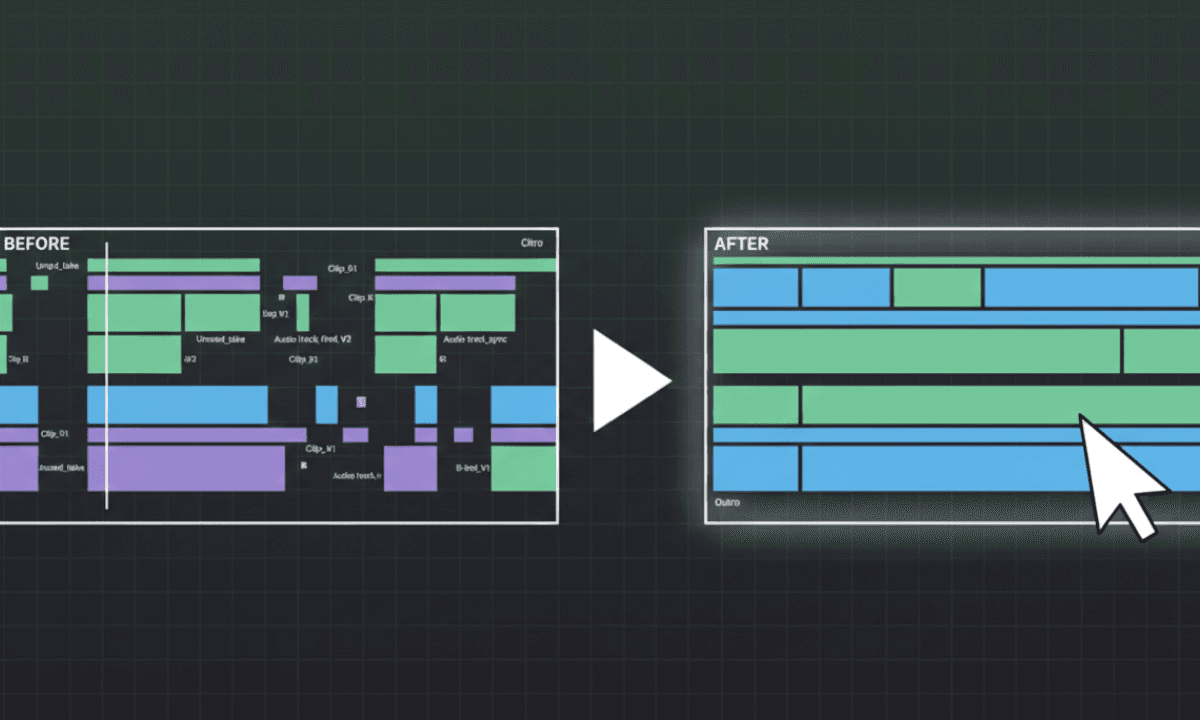
TLDR: The two biggest time drains in video editing are pre-editing prep (sync, transcribe, rough cut) and repetitive in-edit tasks (silence removal, captions, filler words). Selects and Premiere Assistant (previously known as Cutback) automate both.
Most editors don't lose time because they're slow. They lose it because a significant portion of every project isn't actually editing: it's preparation, cleanup, and repetition that happens before and around the creative work.
Cutback builds two AI video editing tools that target exactly those two layers: Selects for the pre-editing stage, and Premiere Assistant (previously known as Cutback) for the in-NLE stage. Together, they cover the full range of tasks that consume the most time without requiring the most skill.
Here's what each one automates and where it fits in a real workflow.
The Two Layers Where Editors Lose the Most Time
Before getting into features, it helps to be specific about where time actually goes in a typical editing project.
Layer 1, Pre-editing (before you open your NLE): Syncing multi-camera footage, transcribing audio, labeling speakers, identifying unusable takes, building a rough stringout. For a one-hour podcast or interview, this stage alone takes three to five hours manually.
Layer 2, In-edit repetition (inside Premiere Pro): Removing silence and dead air, cutting filler words, generating and styling captions, removing retakes, adding B-roll, and resizing for different platforms. These tasks are fast individually but compound into hours across a project.
Most AI video tools address one specific task inside Layer 2. Cutback's two tools address entire layers.
Selects: Automate the Pre-Editing Layer
Selects is a standalone AI pre-editing tool built for long-form video. It handles everything that happens between the shoot wrapping and the editor opening their NLE.
How it works: Drop in your raw footage (single cam or multi-cam) with external audio, and Selects processes it automatically. It syncs cameras, transcribes audio, detects and labels speakers, removes silences and filler words, organizes content into topic-based chapters, and builds a structured rough cut. The result exports directly to Adobe Premiere, Final Cut Pro, or DaVinci Resolve as a labeled, color-coded timeline ready for the creative edit.
What it replaces: The manual sync-and-label workflow that typically consumes the first hours of any long-form project. Editors who use Selects open their NLE at the rough cut stage, not at raw footage.
Best for: YouTube studios, podcast agencies, and in-house content teams working with regular long-form footage, especially interviews, podcasts, docuseries, or any multi-camera content.
Premiere Assistant: Automate the In-Edit Layer
Premiere Assistant is an AI plugin for Adobe Premiere Pro that automates the repetitive tasks that happen inside the timeline, the work that surrounds creative decisions, without requiring them.
Accurate Transcription and Text-Based Editing
Premiere Assistant transcribes your sequence audio directly inside Premiere Pro, with support for custom keywords and script import to improve accuracy. Once transcribed, you can edit by modifying the transcript text; deleting words removes the corresponding footage without touching the timeline manually. Here's how text-based editing works in practice.
Silence Removal
Premiere Pro's native gap removal doesn't handle nuanced audio well; it cuts based on volume thresholds without preserving natural sounds. Premiere Assistant's silence removal lets you set adjustable gap lengths and retains sounds like laughter or applause, producing cleaner cuts without over-trimming. Full guide to automatic silence removal in Premiere Pro.
Filler Word and Retake Removal
Premiere Assistant detects and removes filler words, "um," "uh," "like," repeated phrases, and bad takes across your entire sequence automatically, with a review step before any cuts are applied.
Auto Captions and Animated Captions
Generate accurate captions directly inside Premiere Pro, style them to brand guidelines, and animate them for social platforms, without exporting or switching tools.
B-Roll Search
Search for and add copyright-free photos, videos, stickers, and GIFs to your sequence using natural language, without leaving your timeline. Here's how B-roll search works inside Premiere Pro.
AI Image Editing
Enhance low-quality images, remove backgrounds, and edit photos directly inside Premiere Pro, without switching to Photoshop. Full guide to AI image editing in Premiere Pro.
Everything Inside Adobe Premiere
Every Premiere Assistant feature runs inside Premiere as a native extension. No file transfers, no switching applications, no exporting to a separate tool and reimporting.
Using Both Together: The Full Workflow
For editors working with long-form content, the highest-efficiency setup uses both tools in sequence:
Raw footage goes into Selects — sync, transcribe, rough cut, NLE handoff
The structured timeline opens in Premiere Pro — editor begins creative work
Premiere Assistant handles in-edit repetition — silence removal, captions, B-roll, exports
The editor spends their time on pacing, narrative, and creative decisions. The mechanical work on both sides of that process is handled automatically.
FAQ
Q: What is the best AI plugin for Adobe Premiere Pro? A: Premiere Assistant by Cutback is the most comprehensive AI plugin for Premiere Pro in 2026, covering transcription, silence removal, filler word removal, animated captions, B-roll search, AI image editing, and chat-based editing, all inside Premiere Pro without switching tools.
Q: How much time can AI video editing tools actually save? A: The pre-editing stage of a long-form project, syncing footage, transcribing, and building a rough cut, typically takes three to five hours manually. Selects automates this entire stage. Inside the NLE, silence removal, caption generation, and filler word removal can each take 20–60 minutes per project manually, depending on the length of the footage; Premiere Assistant reduces each to minutes.
Q: Does Selects work with Premiere Pro, Final Cut Pro, and DaVinci Resolve? A: Yes. Selects exports directly to all three NLEs, Adobe Premiere Pro, Final Cut Pro, and DaVinci Resolve, as a structured, labeled timeline ready for the creative edit.
Q: Is Premiere Assistant worth it for solo editors and small teams? A: Yes, the ROI is proportionally higher for smaller teams because every hour saved represents a larger share of total capacity. Premiere Assistant's free trial lets you test it on a real project before committing.

Tom Kim
CEO and Co-founder
Share post







