DaVinci Resolve Timeline Lag: How to Fix It
DaVinci Resolve timeline lag on powerful hardware usually comes down to codec, GPU drivers, or render cache, not specs. Here are the fixes that actually work.
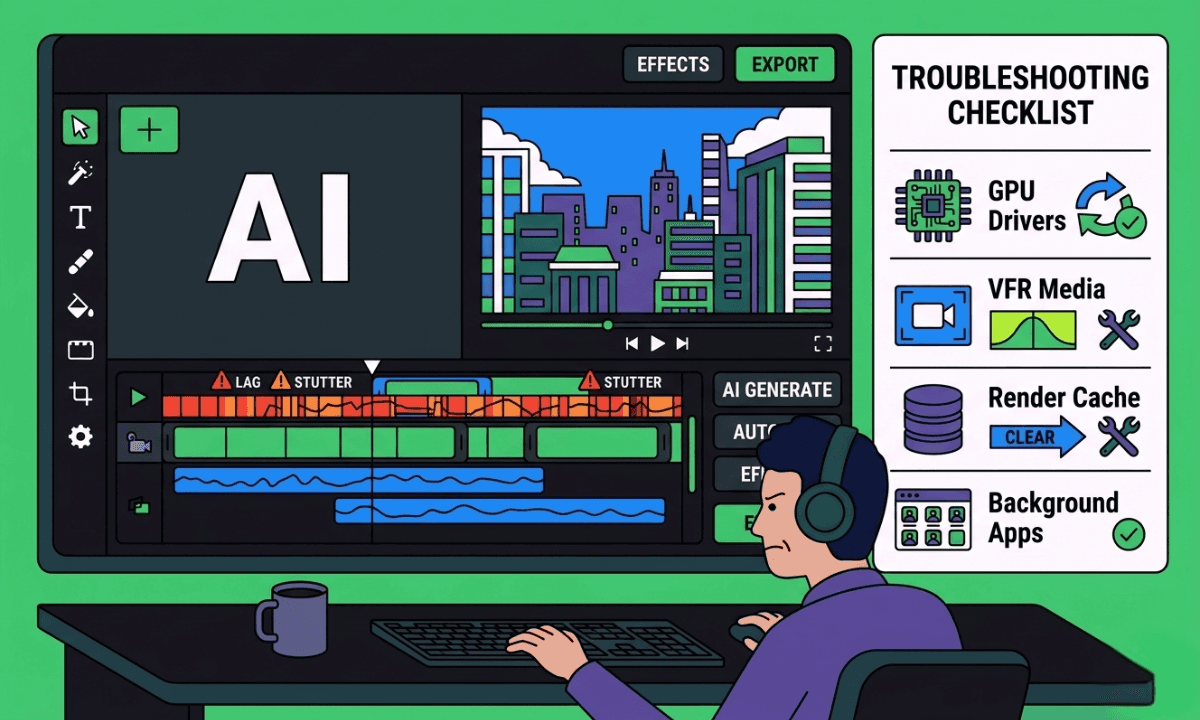
TLDR: DaVinci Resolve timeline lag on modern hardware is almost never about specs. It's about codec choice, GPU driver configuration, third-party app interference, and render cache settings.
If you've searched for solutions on DaVinci Resolve's timeline lag before, you've seen the same advice repeated everywhere: use proxies, lower playback resolution, clear your cache. Most of it assumes you're on underpowered hardware. But some of the most common DaVinci Resolve lag reports come from editors on M1 Ultras, RTX 5000-series GPUs, and 64GB RAM machines, hardware that should handle anything.
The causes are different when your system is powerful. Here's what's actually happening and how to fix it. For a broader look at timeline lag across all three major NLEs, see the full guide to timeline lag in Premiere Pro, DaVinci Resolve, and Final Cut Pro.
The Most Overlooked Cause: Third-Party App Interference
Before touching any Resolve settings, quit everything running in the background. One of the most documented causes of DaVinci Resolve playhead lag, confirmed repeatedly on the r/davinciresolve subreddit, is third-party system utilities interfering with the application.
The most common culprit on Mac is Magnet, the window-snapping app. Editors have reported that quitting Magnet immediately resolves playhead stutter on M1 and M2 Macs across multiple machines. Similar interference has been reported from other menu bar utilities, screen recorders running in the background, and Bluetooth peripherals.
Fix: Quit all background apps one by one while Resolve is open. If lag disappears after quitting a specific app, you've found the cause.
Variable Frame Rate Media (The Silent Killer)
If you're editing footage from OBS, iPhone, GoPro, Insta360, or mixed-device shoots, variable frame rate (VFR) media is likely the problem. VFR footage has inconsistent frame timing; Resolve has to work harder to decode each frame correctly, which shows up as jitter and stutter during timeline scrubbing, even when the playback FPS looks normal.
Fix: Remux or transcode VFR footage before importing. Use HandBrake (free) to convert to a constant frame rate MP4, or transcode to DNxHR LB or ProRes 422 Proxy directly in Resolve. This is especially important for MKV files recorded with OBS.
GPU Driver Configuration on New Hardware
Editors upgrading to RTX 4000 or 5000-series GPUs have reported timeline hanging and GPU spikes during playback that didn't exist on their previous card. The free version of Resolve has limited GPU access, but even Studio users on new hardware sometimes see issues because Resolve hasn't been configured to use the new card correctly.
Fix in two steps:
Use NVIDIA Studio Drivers, not Game Ready Drivers. Studio drivers are optimized for creative applications and significantly reduce instability in Resolve.
In Resolve: Preferences → Memory and GPU → GPU Processing Mode → CUDA (not OpenCL). Confirm your new GPU appears in the GPU selection list and is checked.
For Fusion-heavy timelines, also enable Smart Render Cache: Playback → Render Cache → Smart. This pre-renders complex effects, so Resolve isn't recalculating them during playback.
Third-Party Plugins Dragging the Timeline
Unoptimized plugin packs, especially free template bundles, can drop DaVinci Resolve to under 5fps on otherwise clean timelines. This is a plugin optimization issue, not a hardware issue. Native Blackmagic ResolveFX plugins run in real time. Many third-party Fusion-based templates don't.
Fix: Apply heavy plugins last in your workflow. Use Render in Place (right-click clip → Render in Place) to pre-render plugin-heavy sections so Resolve plays back a rendered file rather than processing the effect live.
When It Actually Is the Codec
Even on powerful machines, long-GOP formats like H.264 and H.265 force Resolve to reconstruct frames from surrounding data; every frame requires extra decode work. This shows up as stuttering on multi-camera timelines with mixed device footage.
Fix: Transcode to an editing-friendly codec before building your timeline. ProRes 422 Proxy or DNxHR LB are the standard choices. File size increases, but timeline performance is dramatically better. For long-form multi-camera projects, handling this upstream, before the timeline is built, removes the bottleneck entirely. That's the core of what tools like Selects do when handing off to DaVinci Resolve: the pre-editing work happens before you open Resolve, so the timeline starts clean.
Note: Adobe Premiere users dealing with the same codec overhead have a separate dedicated fix guide. There's also a dedicated guide for Final Cut users struggling with timeline lag.
A Note on Hardware Upgrades
Upgrading hardware doesn't always fix timeline lag, and sometimes introduces new issues. A new GPU may not be configured correctly in Resolve preferences. A new CPU architecture (like switching from Intel to AMD Ryzen) may interact differently with Resolve's decode pipeline. Always check Resolve's GPU settings after any hardware change.
The editors who move fastest through long-form projects are rarely the ones with the newest hardware. They're the ones whose storage, codec, and system setup are correctly configured before a single clip hits the timeline.
FAQ
Q: Why is DaVinci Resolve lagging even on a powerful PC or Mac?
On powerful hardware, DaVinci Resolve lag is almost always caused by something other than raw specs, variable frame rate media, misconfigured GPU drivers, third-party app interference, or unoptimized plugins. Check background apps, verify GPU settings in Resolve preferences, and confirm you're using Studio drivers if on Nvidia.
Q: What causes DaVinci Resolve timeline stuttering during scrubbing?
Timeline stuttering during scrubbing (not playback) is most commonly caused by variable frame rate media from OBS, iPhone, GoPro, or Insta360 footage, or by third-party system utilities interfering with Resolve's input handling. Remuxing VFR footage to a constant frame rate and quitting background apps resolves most cases.
Q: Does Selects help with DaVinci Resolve timeline performance?
Yes indirectly. Selects handles the pre-editing stage before you open DaVinci Resolve, syncing footage, transcribing, removing silences, and building a structured rough cut, so the timeline you open in Resolve contains prepared, organized material rather than raw mixed-codec footage. This significantly reduces the processing load that Resolve handles interactively during the edit.
Q: Should I use proxies to fix DaVinci Resolve lag?
Proxies help when the bottleneck is codec complexity or storage read speed, specifically with 4K+ H.264/H.265 footage on mechanical drives or slower SSDs. They don't fix lag caused by VFR media, third-party app interference, or GPU misconfiguration. Diagnose the actual cause before transcoding, as proxy workflows add steps that aren't always necessary on modern Apple Silicon or high-end Windows machines.

Kay Sesoko
Marketer
Share post







