Why Is My Video Timeline Lagging? Fixes in Adobe Premiere, DaVinci Resolve, and Final Cut Pro
Your timeline is lagging in Premiere Pro, DaVinci Resolve, or Final Cut Pro. Here's what's actually causing it, codec complexity, RAM, proxies, GPU settings, and the specific fix for each.
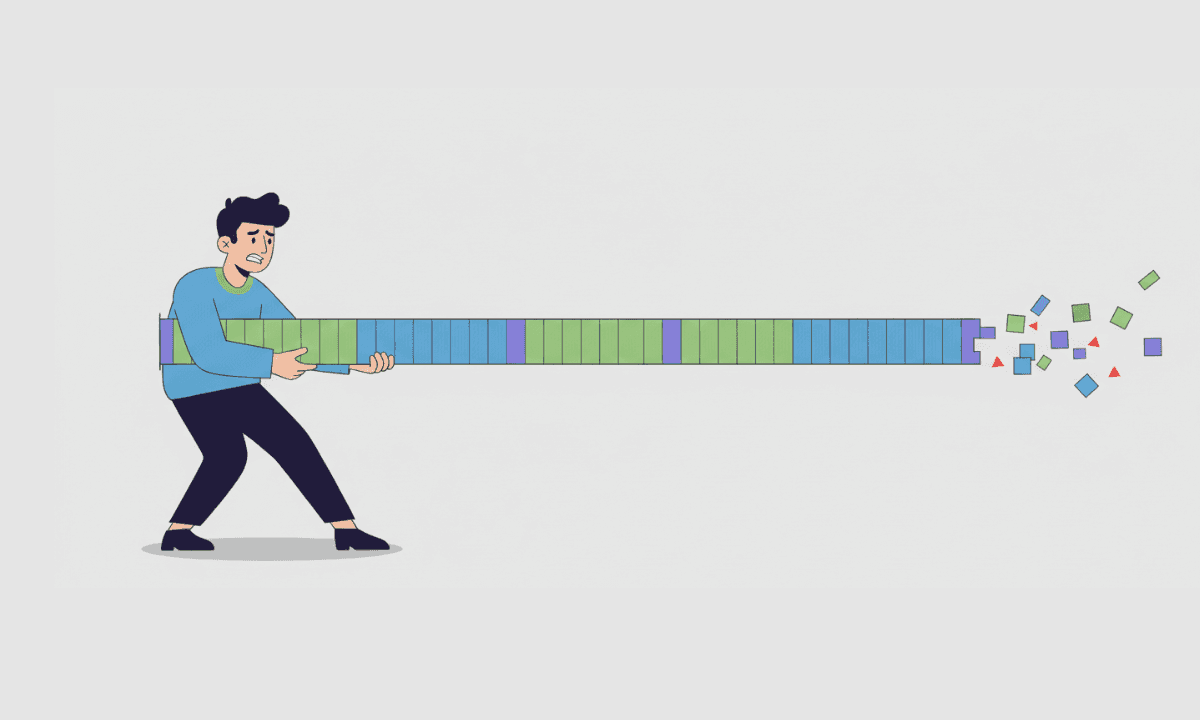
TLDR: A lagging video timeline in Premiere Pro, DaVinci Resolve, or Final Cut Pro is almost always caused by insufficient RAM, missing proxies, an overloaded cache drive, or GPU acceleration being disabled; each has a specific fix that restores smooth playback without reinstalling.
Your timeline could be lagging for a number of reasons, including a mismatch in timeline settings, insufficient GPU processing, or heavy codecs.
Nearly every editor runs into timeline lag at some point. It’s a very common problem, and it’s not tied to the editor’s experience level or the NLE choice. It shows up in small projects and large ones, on older machines and newer systems. When a timeline lags, editing becomes irritating and slow. You start second-guessing whether an action registered, and you wait for playback to catch up. Then you hesitate before making the next change, which disrupts the creative flow.
If you’re wondering how to make DaVinci Resolve less laggy or need to make DaVinci Resolve run faster (or Premiere Pro or Final Cut Pro, for that matter), understanding how your NLE handles hardware resources and system memory is the first step.
The usual guidance for video editing lag is to upgrade the CPU, add more RAM, or get a better GPU. This framing misses a large part of the problem. Lag is not only about how powerful a machine is. It is also about how footage is encoded, how it is streamed from storage, and how much work the timeline is expected to perform interactively.
At a systems level, the same factors drive timeline lag across all modern editing platforms. Professional workflows front-load preparation tasks to remove much of that work before playback begins, so the timeline is lighter and more responsive.
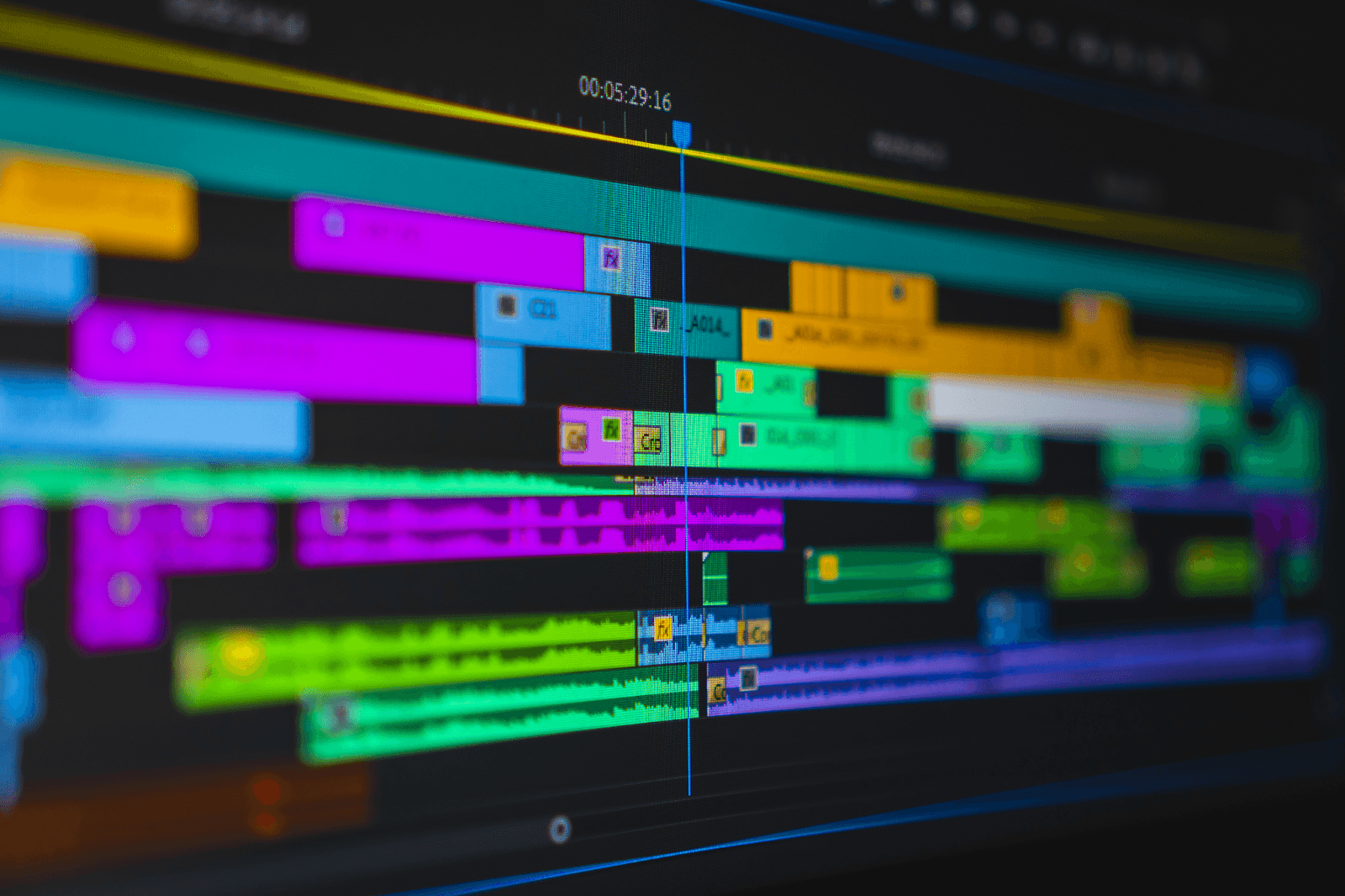
What “timeline lag” actually is (and what it isn’t)
Timeline lag happens when the timeline cannot respond at the same pace as the editor’s input. Actions are complete, but not immediately. This makes scrubbing feel “sticky”, timing difficult to judge, and prevents the editor from working at normal speed.
This is not the same as a crash or slow export. Those involve failures or background work after rendering. Lag is about responsiveness.
In most cases, timeline lag comes from a mismatch between what the timeline needs in real time and what the system can deliver at that moment. In NLEs like Adobe Premiere Pro, DaVinci Resolve, and Final Cut Pro, video playback is not isolated. The engine is decoding media, resolving timeline state, updating waveforms, and managing background analysis at the same time. If one of those steps cannot keep pace, responsiveness drops across the interface.
Hardware resources: how GPU processing and system memory impact lag
1. Codec complexity and real-time decoding
Codec choice has a greater impact on timeline performance than many editors realize. Formats like H.264 and H.265 use long-GOP compression, which means most frames are not stored as complete images on disk. Instead, only a few full frames (I-frames) exist in each group, and the rest must be reconstructed from neighboring frames when decoded.
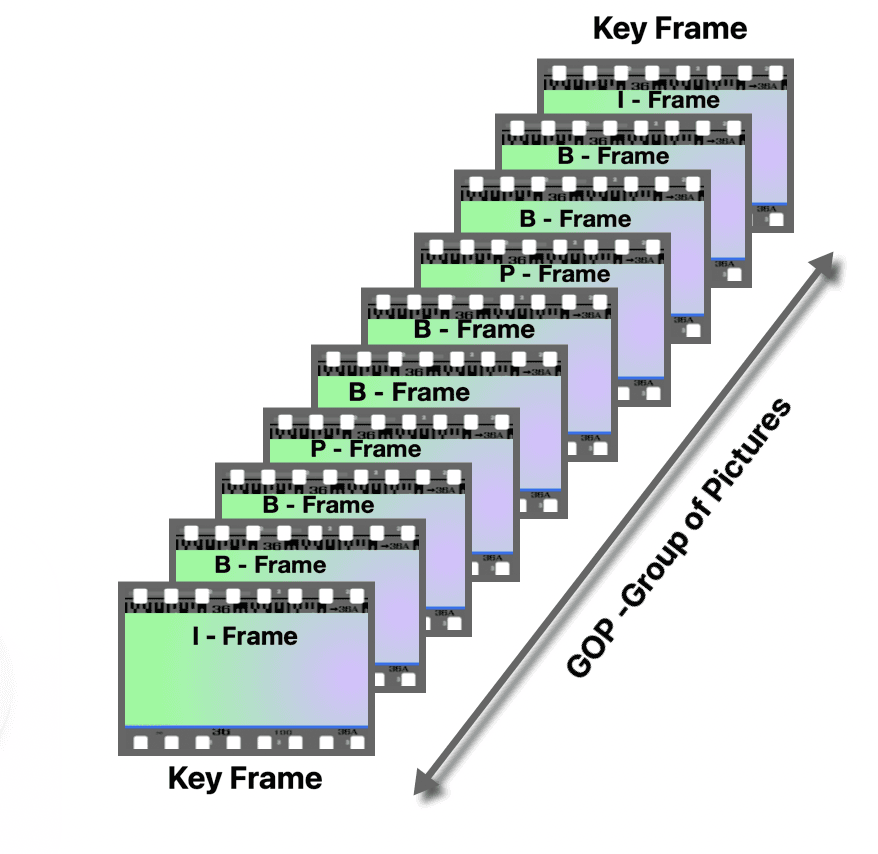
This saves storage space but increases the work required to decode each frame in real time because the system often has to process multiple frames just to display one. When you scrub or play back footage, that decoding overhead falls directly on the processor and can slow responsiveness in the timeline.
As resolution increases with 4K footage, each frame contains more data and requires more decoding work. This pushes long-GOP decoding harder and makes real-time playback less forgiving.
This is why timeline lag can appear even in projects that look uncomplicated. The complexity exists at the codec level, not the timeline level. The system is doing significant work behind the scenes just to present each frame.
If you’re a Premiere Pro user, you can read more about the best file formats for editing and exporting in Premiere Pro at the link. We also have guides available on Premiere Pro issues, such as disabling autoplay after rendering, panels unselecting in the Premiere workspace, audio clipping fixes, and timeline playhead snapping problems. More technical support blogs for Final Cut and DaVinci Resolve will be coming soon.
2. CPU, GPU, and integrated graphics
There’s a division of labor between the CPU and GPU when working with a timeline:
The CPU handles tasks that require constant coordination: | The GPU accelerates work that can be processed in parallel: |
|
|
Integrated graphics attempt to cover both roles while sharing memory and bandwidth with the CPU. The shared architecture becomes a limiting factor when decoding and rendering workloads overlap. This works fine for light projects, but runs out of headroom quickly.
A dedicated GPU can help with effects and color, but it does not remove the decoding burden from the CPU. Adding a GPU can help in some projects and do very little in others.
3. Storage throughput and media streaming
Timeline playback depends on how reliably media can be read, not how much storage space is available. That’s why having your workflow optimized to your system requirements is essential. While storage drives and capacity determine how much footage you can keep, it’s speed that matters. Read speed determines whether frames per second arrive in time not to cause playback issues.
SSDs – Offer much higher read speeds (500 to 3,000 MB/s range). Slower HDDs top out around 100 to 200 MB/s, which is often not enough.
External drives – Can slow timelines when connected over bandwidth-limited ports, shared hubs, or adapters.
Playback stutter – When frames cannot be read fast enough, playback pauses or drops frames, even if the CPU and GPU are fine.
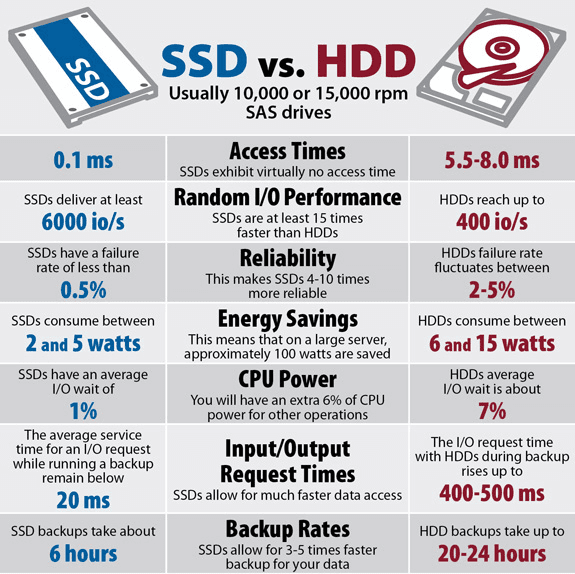
When storage becomes the bottleneck, timeline lag often appears intermittent, which makes it easy to mistake it for a software, reaction time, or rendering issue rather than a data delivery problem.
You can check out our detailed guide on how to set up your storage for a faster editing workflow.
4. Timeline structure and interactive overhead
Even high-end systems can struggle when the timeline is responsible for too much work at once.
Multicam edits are a good example of this. To keep angle switches instant, the editing engine may decode several streams in parallel, even when only one angle is visible at a time. With high-resolution or long-GOP footage, the decoding load increases quickly.
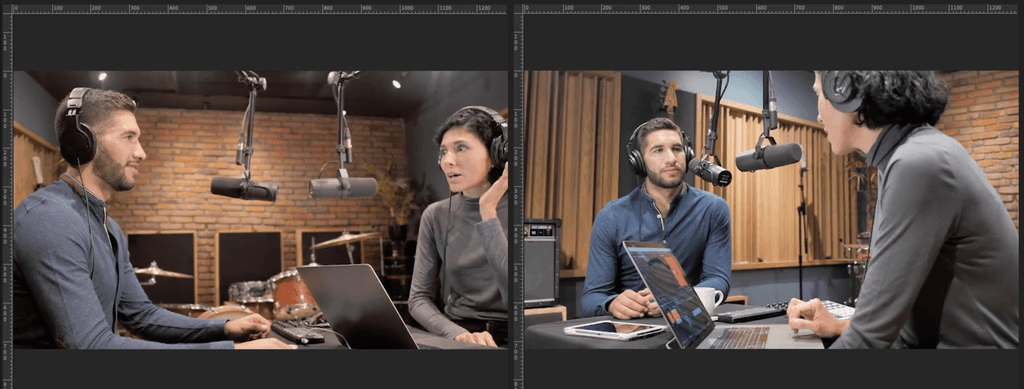
Effects layering adds to the load. Each stacked effect introduces additional per-frame processing, especially if the results are not cached and need to be evaluated during playback. Proxy workflows can reduce this cost, but only if the proxies are configured to lower decoding complexity. Some proxies shrink file size without improving playback performance.
Pro tip: To achieve smooth editing, switch your proxy mode to quarter resolution. If you are still seeing the red indicator on your render cache, check your timeline resolution and master settings to ensure they aren’t mismatched with your media pool.
Background tasks like audio analysis, waveform generation, and caption handling also consume resources while the timeline is active.
Automation-heavy workflows shift preparation out of the timeline. When footage reaches the edit, much of the complexity has already been removed.
Why does this happen across all video editing software?
Timeline lag is not tied to a specific editing application. It shows up in Adobe Premiere Pro, DaVinci Resolve, and Final Cut Pro for the same underlying reasons, even though each tool uses a different playback engine.
DaVinci Resolve timeline lagging, timeline lagging in Final Cut, and Premiere Pro timeline lagging (especially during playback for seemingly no reason) can all be avoided through similar workflow optimization.
For a deeper breakdown of DaVinci Resolve-specific causes, including variable frame rate media, GPU driver configuration, and third-party app interference, see the dedicated DaVinci Resolve timeline lag fix guide.
Silence removal upstream, before footage enters Resolve, also reduces timeline complexity; here's how to handle that automatically in DaVinci Resolve without a native plugin.
For editors editors evaluating which DaVinci Resolve plugins are worth installing and which add processing overhead, the 2026 DaVinci Resolve plugin breakdown includes performance notes on each.
For a deeper breakdown of Final Cut Pro-specific causes including variable frame rate iPhone footage, NAS storage lag, and macOS Tahoe compatibility issues, see the dedicated Final Cut Pro timeline lag fix guide.
For a deeper breakdown of Premiere Pro-specific causes including VFR media, version bugs, and H.264 codec overhead on AMD hardware, see the dedicated Premiere Pro timeline lag fix guide.
All three editors rely on the same fundamentals:
Media still has to be decoded in real time
Frames still have to be read from storage fast enough to maintain playback
Effects, color processing, audio, and interface updates still compete for system resources while the timeline is active
Differences in optimization can change how or when lag appears, but they do not remove these constraints. Switching software may change how the bottleneck presents itself, but it rarely removes the bottleneck entirely.
How modern workflows prevent timeline lag
Modern editing software avoids timeline lag by changing what the timeline is responsible for. Instead of forcing playback, analysis, and decision-making to happen at the same time, newer workflows move a lot of that work earlier in the process.
Syncing, filtering, cleanup, and basic segmentation happen up front, which means the timeline is no longer the place where raw media gets decoded and evaluated. When playback starts, the system is dealing with fewer unknowns, and that makes responsiveness much easier to maintain.
These workflows also reduce how much the software has to think about during editing. When timelines are built from prepared material instead of everything that was recorded, the editing engine spends less time updating metadata, recalculating state, or managing background analysis while you interact with it. With processing and preparation out of the way, playback becomes the time for making decisions.
Automation tools and AI-assisted editors support this model by handling preparation tasks upstream. Timeline lag becomes less likely, not because the system is faster, but because it is doing less when responsiveness is needed. However, choosing the right tool is just as important; tools like Autopod are popular but often contribute to NLE bloat. Native plugins like Premiere Assistant or standalone apps that handoff to NLEs like Selects are a lighter alternative for your editing efficiency.
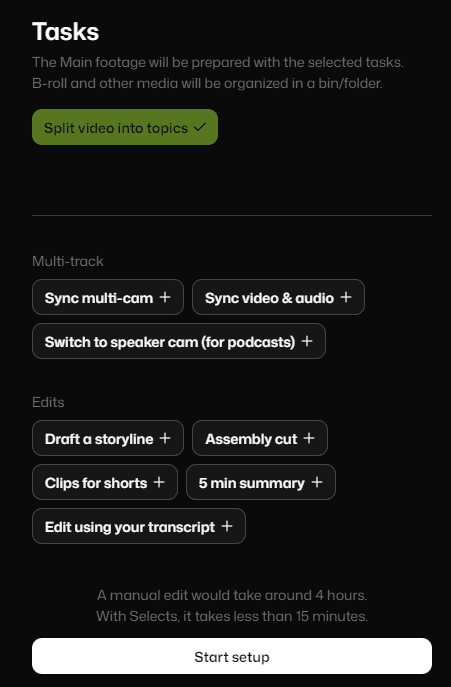
With Selects, tasks are handled upstream so they don’t compete for resources in the timeline.
When are hardware upgrades appropriate?
If hardware is usually not the cause of performance lag, the real question is, when does upgrading help? It only makes a difference when one part of the system is consistently pinned during playback. There are some signs that suggest a hardware investment might be needed:
CPU helps when decoding and timeline processing are staying maxed out.
GPU helps when lag shows up during color grading work or effect-heavy sections like transitions.
Storage helps when playback stalls because the media cannot be read fast enough.
What upgrades do not fix are heavy codecs or overloaded timelines. Timeline settings with optimized media are just as important as GPU processing. For example, heavy codecs like H.246 increase processing power demands, so using ProRes Proxy media editing workflows is better for the editing experience. Better hardware makes good workflows feel smoother and boosts editing efficiency, but it will expose weak ones.
For more video editing tips on optimal file management, project settings, and securing export quality, check out our complete technical video editing guide.
Workflows for a responsive timeline
Timeline lag is not some unavoidable side effect of modern video editing. And in most cases, it’s not a performance problem, but a workflow problem. If more of the prep work is handled upstream, there is simply less the timeline has to handle in real time.
Editors who put effort into preparation tend to move faster through an edit. Good preparation serves as a performance boost because editors spend less time waiting on the timeline and less time working around it. That advantage holds regardless of software choice or system specifications.
For more in-depth knowledge about the ins and outs of video editing, check out our latest posts on the Cutback blog or our YouTube channel.
Frequently Asked Questions (FAQs)
Q: Why is my timeline lagging in Premiere Pro, DaVinci Resolve, or Final Cut Pro?
A: Timeline lag across all three NLEs comes from the same root causes: your system cannot decode, stream, or render footage fast enough to match your input in real time. The four most common causes are codec complexity (H.264 and H.265 require the CPU to reconstruct most frames on the fly), insufficient RAM for the resolution and number of tracks you're running, slow storage throughput (HDDs and bandwidth-limited external drives cannot deliver frames fast enough), and GPU acceleration being disabled or misconfigured. Each cause has a specific fix, and switching NLEs rarely solves the problem because the underlying hardware constraints are identical across Premiere Pro, DaVinci Resolve, and Final Cut Pro.
Q: Why is my DaVinci Resolve timeline lagging?
A: The most common DaVinci Resolve-specific causes are variable frame rate (VFR) media being placed on the timeline without conversion, GPU driver configuration issues on Windows, and Resolve's processing mode being set to CPU rather than GPU in Preferences > Memory and GPU. High-resolution H.264 or H.265 footage without a proxy workflow will lag on almost any system due to long-GOP decoding overhead. Switching to Optimised Media (DaVinci's proxy format) or generating proxies in DNxHR LB resolves most lag for 4K and multicam projects. For a full breakdown of DaVinci Resolve-specific fixes, the dedicated DaVinci Resolve timeline lag guide covers every cause with step-by-step solutions.
Q: Why is my Premiere Pro timeline lagging?
A: The most common Premiere Pro causes are long-GOP H.264 or H.265 footage without proxies, GPU acceleration being set to Software Only rather than Mercury Playback Engine GPU Acceleration (check under File > Project Settings > General), an overloaded media cache (clear it under Edit > Preferences > Media Cache), and VFR footage from screen recordings or smartphone video. Creating proxies at 1/4 resolution eliminates most decoding overhead. A red render bar on the timeline means Premiere needs to pre-render those segments, pressing Enter to render the sequence resolves choppy playback on effects-heavy sections. Read the full Premiere Pro timeline lag guide for more information.
Q: Why is my Final Cut Pro video lagging?
A: Final Cut Pro lag is most commonly caused by H.264 or HEVC (H.265) footage without proxy or optimised media created, background rendering being disabled, or an overloaded library on a slow drive. Go to Final Cut Pro > Preferences > Playback and enable Background Render to let FCP pre-render complex sections automatically. For large projects, creating Proxy Media (File > Transcode Media > Create Proxy Media) in ProRes Proxy gives FCP significantly lighter files to decode during editing. Apple Silicon Macs handle HEVC decoding much better than Intel Macs, if you are on an older Intel machine, ProRes or Proxy Media is especially important. Read the full Final Cut Pro timeline lag guide for more information.
Q: What is a proxy workflow and how does it fix timeline lag?
A: A proxy workflow creates lower-resolution, easier-to-decode versions of your footage that the NLE uses during editing, while keeping the full-quality originals linked for export. Instead of decoding a 4K H.265 file in real time, the timeline decodes a much lighter ProRes Proxy or DNxHR LB file, which reduces CPU load dramatically and eliminates most lag. All three NLEs support proxy workflows natively: Premiere Pro via the Proxy Toggle in the Program Monitor, DaVinci Resolve via Optimised Media or linked proxies, and Final Cut Pro via File > Transcode Media. The key is choosing a proxy codec that actually reduces decoding complexity, proxies at the same codec as the original (just smaller file size) do not improve playback performance.
Q: Does adding more RAM fix timeline lag?
A: More RAM helps when RAM is actually the bottleneck, but it does not fix codec-level or storage-level lag. If your system runs out of RAM during playback, which you can see by Activity Monitor (Mac) or Task Manager (Windows) showing memory at 100%, adding RAM will help. If your RAM is not saturated but you are still lagging, the problem is codec decoding overhead or storage throughput, neither of which RAM addresses. Adobe recommends 32GB for 4K editing; DaVinci Resolve's recommended minimum is 16GB for 1080p and 32GB for 4K. For Apple Silicon Macs, unified memory is shared between CPU and GPU, 16GB unified memory on M3 handles most 4K projects well.
Q: How do I export a timeline from Final Cut Pro to DaVinci Resolve?
A: Export your sequence as an XML file from Final Cut Pro: go to File > Export XML and save it. In DaVinci Resolve, go to File > Import Timeline > Import AAF, EDL, XML and select the exported XML. DaVinci Resolve will reconstruct the timeline with all cuts, transitions, and audio tracks intact, though effects will need to be re-applied as FCP and Resolve use different effects architectures. Make sure all source media is accessible to Resolve at the same file paths as when the FCP project was created, or relink the media when Resolve prompts you. This workflow is commonly used by editors who cut in FCP and grade or finish in DaVinci Resolve.

Kay Sesoko
Marketer
Share post







