Premiere Pro Running Slow? Fix Timeline Lag Fast
Premiere Pro lagging on a fast PC or Mac? The cause is usually VFR footage, H.264 codec load, or a buggy version. Here are the fixes that actually work.
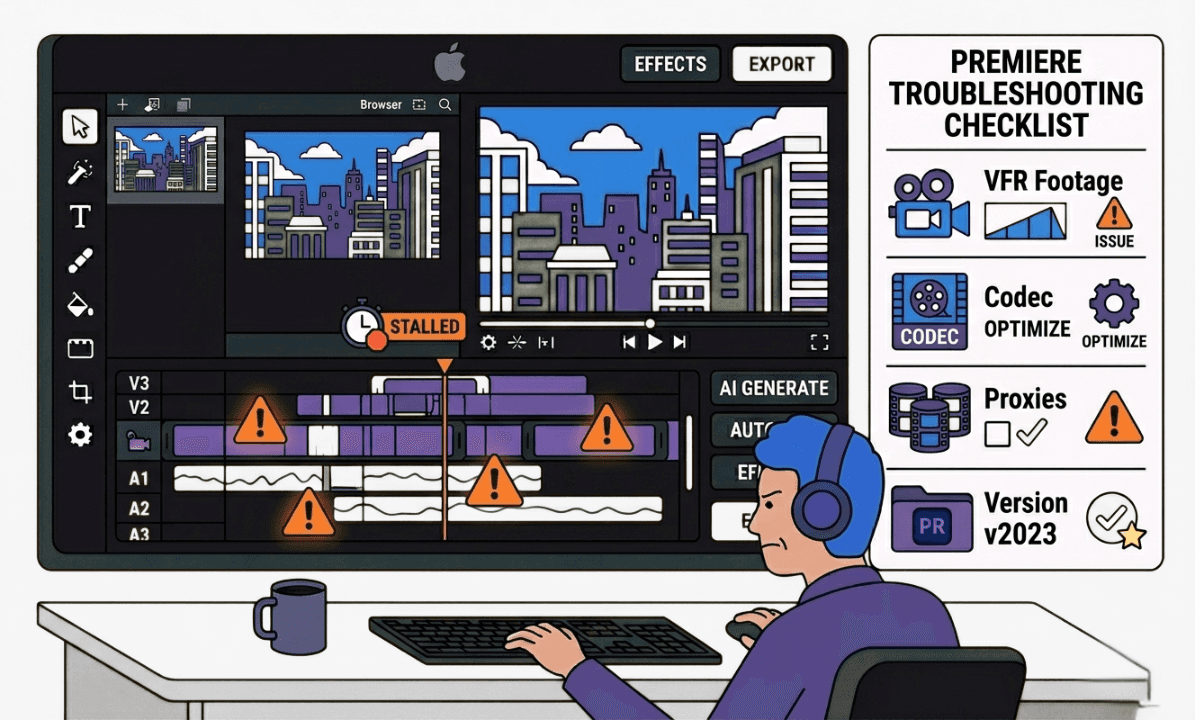
TLDR: Premiere Pro timeline lag on modern hardware is almost always caused by VFR media, H.264/H.265 codec overhead, or a version-specific bug, not your machine's specs.
Premiere Pro timeline lag is one of the most reported issues in the r/premiere community, and one of the most misdiagnosed. Editors on brand-new i7 12th Gen machines with RTX 4060s report 5-10 second pauses before playback. Editors with 64GB RAM report audio stuttering and full mouse freezes. In almost every case, the fix is not a hardware upgrade. Here's what's actually causing it and how to fix it. For a broader look at timeline lag across all three major NLEs, see the full guide to timeline lag in Premiere Pro, DaVinci Resolve, and Final Cut Pro.
For dedicated Final Cut playback lag issues or DaVinci Resolve timeline lag problems, check out the appropriate guides, as well.
The Most Common Cause: VFR Media from OBS, DJI, and Phones
Variable frame rate media is the single most common cause of Premiere Pro timeline lag that proxies alone won't fix. OBS records in VFR by default. DJI action cameras have had a known VFR issue for years. Smartphone footage from iPhone, Android, and GoPro is frequently VFR. Premiere Pro almost never displays a "Variable Frame Rate Detected" warning even when the footage is VFR, so editors rarely realize this is the problem.
The reason proxies don't fix VFR lag is that the proxies themselves are created from VFR source files, so the problem carries over. You have to fix the source footage first.
Fix: Transcode VFR footage to a constant frame rate before creating proxies or importing into your project. Shutter Encoder (free) handles this: import the file, select H.264 or ProRes 422 output, and check the "Force Constant Frame Rate" option. Once transcoded, the VFR issues disappear and playback is immediately smoother, often without proxies at all.
H.264 and H.265 Codec Overhead
MP4 and MKV containers are not inherently the problem, the codec inside them is. H.264 and H.265 use long-GOP compression, meaning most frames are not stored as complete images. Premiere Pro has to reconstruct frames from neighboring data during playback, which puts continuous decode pressure on the CPU. At 4K with 15+ timeline layers this becomes severe, particularly on AMD CPUs which lack Intel Quick Sync hardware decoding for H.264.
The symptoms here are distinct: playback lags most at the beginning of the timeline and improves toward the end (because the cache has time to build), audio stutters on playback, and the system freezes for 10-20 seconds on complex sections.
Fix: Create ProRes 422 or ProRes 422 LT proxies inside Premiere Pro: right-click your clips in the Project panel, select Proxy, then Create Proxies, and choose Apple ProRes 422 LT. Switch the viewer to Proxy in the top-right dropdown. On AMD systems especially, this reduces the decode burden significantly. Do not use H.264 proxies on AMD hardware, they will not solve the problem. If you're on a machine where ProRes is unavailable, DNxHR LB is the Windows equivalent.
Version-Specific Bugs in Premiere Pro 25 and 26.1 Beta
Premiere Pro versions 25.6.3 and the 26.1 Beta introduced a documented playback bug where hitting play after scrubbing to a new position causes a 5-10 second pause before the timeline plays. This affects editors regardless of footage type, sequence complexity, or hardware. The lag is more pronounced at the beginning of a timeline and improves closer to the end.
If your lag appeared suddenly after a Premiere Pro update and you were not experiencing it before, this is likely the cause.
Fix: Roll back to a stable version. In Adobe Creative Cloud, go to the Premiere Pro entry, click the three-dot menu, and select Other Versions. Version 25.5 and 25.4 have been confirmed stable by multiple editors in the r/premiere community. Avoid running beta versions for production work regardless of how compelling the new features are. If you must stay on the current version, clearing your media cache (Preferences → Media Cache → Delete) and cache files sometimes reduces the severity.
PNG and High-Resolution Image Files with Transform Effects
A less obvious but documented cause: large PNG files, particularly high-resolution screenshots and screen recordings, cause severe lag when the Transform effect is applied for motion or zoom. The issue is specific to Transform rather than the standard Motion controls, and it is a known Premiere Pro optimization limitation, the Transform effect only uses a single CPU core, making your other cores irrelevant regardless of how powerful your machine is.
The symptoms are extreme: audio stutters, the mouse freezes for 10-20 seconds, and the timeline becomes non-functional during playback. It presents on brand-new high-spec machines exactly as it does on older hardware.
Fix: For PNG files used for zoom or movement effects, avoid the Transform effect unless motion blur is essential. Use the standard Position and Scale controls in the Motion section of Effect Controls instead, these use GPU acceleration and handle large images without the single-core bottleneck. If you need motion blur specifically, the cleanest solution is to handle that section in After Effects via Dynamic Link.
When Proxies Are Not Helping
Editors frequently create proxies and find that playback is still lagging. The most common reasons:
The source footage is VFR. Proxies made from VFR media inherit the VFR problem. Fix the source footage first as described above, then regenerate proxies from the transcoded files.
The proxy codec is H.264. On AMD hardware especially, H.264 proxies do not offload enough decode burden. Switch to ProRes 422 LT or DNxHR LB proxies instead.
Playback quality is not set to use proxies. In the Viewer, confirm the dropdown shows "Proxy" not "Full Resolution." Having proxies created but not enabled is a common oversight.
16GB RAM is at capacity. Premiere Pro's minimum RAM is technically 16GB but in practice it runs out of headroom quickly on complex 4K timelines. Premiere uses RAM for cache, background rendering, and waveform generation simultaneously. If Activity Monitor or Task Manager shows RAM usage at 85-95%, the system is swapping to disk and no codec fix will restore smooth playback. 32GB is the practical minimum for professional Premiere Pro work.
Media Cache and Render File Corruption
Corrupted render files and overloaded media cache are a documented cause of intermittent lag that appears on otherwise clean projects. This is particularly common when upgrading Premiere versions, as older render files become incompatible with the new version's engine.
Fix: Delete all generated files: Edit (or Premiere Pro on Mac) → Preferences → Media Cache → Delete. Also delete render files directly from the timeline: Sequence → Delete Render Files → All. Let Premiere rebuild from scratch. This does not delete your source media.
When Hardware Actually Matters
Most Premiere Pro timeline lag is a workflow and codec problem, not a hardware problem. But there are two scenarios where an upgrade makes a genuine difference.
Read more in our guide on how to set up your storage for faster and smoother video editing, as well as the guide on the system requirements and best laptops for Premiere video editing.
If your CPU is consistently at 100% during 4K H.264 playback and you are already using ProRes proxies, an Intel CPU with Quick Sync hardware decoding will reduce decode overhead meaningfully. AMD Ryzen 5 3600-era chips particularly struggle with H.264 decode at 4K with multiple layers.
If your storage read speed is below 500 MB/s and you are editing from a mechanical drive or a slow external, storage is the bottleneck. Moving media to an NVMe SSD resolves this. The fix for storage-related lag always shows up as intermittent stuttering that is worse on footage-heavy sections.
Editors who move preparation upstream avoid most of this entirely. When footage arrives in Premiere as a pre-built, pre-organized timeline from a tool like Selects, the timeline is already structured and lighter, Premiere is refining an edit, not ingesting and decoding raw footage from scratch.
For a complete technical reference on storage setup, codec choice, and system configuration, see the technical video editing guide.
Frequently Asked Questions (FAQs)
Q: Why is Premiere Pro so laggy even on a powerful PC or Mac?
A: On modern hardware, Premiere Pro lag is almost always caused by variable frame rate media (from OBS, DJI, or smartphones), H.264/H.265 codec overhead during real-time decode, or a version-specific bug in Premiere 25.6.3 or the 26.1 Beta. Hardware specs are rarely the root cause. Diagnose the codec and footage type before considering any hardware changes.
Q: Why is Premiere Pro lagging after a recent update?
A: Premiere Pro versions 25.6.3 and 26.1 Beta introduced a documented playback bug causing 5-10 second pauses after scrubbing. Multiple editors confirmed that rolling back to version 25.5 or 25.4 (available via Creative Cloud under Other Versions) resolves it. Always avoid running beta versions for production work.
Q: Do proxies fix Premiere Pro timeline lag?
A: Proxies help when the bottleneck is codec complexity, but they do not fix variable frame rate media, and H.264 proxies on AMD hardware may not reduce lag sufficiently. Use ProRes 422 LT or DNxHR LB proxies rather than H.264, and fix VFR source footage before generating proxies. If proxies are enabled but lag persists, confirm the Viewer is set to Proxy and not Full Resolution.
Q: What is the best codec for Premiere Pro performance?
A: ProRes 422 or ProRes 422 LT for Mac, DNxHR LB for Windows. Both are editing-friendly codecs that decode with significantly less CPU overhead than H.264 or H.265. Transcoding long-GOP delivery formats to these before editing removes the most common source of timeline lag.
Q: How much RAM do I need for Premiere Pro without lag?
A: 16GB is the technical minimum but runs out of headroom quickly on complex 4K timelines. 32GB is the practical minimum for professional Premiere Pro work. If RAM usage is consistently above 85%, no codec fix will restore smooth playback, the system is swapping to disk.
Q: Why is Premiere Pro lagging with PNG images?
A: Large PNG files with the Transform effect applied cause severe lag because the Transform effect only uses a single CPU core regardless of how powerful your machine is. Use standard Motion controls (Position and Scale in Effect Controls) instead, which use GPU acceleration. For motion blur specifically, use Dynamic Link to After Effects.

Kay Sesoko
Marketer
Share post







