Final Cut Pro Timeline Lag: How to Fix It
Final Cut Pro lagging on M1, M2, or M3 Mac? The cause is usually VFR footage, NAS storage, or a macOS update. Here are the fixes that actually work.
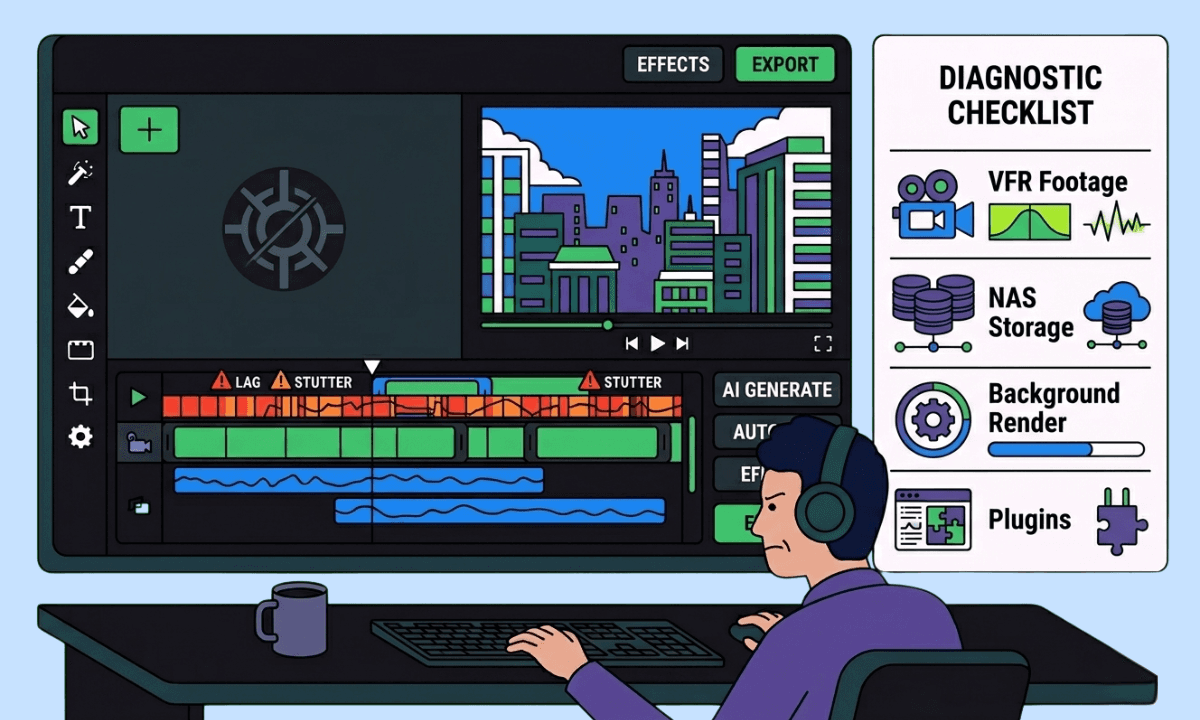
TLDR: Final Cut Pro timeline lag on modern Apple Silicon is almost never a hardware problem, it's usually variable frame rate iPhone footage, NAS storage, macOS Tahoe compatibility issues, or background rendering competing with playback.
Final Cut Pro timeline lag is one of the most reported issues on the r/finalcutpro community, and one of the most misdiagnosed. Editors on M3 Max MacBook Pros with 36GB RAM report scrubbing lag. Editors on M4 Mac Minis experience 3-4 second playback delays. In almost every case the hardware isn't the problem. Here's what actually is, and how to fix it. For a broader look at timeline lag across all three major NLEs, see the full guide to timeline lag in Premiere Pro, DaVinci Resolve, and Final Cut Pro.
Note: Adobe Premiere users dealing with the same issues have a separate dedicated fix guide. There's also a dedicated guide for DaVinci Resolve users dealing with timeline lag.
The Most Common Cause: Variable Frame Rate iPhone Footage
iPhone footage, especially vertical 1080p shot on iPhone 13 and later, is variable frame rate (VFR) by default. Final Cut Pro struggles with VFR media because each frame has inconsistent timing, which forces FCP to work harder to decode and display frames correctly during scrubbing and playback.
This is the single most common cause of lag on otherwise powerful Apple Silicon machines. Editors on M3 Max hardware with proxy media enabled still report scrubbing lag when their source footage is iPhone VFR.
Fix: Before importing iPhone footage, convert it to a constant frame rate. Use HandBrake (free) to remux to H.264 at a fixed frame rate, or use FCP's built-in transcode: right-click your clips in the browser → Transcode Media → Create Optimized Media (ProRes). Optimized media removes the VFR issue entirely and makes scrubbing immediately smoother.
NAS Storage Is Not for Editing
If you're editing from a NAS (Network Attached Storage) drive, even a fast one, that's likely your bottleneck. NAS drives introduce network latency that local SSDs don't have. Final Cut Pro needs to read frames fast enough to maintain playback, and NAS read speeds over a network connection frequently can't keep up, especially with 4K footage.
One of the most consistent fixes reported across the FCP community: move your active project media to a fast local USB-C SSD. The Samsung T7, or T9, are the standard recommendation. One editor reported going from 3-4 second playback delays to instant response simply by moving footage off a NAS to a local drive.
Fix: Edit from a fast USB-C SSD, not a NAS. Keep your NAS for archiving finished projects. Use the original cable that came with the drive; a cheap USB-C cable can throttle read speeds significantly, even on a fast drive.
macOS Tahoe Is Causing Lag on Some Systems
If your timeline was running fine before a macOS update and is now lagging, the update is likely the cause. Multiple editors on M1 Pro and M2 Pro machines reported that updating to macOS Tahoe introduced beach ball freezes and HEVC playback issues that weren't present on macOS Sequoia or Sonoma.
HEVC (H.265) footage in particular has been rough for some editors since the Tahoe update, even on short 3-minute timelines that previously played back without issues.
Fix: If you're on Tahoe and recently started experiencing lag, generate proxies as a temporary workaround while waiting for an FCP or macOS stability update. Turn off background rendering and background analysis while you're at it; these compete with playback and add unnecessary overhead on a system that's already under strain from the OS update.
Turn Off Background Rendering
Final Cut Pro renders in the background by default. On complex projects or lower-spec machines, this competes directly with timeline playback; FCP is trying to render and play back simultaneously, and one suffers.
Background rendering is one of the first things to disable when troubleshooting lag. It's counterintuitive because rendering is supposed to improve performance, but the background process itself causes stuttering while it's running.
Fix: Final Cut Pro → Preferences → Playback → uncheck Background Render. Manually render sections when you need smooth playback: select a range on the timeline → Control+Shift+R. This gives you control over when rendering happens rather than letting FCP decide.
Check Your Playback Quality Setting
Final Cut Pro has a playback quality setting that editors frequently overlook. If it's set to Better Quality, FCP decodes and displays full-resolution frames during playback, which is demanding on the system. Switching to Better Performance drops the preview resolution slightly during playback without affecting your final export.
This is a quick fix that immediately reduces the decode load, especially useful for 4K footage on machines with less headroom.
Fix: In the Viewer top-right dropdown → change from Better Quality to Better Performance. Your edit looks slightly softer while you work, but your export is unaffected.
Third-Party Plugins Are Killing Your Performance
Motion VFX plugins and other third-party effects are a documented cause of extreme lag in Final Cut Pro, dropping timelines to under 5fps and causing crashes every 10-15 minutes on otherwise capable machines. FCP's native effects run in real time. Many third-party Fusion-based or Motion-based plugins are not optimized to the same standard.
Fix: Use compound clips for heavy plugin sections. Right-click a section of the timeline with complex effects → New Compound Clip. This wraps the complexity into a single clip that FCP handles more efficiently. For sections you need to finalize, use Share → Export as ProRes → reimport the rendered clip and replace the compound clip with the rendered version. This is called a "baked" workflow and removes the real-time processing burden entirely.
If you're using MotionVFX specifically, test by disabling all MotionVFX plugins and checking whether lag disappears; if it does, the plugins are the cause rather than your system or footage.
When Hardware Actually Matters
Most FCP lag is a workflow problem, not a hardware problem. But if you've worked through all of the above and are still experiencing lag, there are two hardware scenarios where an upgrade genuinely helps:
RAM: 8GB unified memory on an M1 MacBook Air is genuinely insufficient for complex FCP projects. Swap memory (the 20GB+ swap usage reported by editors on 8GB machines) causes severe performance degradation. If you're on 8GB and doing multicam or effects-heavy work, 16GB is the minimum viable spec.
Storage: If your SSD read speed is below 500 MB/s, storage is the bottleneck. Test with Blackmagic Disk Speed Test (free on the App Store), if read speed is below this threshold, a faster drive will make a measurable difference.
For editors regularly working with long-form multicam footage, moving prep work upstream with a tool like Selects means Final Cut opens an organized, pre-built timeline rather than raw mixed-codec footage, which removes most playback burden before it starts.
Running footage through Selects upstream before import also reduces timeline complexity. Here's how that silence removal workflow works in Final Cut Pro, before your footage hits the FCP timeline.
For a complete reference on storage setup, codec choice, and system configuration for video editing, see the technical video editing guide.
FAQ
Q: Why is Final Cut Pro lagging on my M1, M2, or M3 Mac?
A: On Apple Silicon Macs, Final Cut Pro lag is almost always caused by variable frame rate iPhone footage, editing from a NAS drive, background rendering competing with playback, or a macOS update introducing compatibility issues, not insufficient hardware. Work through these causes before considering a hardware upgrade.
Q: Why is Final Cut Pro slow after updating to macOS Tahoe?
A: Multiple editors have reported HEVC playback issues and beach ball freezes appearing after updating to macOS Tahoe that weren't present on previous versions. As a workaround, generate proxies for your footage, disable background rendering and analysis, and wait for a stability update from Apple or FCP.
Q: Does Selects help with Final Cut Pro performance?
A: Yes, indirectly. Selects handles the pre-editing stage before you open Final Cut Pro, syncing footage, transcribing, removing silences, and building a structured rough cut, and exports a native Final Cut Pro project file. The timeline you open in FCP contains prepared, organized material rather than raw mixed-codec footage, which significantly reduces the real-time processing load during the edit.
Q: Should I use proxy media to fix Final Cut Pro lag?
A: Proxies help when the bottleneck is codec complexity, especially H.265/HEVC and variable frame rate iPhone footage. They don't fix lag caused by NAS storage latency, background rendering conflicts, third-party plugin overhead, or macOS compatibility issues. Diagnose the actual cause first, as proxies add a transcoding step that isn't always necessary on modern Apple Silicon hardware.

Kay Sesoko
Marketer
Share post







