Bad Pacing Is Killing Your Videos. Here’s How To Fix It With AI
Struggling with awkward pacing or choppy cuts? Learn how AI rough cut editing tools like Premiere Assistant can help you fix video pacing and improve overall flow by removing filler words, silences, and bad takes, automatically.
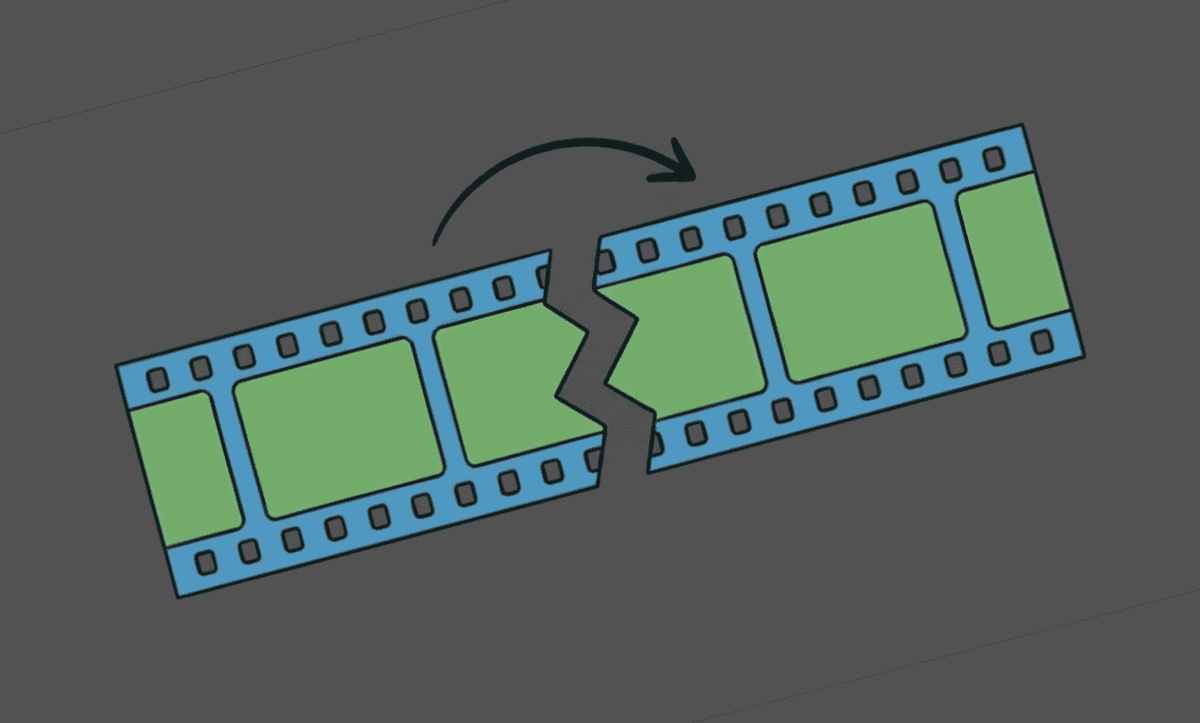
TLDR: Choppy video edits are caused by pacing problems, cuts that are too long, transitions that don't match energy, or dead air that breaks momentum, not by footage quality, and AI rough cuts fix pacing by removing the dead sections before the editor touches the timeline.
Creating a great video isn’t just about cutting footage; it’s about making those cuts feel seamless. The way you cut clips in Premiere Pro (or other NLEs) determines the quality of your video. If your edits feel jarring, out of rhythm, or simply "off," you're not alone. Many creators, marketers, and editors struggle with pacing and flow, especially when editing manually. Whether you’re stitching together multiple clips or trimming long interviews into Instagram Reels, awkward transitions can kill your video's engagement.
That’s where AI rough cut editing steps in.
In this guide, we’ll explore why your video edits feel choppy and how Premiere Assistant, an AI video editor that works as an Adobe Premiere plugin, helps smooth out your timeline, eliminate awkward cuts, and boost your content’s overall watchability. Whether you’re making a marketing video, a YouTube Short, or trying to repurpose content into multiple formats, these tips and tools can help.
The Video Editor Dilemma: “Why Do My Edits Feel Choppy?”
Choppy editing usually stems from inconsistent pacing, bad transitions, or poorly cut dialogue. Here are the top causes:
1. Poor Clip Timing
When cuts happen too early or too late, viewers subconsciously notice. Dialogue can feel rushed, and visual beats lose impact.
2. Manual Overload
If you're trimming footage by hand, you're likely missing micro-moments, tiny silences, or stutters that affect pacing. Even pros find it hard to maintain consistency across edits.
3. Too Many Hard Cuts
Hard cuts between drastically different shots or topics create cognitive friction. YouTube creators often overdo jump cuts, which can work for fast content, but only if the flow makes sense.
4. Mismatched Audio
Choppy audio can betray even a good visual edit. When audio levels clip or rhythm shifts unexpectedly, it causes a disconnect for viewers.
5. Lack of Structure
Without a clear script, storyline, or video content plan, it’s easy to stitch clips together in a way that doesn’t flow naturally. Make sure to stick to script-based editing to save hours in post-production.
How To Avoid Jump Cuts Using Premiere Assistants’ AI Rough Cut
Premiere Assistant is a video editing tool designed to simplify and improve your post-production workflow by allowing you to auto cut in Premiere Pro. It uses AI assistant editing and chat-based editing to turn long, messy timelines into clean, engaging cuts.
Here’s how:
Text-Based Video Editing
With video editing from text, Premiere Assistant transcribes your footage and lets you cut by clicking on the transcript. You can remove hesitations and filler words, remove retakes, remove pauses and silences, or even whole tangents, all without touching the timeline.
Auto Rough Cut Mode
This feature automatically detects filler words, repeated takes, and long silences, offering a smooth draft cut. It’s perfect for content repurposing tools or marketers who want to create polished cuts quickly.
AI-Powered Pacing Logic
Premiere Assistant understands how humans speak and watch videos. It removes unnecessary pauses and adjusts pacing so your cuts feel more natural.
Multicam Support
Trying to figure out how to make a video with multiple clips or edit interviews with several cameras? Premiere Assistant includes an edit multicam feature that intelligently switches between angles based on speakers, emotion, and flow.
Script Matching & Content Repurposing
Need to go from long video to short video AI style? Use Premiere Assistant to select sections of the transcript or let it create shortform from longform based on keywords or chapters. You can repurpose video content for Instagram Reels, TikTok, or other social media marketing posts in minutes.
Use Case: From Webinar to Shortform Clips
Let’s say you just recorded a 45-minute webinar. Instead of watching it back frame-by-frame, you use Premiere Assistant to:
Auto-transcribe the entire video.
Remove filler words and long pauses.
Use the "create shortform" command to instantly generate highlight clips.
Add animated captions.
Export to Instagram Reels, YouTube Shorts, or LinkedIn with correct dimensions.
What once took hours now takes minutes, enhancing not only your productivity but your editing experience, too. That’s the power of an AI video editor that knows how to repurpose content.
Why Smooth Playback Matters in Marketing Videos
Pacing isn’t just about aesthetics; based on editing theory, it directly affects engagement, retention, and even conversion rates.
Attention Grabbing: The first few seconds must flow to hook your audience. Poor flow = scroll away.
Retention: Clean pacing keeps people watching longer.
Trust: Seamless edits build brand credibility. Sloppy edits can make even good content feel amateur.
Whether you’re working on video content for social media, campaign content creation, or marketing videos, smooth pacing drives real results.
Tips for Creating Engaging Content That Doesn’t Feel Choppy
Here are a few editing strategies (with or without AI tools) to improve pacing and clarity:
Use a Script or Outline
Even a loose script outline or video content plan helps anchor your edits and maintain flow.
Cut on Action or Intention
Rather than random timepoints, cut where there’s natural momentum; this mimics the way the brain expects motion to continue.
Maintain Audio Continuity
Normalize audio levels and make sure dialogue overlaps or transitions naturally.
Use AI Where It Makes Sense
Let AI video editing tools handle the repetitive stuff, filler words, silences, and multiple takes, so you can focus on storytelling.
AI Tools Are Changing the Editing Game
You don’t need to be a full-time video editor to make engaging clips. Tools like Premiere Assistant act as your co-pilot, especially if you:
Run a content repurposing agency
Manage video for brand marketing
You are a solo creator looking for scalable workflows
Want to turn webinars, podcasts, or interviews into short-form content
Instead of asking “how do I make a video go viral,” focus on building repeatable systems using the right tools.
Final Thoughts
If your edits feel choppy, don’t just blame your footage. Choppiness is usually a pacing issue within your video editing flow, and pacing can be fixed. With tools like Premiere Assistant’s AI rough cuts, you get smarter editing suggestions, faster workflows, and better results.
Whether you're looking to repurpose YouTube videos, build out your social media video editing stack, or simply create more engaging video content, Premiere Assistant’s intelligent approach to editing can help you make content that flows and performs.
For more in-depth knowledge about the ins and outs of video editing, check out our latest posts on the Cutback blog or our YouTube channel.
Frequently Asked Questions (FAQs)
Q: What is pacing in video editing?
A: Pacing in video editing is the rhythm and speed at which information, action, or dialogue is delivered to the viewer, it is determined by the length of shots, the timing of cuts, the presence or absence of silence, and the density of content within a given time window. Good pacing makes a video feel purposeful and engaging even when it is slow; poor pacing makes it feel choppy or dragging regardless of how good the underlying footage is. It is one of the most invisible aspects of editing when done well and one of the most disruptive when done poorly.
Q: What is editorial pacing in video editing?
A: Editorial pacing refers specifically to the rhythm created by the sequence and timing of cuts, the editor's role in controlling how fast or slow the viewer moves through the story. It is distinct from performance pacing (how fast the subject speaks) or production pacing (how fast scenes were shot). An editor can take footage with slow delivery and cut it to feel energetic by removing dead air and tightening pauses; conversely, leaving too much space between cuts can make even fast-spoken content feel sluggish. AI rough cut tools like Premiere Assistant address editorial pacing by identifying and removing the silences, filler words, and repeated takes that flatten it.
Q: What causes choppy video edits?
A: Choppy edits most commonly come from one of five causes: cuts that happen too early or too late relative to natural speech or action rhythm, hard cuts between shots with mismatched audio levels, too many jump cuts without a clear structural purpose, dead air and filler words left in the timeline that break momentum, or a lack of underlying structure in the footage. The last two are the most common in talking-head and interview content and are also the most addressable with AI tools, Premiere Assistant's Auto Rough Cut automatically removes dead air, filler words, and repeated takes before the editor touches the timeline.
Q: What is the difference between fast-paced and slow-paced editing?
A: Fast-paced editing uses short shot durations, frequent cuts, and minimal silence, it creates energy, urgency, and momentum. It works well for action content, product reveals, highlight reels, and short-form social video where holding attention frame-to-frame is the primary goal. Slow-paced editing uses longer shots, more breathing room between cuts, and deliberate pauses, it creates space for emotional impact, contemplation, and narrative weight. The "right" pace depends entirely on the content's purpose and audience. Most interview, podcast, and tutorial content falls somewhere in between: tighter than a documentary but more spacious than a TikTok.
Q: How do you fix video pacing problems?
A: The most direct fix is removing what is slowing the edit down: silence between sentences, filler words, false starts, and repeated takes. These are the most common pacing killers in spoken-word content and they are also the most automatable. Premiere Assistant identifies them from the transcript and removes them before you start cutting, so your starting point is already tighter. Beyond removal, pacing is shaped by where cuts land relative to natural speech rhythm (cut on the last consonant of a word, not the silence after it) and whether your audio transitions smoothly across cuts.
Q: What is an example of good pacing in video editing?
A: A well-paced interview edit keeps the speaker's delivery feeling natural while silently removing the dead air and filler words that made the original footage feel loose, the viewer does not notice anything was cut. A well-paced short-form clip opens immediately on the highest-interest moment, delivers one clear idea without repetition, and ends before the viewer has a reason to leave. The Alex Hormozi short-form model is a widely studied example: the same podcast content is reclipped to remove all setup and context, leaving only the sentence-level insight and the emotional reaction, which creates the perception of relentless density even in a 30-second clip.
Q: What is the best AI tool for fixing video pacing?
A: For editors working in Premiere Pro, Premiere Assistant is the most direct solution, it removes silence, filler words, and repeated takes automatically as part of its Auto Rough Cut workflow, establishing correct pacing before the editor begins the creative pass. For editors who need pacing fixed before footage reaches any NLE, Selects handles the same upstream removal across multicam footage and exports a clean, pacing-corrected timeline to Premiere Pro, DaVinci Resolve, or Final Cut Pro. Both tools address pacing at the structural level rather than through effects or transitions.
Kay Sesoko
Marketer
Share post







